1
16
| CHAPTER 1
EXPLORING THE USER INTERFACE
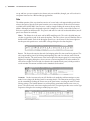
Figure 1.7
Additional Help
options
User Interface Control
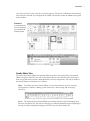
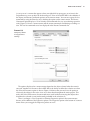
Many components of the Revit MEP 2011 user interface can be turned on or off for workflow efficiency or to maximize screen real estate. The User Interface button, located at the far right of the
View tab, allows you to select which user interface components are visible, as shown in Figure 1.8.
This is not only a way to display or remove interface components for more screen real estate
but is also a way to access the Recent Files screen, which cannot be accessed from the Switch
Windows drop-down button.
Figure 1.8
User Interface
button options
Menus and Settings
Some changes and new features are available for user interface settings and for context menus
when right-clicking. Along with options for file export, printing, and opening and saving files,
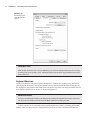
the Application menu has an Options button where you can access the settings to establish the
behavior of the interface as well as the location of directories and files used for working on projects. You access the Application menu by clicking the Revit logo button in the upper-left corner
of the user interface; the Options button is located in the lower-right corner of the menu, as
shown in Figure 1.9.