1
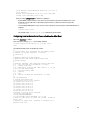
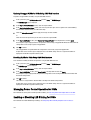
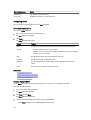
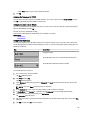
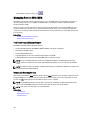
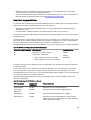
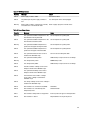
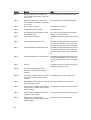
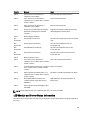
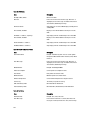
To modify the iDRAC Network Settings using the CMC Web interface: 1. In the system tree, go to Server Overview, and then click Setup → iDRAC. The Deploy iDRAC page is displayed. The iDRAC Network Settings section lists all installed server’s iDRAC IPv4 and IPv6 network configuration settings. 2. Modify the iDRAC network settings as required for the server(s). NOTE: You must select the Enable LAN option to specify the IPv4 or IPv6 settings. For information about the fields, see CMC Online Help. 3. To deploy the setting to iDRAC, click Apply iDRAC Network Settings. If you made changes to the QuickDeploy settings, they are also saved. The iDRAC Network Settings table reflects future network configuration settings; the values shown for installed servers may or may not be the same as the currently installed iDRAC network configuration settings. Click Refresh to update the iDRAC Deploy page with each installed iDRAC network configuration settings after changes are made. NOTE: Changes made to QuickDeploy fields are immediate, but changes made to one or more iDRAC server network configuration settings may require a couple of minutes to propagate from CMC to iDRAC. Clicking Refresh too soon may display only partially correct data for a one or more iDRAC servers. Modifying iDRAC Network Settings Using RACADM RACADM config or getconfig commands support the -m <module> option for the following configuration groups: • cfgLanNetworking • cfgIPv6LanNetworking • cfgRacTuning • cfgRemoteHosts • cfgSerial • cfgSessionManagement For more information on the property default values and ranges, see the RACADM Command Line Reference Guide for iDRAC7 and CMC. Configuring iDRAC VLAN Tag Settings VLANs are used to allow multiple virtual LANs to co-exist on the same physical network cable and to segregate the network traffic for security or load management purposes. When you enable the VLAN functionality, each network packet is assigned a VLAN tag. VLAN tags are chassis properties. They remain with the chassis even when a component is removed. Configuring iDRAC VLAN Tag Settings Using Web Interface To configure VLAN for server using the CMC Web interface: 1. Go to any of the following pages: – – 2. 104 In the system tree, go to Chassis Overview and click Network → VLAN. In the system tree, go to Chassis Overview → Server Overview and click Network → VLAN. The VLAN Tag Settings page is displayed. In the iDRAC section, enable VLAN for the server(s), set the priority and enter the ID. For more information about the fields, see the CMC Online Help.