1
•
•
•
•
•
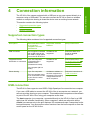
Advanced network security
Enhanced reliability
Network flexibility
Better performance
Shared Broadband Internet access
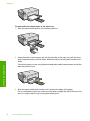
To set up the HP All-in-One on an integrated
wireless WLAN 802.11 network, you need to
do the following:
See this section:
First, collect all of the required materials.
“What you need for an integrated wireless
WLAN 802.11 network” on page 13
Next, install the software and connect the
HP All-in-One to the wireless router.
“Connect to an integrated wireless WLAN
802.11 network” on page 13
What you need for an integrated wireless WLAN 802.11 network
To connect the HP All-in-One to an integrated wireless WLAN 802.11 network, you will
need the following:
❑ A wireless 802.11 network that includes a wireless router or access point.
❑ A desktop computer or laptop with either wireless networking support, or a network
interface card (NIC). The computer must be connected to the wireless network that
you intend to install the HP All-in-One on.
❑ Broadband Internet access (recommended) such as cable or DSL.
If you connect the HP All-in-One on a wireless network that has Internet access, HP
recommends that you use a wireless router (access point or base station) that uses
Dynamic Host Configuration Protocol (DHCP).
❑ Network name (SSID).
❑ WEP key or WPA Passphrase (if needed).
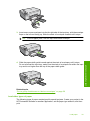
❑ A standard USB cable to connect temporarily for transferring wireless settings.
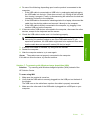
Connect to an integrated wireless WLAN 802.11 network
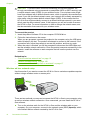
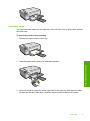
The HP Photosmart Software CD and included USB setup cable provide an easy way to
connect the HP All-in-One to your wireless network.
Network connection
13
Connection information
The advantages of a wireless infrastructure network as compared to an ad hoc network
include: