1
Palm™ Desktop software
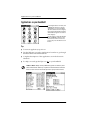
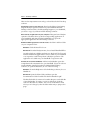
Here are four important reasons why you should use Palm™ Desktop
software:
Synchronize to keep your data safe. Develop
the habit of performing
frequent HotSync operations between your handheld and Palm
Desktop software. Then, should anything happen to your handheld,
you have a copy of your data in Palm Desktop software.
Enter data in an application on your computer. Then perform a HotSync
operation. The data shows up in the corresponding application on
your handheld, and data from the handheld shows up in the
appropriate application in Palm Desktop software.
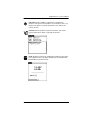
Download Palm applications from the web
to the Palm\Add-on folder
on your computer. Then:
Windows. Click
the Install Tool icon.
Macintosh. From the HotSync menu, choose Install Handheld Files.
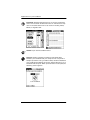
On either platform, add the application to the Install Tool list and
indicate whether the application is to be loaded on your handheld
or an expansion card. Then perform a HotSync operation. The
application is loaded onto your handheld or expansion card.
Consult the electronic Handbook. Adobe Acrobat Reader opens the
comprehensive documentation for your handheld. (If you do not have
Acrobat Reader, install it from the CD labeled Palm Desktop
software.) To open the Handbook, do one of the following:
From the Help menu of Palm Desktop software, choose
Handbook.
Windows.
Macintosh. Open the Palm folder, and then open the
Documentation folder. Double-click the file Handbook.pdf.
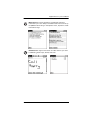
The Handbook table of contents is located in the pane on the left side
of Acrobat Reader. To jump to a section of the book, click the
section in the table of contents. You can also click Index to find
what you’re looking for; then click the index entry to jump to the
page.
14