1
12
6 DATA SYNCHRONIZATION
To share information between your 100WT10P and your PC/Laptop, you need to establish a direct PC con
nection.
There are two ways to make direct connection. One way is through USB interface; the other is IR transmis
sion.
To start a connection to a host PC, you need to start the ActiveSync application. ActiveSync is installed in
your 100WT10P when shipped. Before set up a connection to your host PC, you also need install ActiveSync
3.7 (or higher) on the host PC.To download this freeware, go tohttp://www.microsoft.com and search for
ActiveSync download.
6.1 USB
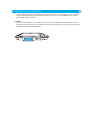
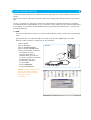
You can use USB cable to connect to a host PC. A Mini USB B to A cable is used as the synchronization
cable.
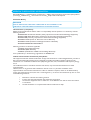
Figure A illustrates use of the Mini USB B to A cable. It connects the 100WT10P to a host PC.
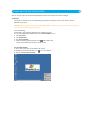
When the cable connection is ready, setup for PC connection:
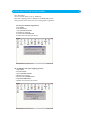
1.Tap on START
2.Tap on SETTINGS
3.Tap on CONTROL PANEL
4.Tap on the PC CONNECTION
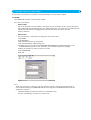
5. Check the box: Allow connection
with desktop or laptop
computer when device is
attached. (When you first start
the system, the default connection
is USB to PC).Then start
the ActiveSync application
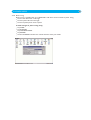
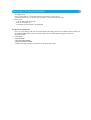
1.Tap on START
2.Tap on PROGRAM
3.Tap on ACTIVESYNC
NOTE: To restart ActiveSync after
it has been stopped, unplug the
USB cable from the host PC and
then plug it in again.
see Fiture A
Fiture A