1
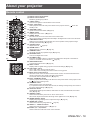
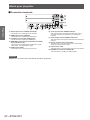
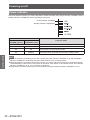
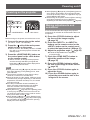
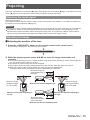
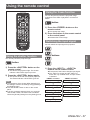
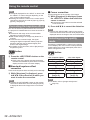
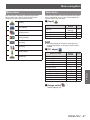
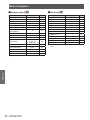
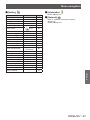
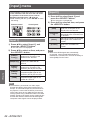
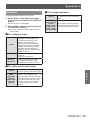
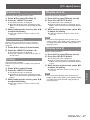
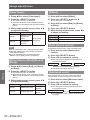
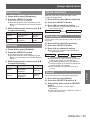
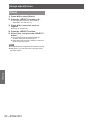
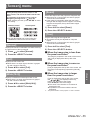
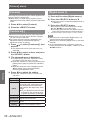
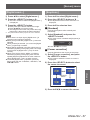
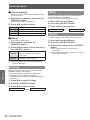
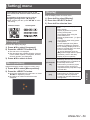
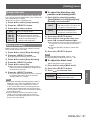
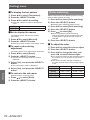
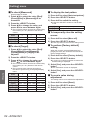
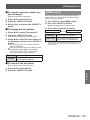
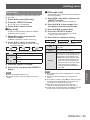
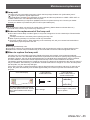
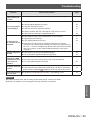
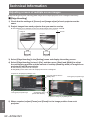
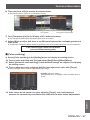
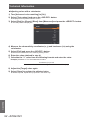
Using the remote control Adjusting picture quality Pressing the <IMAGE ADJUST> button on the remote control displays the [Image adjust] menu. button 1) Press the <IMAGE ADJUST> button on the remote control. 2) Press ▲▼ to select an item, and press the <SELECT> button. Displaying a timer for presentations When you press the <P-TIMER> button on the remote control, the projector displays either a count of the time elapsed from the press of the button or a countdown. Pressing the <P-TIMER> button again stops the count and displays the elapsed time up to that point. Pressing the <P-TIMER> button again restarts the count. button zzThe adjustment menu is displayed. Note zzFor details, refer to “[Image adjust] menu” ( page 50). Screen button You can change the setting of the [Screen] menu. Note zzFor details, refer to [P-timer] ( page 73). zzPressing the button for at least three seconds resets the time. The count up is returned to “000:00” and the countdown is returned to the time set on the timer. Checking the settings You can check the status of signals and the lamp on the screen during projection. button button Pressing the <SCREEN> button on the remote control displays the currently selected [Screen] menu, then each subsequent press of the button changes the mode. <For computer input> [Normal] <For video input> [Normal] [Full] [Full] [Wide(16:9)] [Wide(16:9)] [Zoom] [Zoom] [True] [Custom] Pressing the <INFO.> button on the remote control displays the first page of the information. Pressing the <INFO.> button again displays the second page of the information. Pressing the <INFO.> button closes the information. Note zzFor details, refer to “[Information] menu” ( page 75). zzTo move from the information to another menu, press ▲▼ . zzThere is also the <INFORMATION> button on the control panel. [Custom] Note zzFor details, refer to “[Screen] menu” ( page 55). zzIf you press and hold the button for at least five seconds, the settings of the [Screen] menu will return to the factory default settings. ENGLISH - 39 Basic Operation 3) Press ▲▼ to select the item to adjust, and then press ◀▶ to change the setting.