1
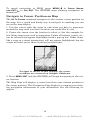
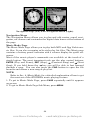
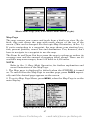
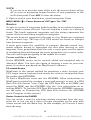
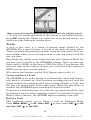
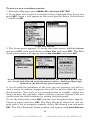
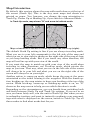
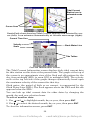
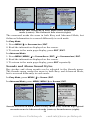
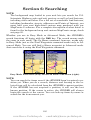
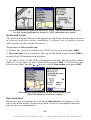
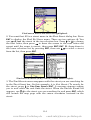
pears, connecting your current position to the cursor's location. Press
ENT to set the first point and the rubber band line disappears.
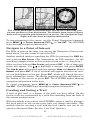
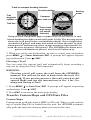
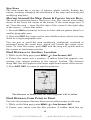
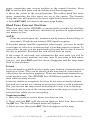
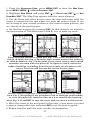
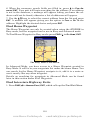
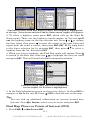
3. Move the cursor to the second position. The rubber band line reappears, connecting the first point you set to the cursor. The distance
along that line will appear in the lower right-hand corner of the screen.
4. Press EXIT|EXIT to return to the main page display.
Find Your Current Position
When you turn on the iFINDER, it automatically searches for satellites
and under clear sky conditions, calculates its position in approximately
one minute or less.
NOTE:
Clear sky means open sky, unobstructed by terrain, dense foliage or
structures. Clouds do not restrict GPS signal reception.
If for some reason satellite acquisition takes longer, you may be inside
a structure or vehicle or in terrain that is blocking signal reception. To
correct this, be sure you are positioned so the unit has as clear a view of
the sky as possible, then turn the unit off and back on again.
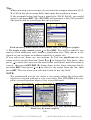
If the cursor is activated, any information the unit gives you will be
based on the cursor position, not your own. If you want to find where
you are, just press EXIT until the cursor disappears and the map snaps
back to your position.
Icons
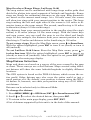
Icons are graphic symbols used to mark some location, personal point of
interest or event. They can be placed on the map screen, saved and recalled later for navigation purposes. These are sometimes referred to as
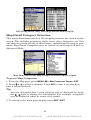
event marker icons. The iFINDER has 42 different symbols to choose
from when creating an icon.
Icons are similar to waypoints, but they do not store as much information and you can not use a menu to navigate to icons as with waypoints.
But, you can use the map cursor and navigate to any icon on the map.
You can create an icon at the cursor position on the map or at your current position, while you are navigating.
Create Icon on Map
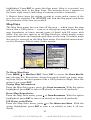
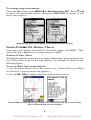
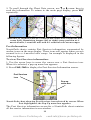
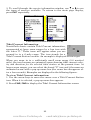
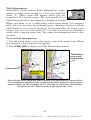
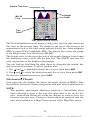
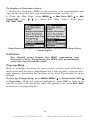
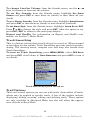
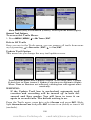
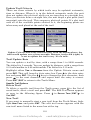
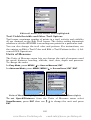
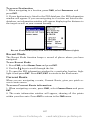
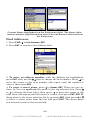
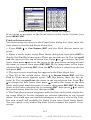
1. Move the cursor to a place where you want an icon.
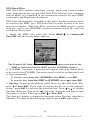
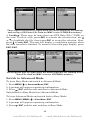
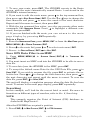
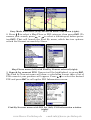
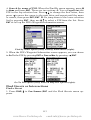
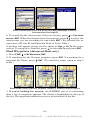
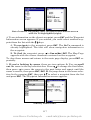
2. Press and hold ENT until the screen displays Save Icon, then release
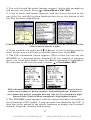
the ENT key. The Select Symbol menu will appear.
3. Select an icon, then press ENT. The icon appears on the map.
49
www.Busse-Yachtshop.de
email: info@busse-yachtshop.de