1
DYABOLA - User Manual
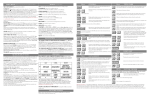
3.2 The Quick Search Menu
Direct result
Key-word search
Pre-linked search
The Quick search menu is easiest to reach via the Main menu. However, it also appears as a
starting point when the program is started. Move the cursor to the desired item with "Arrow
up/down" and select by pressing "Enter". The items of the menu vary from database to database.
The fundamental types of function are explained here:
Direct pre-defined result
siehe 3.5
If a title card appears in the Quick search menu directly after you have selected an item, this is a pre-defined result.
It can be used to get to a certain point in the database tree quickly, e.g. to the list of journals, or to link different
titles in the database tree that would take a long time to link under normal circumstances, e.g. the inventories of a
museum collection.
1. Follow the explanations in section 3.5 (Title card)
top
Key-word search
siehe 3.5
1. Key-word
A key-word search in the Quick search menu can be both a reference to an individual heading with a key-word list in
the classifier tree or a title text list, and a compilation of several such lists.
1. In the key-word list, position the cursor either with the first letter of the desired key-word (pay attention to
upper/lower case) or with "Arrow up/down". You can mark several key-words in the list by pressing "Left
shift+Arrow up/down". Either start the search by pressing "Enter" or form a result over the entire key-word list by
pressing "Escape".
2. Follow the explanations in section 3.5 (Title card)
top
Pre-combined search
siehe 3.5
1. Key-word
In principle, this item combines two searches in one step. In the process, a certain reference to selected titles is
sought. A typical example is the search for a "Book according to Author". Here, you first select the author(s) from
the key-word list and then receive all appropriate books as a result. For the user, the procedure is equivalent to that
of the key-word search
1. In the key-word list, position the cursor either with the first letter of the desired key-word (pay attention to
upper/lower case) or with "Arrow up/down". You can mark several key-words in the list by pressing "Left
shift+Arrow up/down". Either start the search by pressing "Enter" or form a result over the entire key-word list by
pressing "Escape".
2. Follow the explanations in section 3.5 (Title card)
top