1
User's Guide 3.6 US.QXD 3/11/99 3:58 PM Page 126
126
3.2 How to use George
3.2 HOW TO USE GEORGE
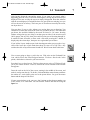
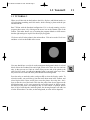
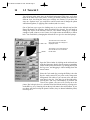
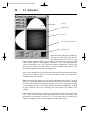
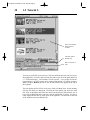
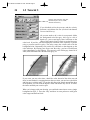
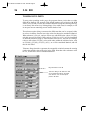
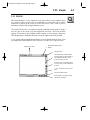
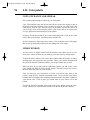
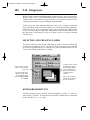
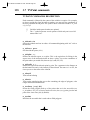
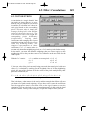
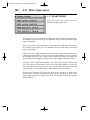
Click with the right mouse button on the icon that depicts a pilot’s cap in the main
toolbox. A window appears showing ten command lines. These let you pre-select
ten functions that can be executed at the touch of a button. Usually, a command
line will contain the name of a program that George should run, but it can also
contains the name of an executable file (for example, on Windows based systems, a
command like “command.com” or “winfile.exe”).
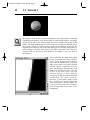
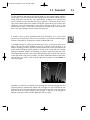
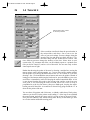
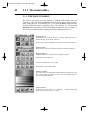
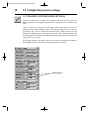
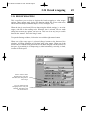
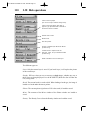
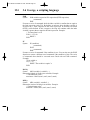
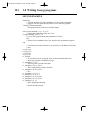
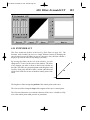
Com m and l
ine #1.H ere,it
cont
ains a G eorge program
t
hatis l
aunched by draw ing a
circl
e (see t
he circl
e sy m bolat
t
he right
).
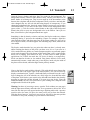
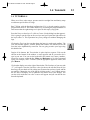
Com m and l
ine t
hatcont
ains a
non-G eorge program w hich is
l
aunched by pressing Shift
and t
he funct
ion key t
hat
corresponds t
ot
he com m and
l
ine num ber.
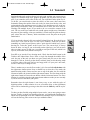
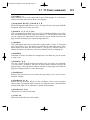
Each program can be launched in two ways: with or without parameters.
Without parameters, the program is launched by pressing Shift and the function
key that corresponds to the command line number (F1 for command line 1, F2 for
command line 2, etc.) and the program runs immediately.
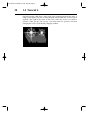
With parameters, launching the program is not enough; the program waits for you
to give it certain parameters by drawing in the page. Draw a circle, for example,
and George receives 3 values that are the coordinates (x,y) and the radius of the
circle. Until you click in the screen to draw a circle, the program just waits.
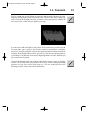
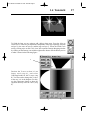
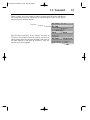
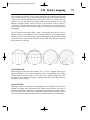
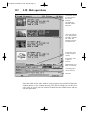
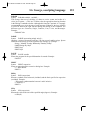
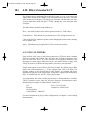
There are 6 different launch parameter modes. Each mode represents a drawing
function. The launch parameter mode used by a command is shown by a little
symbol to the right of the command line.