1
Arena Group
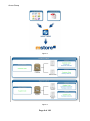
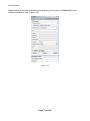
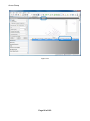
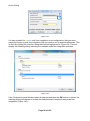
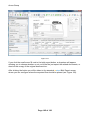
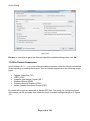
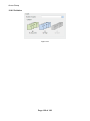
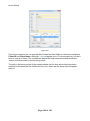
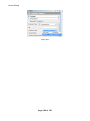
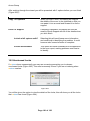
Figure 91
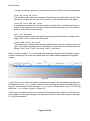
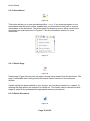
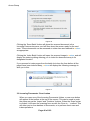
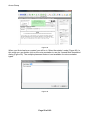
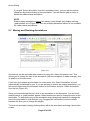
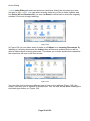
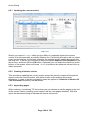
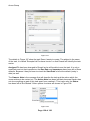
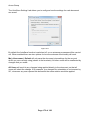
If you select any of the other imaging tools (‘Select Area’, ‘Pan’ or ‘Zoom Area’), hovering
over the note on the document will display a popup summary of the note’s contents
(Figure 91). To close the summary window immediately you can click the ‘X’ button in its
top-right corner. The window will automatically close itself after a few seconds if you move
the mouse away from it. Hovering over a note annotation will re-display the summary
window.
5.5 Using the ‘Block-Out’ Annotation
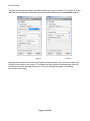
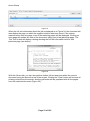
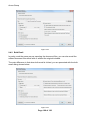
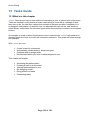
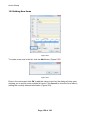
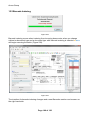
Figure 92
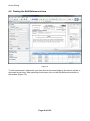
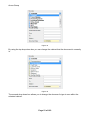
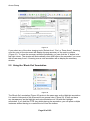
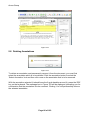
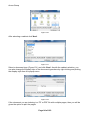
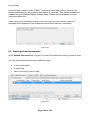
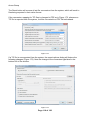
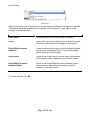
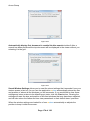
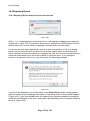
The ‘Block-Out’ annotation (Figure 92) works in the same way as the Highlight annotation.
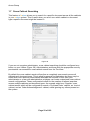
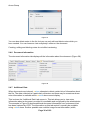
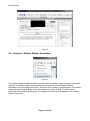
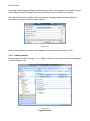
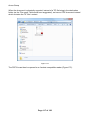
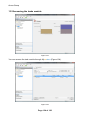
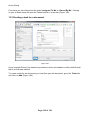
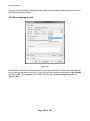
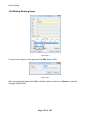
It is used to hide parts of the document from general view (Figure 93). It does not have
any transparency as the highlight and note annotations do. As with the Highlight
annotation, if you hold the CTRL key whilst placing the annotation, you can place multiple
instances without having to re-select the tool from the toolbar.
Page 60 of 183