1
Installing Sprint PDA
Sprint PDA
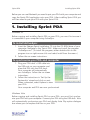
To copy the Sprint PDA application on to the PDA
1. On your computer navigate to the
'Sprint PDA' folder on the Telegan Sprint
Installation CD. Copy the 'SprintCab.cab'
file to the 'Personal' folder on the PDA.
(If you have closed the 'Explorer' window
opened in step 2 above, look for the
Microsoft ActiveSync icon on the taskbar
to open an Explorer window.)
To install Sprint PDA
1. Using the PDA tap on Start>Programs and then tap on the File Explorer
icon.
2. Using the File Explorer navigation bar, navigate to My Device>My
Documents>Personal folder and locate the 'SprintCab' file.
3. To install Sprint PDA tap on the file 'SprintCab' to begin installation.
(Note: If asked to confirm a removal and reinstallation tap on OK. If
asked to verify security tap on OK.)
4. If a 'Installation complete' message is displayed, click on OK.
5. The 'SprintCab' file can now be deleted. Tap and hold the file 'SprintCab',
from the pop-up menu select Delete. Tap on OK to confirm deletion.
You have now completed the installation of your Sprint PDA application
onto your PDA.
To create a shortcut to the Sprint PDA application
1. Tap on Start>Programs>File Explorer and use the navigation bar to
tap on My Device. From My Device tap and navigate to Program
Files>SprintCab folder.
2. Tap and hold on the file 'Sprint' and tap on Copy from the pop-up menu.
3. Using the File Explorer navigation bar, tap on My Device then tap on
Windows>Start Menu>Programs.
4. Tap and hold on the white space on the screen, from the pop-up menu
tap on Paste Shortcut.
5. To rename the shortcut, tap and hold on the file 'Shortcut to Sprint'
and tap on the menu item Rename.
6. Rename the shortcut as something like 'Sprint' and close File Explorer.
8. To run Sprint PDA from the shortcut, tap on Start>Sprint.
(Or the shortcut name given in 6 above).