1
BIXOLON SAMSUNG
USB & LPT
Device Driver
Installation Manual
Printer Model
SRP -350/SRP-370
SRP-372/SRP-270
SRP-275/SRP-280
SRP-500/SRP-350F
SRP-350plus
COPYRIGHT BY BIXOLON CORP. 2005~2006
2006-07-07
Contents
1. Foreword …
2
2. Operating Environment …
2
3. Installing the USB Device Driver …
3.1
Windows 98/ME …
3.2
Windows 2000 …
3.2
Windows XP/2003 …
USB Device Driver Installation Manual
3
3
7
10
-1-
1. Foreword
When interface of printer is USB type or “Add new hardware wizard” is pop-up from LPT
PnP(plug-and-play), This manual explains how to install the Windows Driver.
2. Operating Environment
-
Microsoft Windows 98 Gold
Microsoft Windows 98 Second Edition
Microsoft Windows Millennium Edition
Microsoft Windows 2000
Microsoft Windows XP
Microsoft Windows 2003 Server
Microsoft Windows Embedded For Point Of Service
USB Device Driver Installation Manual
-2-
3. Installing the USB Device Driver
3.1 Windows 98/ME
(1) Double click Installer file.
(2) Click “Next” Button.
USB Device Driver Installation Manual
-3-
(3) Click “Install” Button.
USB Device Driver Installation Manual
-4-
(4) Select “USB” interface(port) type.
(5) After restarted, turn-on printer.
USB Device Driver Installation Manual
-5-
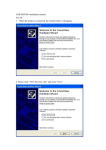
(6) If “Add new hardware wizard” for install “USB print support” driver is pop-up,
click “Next” button.
(7) Please click “Next” button three times.
(8) When “USB print support” driver has installed, your system automatically restart after
10 seconds.
(9) After “USB print support” driver has installed, printer driver automatically has installed.
USB Device Driver Installation Manual
-6-
3.2 Windows 2000
(1) Double click Installer file.
(2) Click “Next” Button.
USB Device Driver Installation Manual
-7-
(3) Click “Install” Button.
(4) Select “USB” interface(port) type.
(5) Please turn-off printer and turn-on printer.
USB Device Driver Installation Manual
-8-
*If you can see this dialog, don’t worry comment of dialog.
Printer and driver works well. Please click “Yes” button.
USB Device Driver Installation Manual
-9-
3.3 Windows XP
(1) Double click Installer file.
(2) Click “Next” Button.
USB Device Driver Installation Manual
- 10 -
(3) Click “Install” Button.
(4) Select “USB” interface(port) type.
(5) Please turn-off printer and turn-on printer.
USB Device Driver Installation Manual
- 11 -
*If you can see this dialog, don’t worry comment of dialog.
Printer and driver works well. Please click “Continue Anyway” button.
USB Device Driver Installation Manual
- 12 -
(6) If “Add new hardware wizard” for install driver is pop-up,
click “Next” button.
USB Device Driver Installation Manual
- 13 -
(7) Please click “Next” button until you can see “Finish” button.
*If you can see this dialog, don’t worry comment of dialog.
Printer and driver works well. Please click “Continue Anyway” button.
USB Device Driver Installation Manual
- 14 -
(8) Please click “Finish” button.
USB Device Driver Installation Manual
- 15 -