1
Setting LED Colours
The LEDs that illuminate the buttons on the SceneStyle4 have two states.
1. They may be set to one of seven colours when they are brightly lit, indicating that a
scene or circuit has been selected
2. They may be set to be either off, or illuminated with a dim colour when they are
indicating that a button is not selected i.e. a backlit colour.
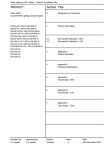
1) Hold down the ∆ and
buttons for 5 seconds.
LEDs show the seven available bright colours.
2) *Press a button to program your
colour choice for a bright colour
to indicate the selected scene.
LEDs show the seven available dim colours and off.
3) Press a button to program your backlight colour.
sales@modelighting.com
Page 11
The fault detection indication can be recalled to display any faults that have not been
rectified. To do this, hold down buttons 1 & 4 until all LEDs flash red/orange. When
both buttons are released, any outstanding faults will be indicated by the LED corresponding to the circuit alternately flashing red/orange.
If the SceneStyle 4 has not been able to restart the circuit, then the flashing LED indication of the fault will occur once only per detected fault but the SceneStyle 4 will
attempt to restart the shutdown channel each time a scene is selected (Either from one
of the six scene buttons on the plate or by the infra red handset).
If the fault condition prevents the circuit from automatically restarting the LED for the
button corresponding to that circuit will flash alternately red and orange until another
scene is selected. SceneStyle4 will attempt to restart the shutdown circuit each time a
scene is selected using either the plate scene buttons or the infra red handset.
If the fault condition was only momentary, for example if a GU10 lamp had blown then
SceneStyle will detect this state, and will automatically try to restart the circuit.
If a circuit is overloaded (i.e. if too many bulbs are connected to that circuit), short-circuited or open-circuited, then it will automatically shut down. This does not affect the
other circuits connected to the SceneStyle unit.
The SceneStyle4 contains advanced fault-detection and automatic shut-down circuitry.
Blown Bulbs, Short Circuits and Shut-Down
During this Step the bottom right hand button resets the LEDs to the factory default
colours, which are:
ON scene:
Green
OFF scene:
Red
For scenes 1 to 4 a bright blue LED indicates the scene is currently selected, whilst
other LEDs are lit in dim-blue.
*Factory Default Colours
∆
Fitting the Front Fascia Plate
The fascia plate must be fitted prior to switching on the mains power. Normally the
fitting of the fascia would be delayed until after the wall has been painted and other
non-clean building tasks have been completed.
To fit the fascia, align the left-hand side first,
clipping it onto the side of the plate.
Ensure that all of the buttons are able to fit
through the holes. You may need to wiggle
them slightly to ensure that they do not get
trapped behind the fascia.
Firmly press the top right corner and then the
bottom-right corner of the fascia until it clicks
into place.
Check that all of the buttons are freely protruding
through the holes in the fascia.
Removing the Front Fascia Plate
A fascia plate may be removed by inserting a
4mm flat-head screwdriver under the tab that
protrudes from the bottom right corner of the
plate, and performing a quarter turn twisting
action.
Be ready to restrain the fascia as it detaches
from the false-plate to avoid damage in
dropping it.
TIP / ADVANCED FEATURE
www.scenestyle.co.uk
Circuits may be excluded from a scene so that when that scene is recalled the
excluded circuit stays at its current level. For example, in your living room: if the
circuit was connected to a standard lamp you could control it using the SceneStyle
without affecting the levels of the ceiling/wall lights in the room, however the OFF
( ) scene would still be able to control all lights.
By default all circuits are included in all scenes.
Page 6
‘The Stylish way to Control your Lighting’
www.scenestyle.co.uk