1
7. Configuring TIS-Web Automatic Upload
Condition
To use the TIS-Web automatic upload service application you must have a TIS-Web account and the
account must have been configured to accept data from the upload service.
Caution
With the Windows Vista operating system note that you can only start TIS-Web Automatic Upload
• by double-clicking on the icon on the desktop or
via [Start] > All Programs > TIS-Web > TIS-Web Automatic Upload
or
• only via “Run as administrator”.
In this case the application creates a separate database for administrator access.
7.1. To set up the application for automatic data transfer
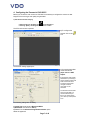
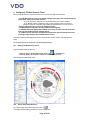
1) Start TIS-Web Automatic Upload by
– Double-clicking on the TIS-Web Automatic Upload icon
on the desktop or
– Selecting “[Start] > All Programs > TIS-Web > TIS-Web Automatic Upload”.
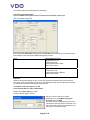
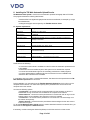
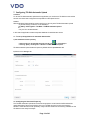
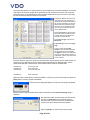
TIS-Web Automatic Upload starts and opens by default with the Uploaded Files tab.
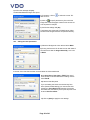
2) Switch to the “Settings” tab.
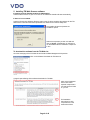
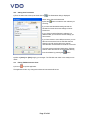
7.2. Configuring the Download Frequency
The TIS-Web Automatic Upload service serves two purposes. At set intervals it will download the
master data (Sites, Drivers and Vehicles) from your TIS-Web account for use in the Scanning
software. At the same time it will upload any newly scanned charts from the scanning software into the
TIS-Web account ready for analysis.
Page 14 of 40