1
Running searches
Searching for objects
Searching for objects
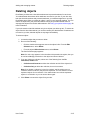
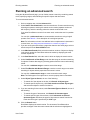
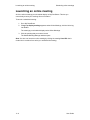
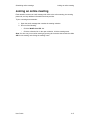
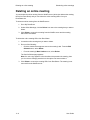
The navigation bar provides a search area that lets you quickly search for objects and
content. You do not need to be logged into DocuShare to run a search.
To run a quick search:
1. On the navigation bar, enter a word or phrase in the Search field. If you want to
find objects that include any one of several words, separate each word with a
comma.
DocuShare searches are not case-sensitive. You can exclude common words
such as from, it, and where.
Note: You can combine search words using the logical operators AND, NOT, and
OR. Type the operator in uppercase letters and type a plus sign (+) before and
after the operator instead of a space (for example, fruits+AND+vegetables;
fruits+AND+vegetables+NOT+produce).
2. If you are running the search from a page other than the site home page, select a
search scope from the In menu.
3. Click Search.
DocuShare displays the search results. For documents, DocuShare either
provides a snippet of the document content with the search term highlighted or
displays the document’s abstract if the search term is not found in the content.
You can click the Show/Hide Details link to control this display.
If you searched all federated sites, DocuShare displays the search results from
the site on which you ran the search. To display the results from the other sites in
the federation, click each site name under Select a Federation Site.
User Guide
9–3