1
GRAPHICAL WEB TIMETABLES – USER GUIDE
4.
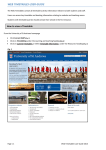
Select the Module Search option from the home page or from the orange menu (top
right). Depending on how you access the Module Search you may need to use the Click
to Start button.
5.
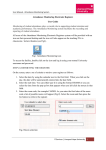
Click in the search box
and type in your search
term. The default is to
search by Module title
but if you want to search
by module code first click
Switch Module Info then
enter your search term.
Click Search.
6. The website will display a
list of all modules which
match your search term.
Click the module to select
it and it will appear in a
second list labelled
Selected modules.
7. Repeat the process for
any additional modules
you want to search for
and add them to the
Selected modules list by
clicking on them.
8. Modules can be removed from the Selected modules list by clicking the orange X on the far right of the
module entry. Clicking the Remove All button will clear the whole Selected modules list.
9. When you have selected all the modules you need click the Create Timetable button. The timetable will
include all the timetabled events for each of the selected modules.
10. The next time you log in to the website you will be
able to go back to the Module Search section and
your Selected modules list will be saved. The last
viewed timetable will also be saved and can be
accessed again by clicking the View Saved
Timetable button.
9