1
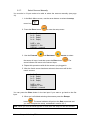
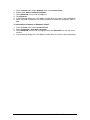
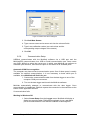
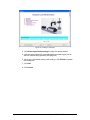
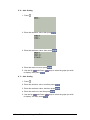
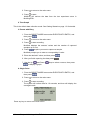
5. Click Run
in the MultiLab upper toolbar. Logger will start
recording data and will display it in the MultiLab graph and table
views. The default sample rate of 10 samples per second will be
used.
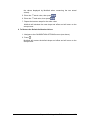
6. Click Stop
1.1.7.
to stop the logger from recording data.
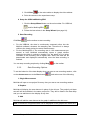
Updating USBLink Firmware
Use the MultiLab software to update the USBLink firmware whenever an updated
version is made available.
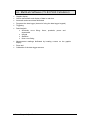
Follow these steps to update the USBLink firmware:
1. Download the latest firmware version from the Fourier Systems
Download Center: http://www.fouriersys.com/support_download.html
2. Save the firmware file to the MultiLab directory on your PC. The file
must reside here before you launch MultiLab otherwise an error
message will be displayed stating that the file wasn’t found.
3. Connect the USBLink to the PC and launch MultiLab.
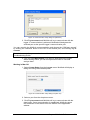
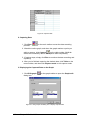
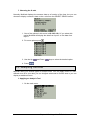
4. In the MultiLab main menu, go to Logger > Firmware Update.
Follow the on-screen instructions to disconnect and connect the
USBLink USB cable in order to launch the firmware update process.
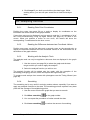
5. Once the update process is complete, follow the on-screen
instructions and disconnect and then connect the USBLink USB
cable again. The firmware update process will then be complete and
the firmware version will be displayed in the MultiLab status pane.
Note: If you disconnect the USBLink during the firmware update process, the
previous firmware is still intact on the logger memory. You may continue the
interrupted firmware updated by reconnecting the USBLink while MultiLab is open.
1.1.8.
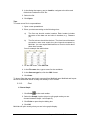
Choose the Right Setup
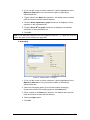
1. Sampling Rate
The sampling rate should be determined by the frequency of the phenomenon being
sampled. If the phenomenon is periodic, sample at a rate of at least twice the
expected frequency. For example, sound recordings should be sampled at the
Chapter 1 USBLink
7