1
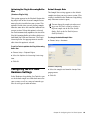
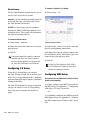
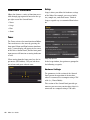
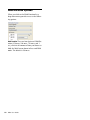
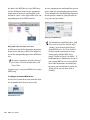
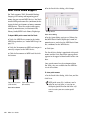
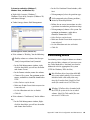
Clock Source To rename I/O paths in I/O Setup: The Pro Tools Hardware Setup dialog lets you select the Clock Source for the system. 1 Choose Setup > I/O. Internal If you are recording an analog signal directly into Pro Tools, you will usually use the Pro Tools Internal clock source. S/PDIF Use this setting if you are recording through the Mbox S/PDIF input from an external digital device. This setting will synchronize Pro Tools to that digital device. To select the Clock Source: 1 Choose Setup > Hardware. I/O Setup dialog for Mbox 2 Choose the clock source from the Clock Source pop-up menu. 2 Click the Input, Output, Insert, or Bus tab to display the corresponding connections. 3 Click OK. 3 To change the name of a path or subpath, double-click directly on the Path Name, type a new name for the path, and press Enter. Your digital input device must be connected and powered on for Pro Tools to synchronize to it. If your input device is not powered on, leave the Clock Source set to Internal. Configuring I/O Setup Using the I/O Setup dialog, you can label Pro Tools LE input, output, insert, and bus signal paths. The I/O Setup dialog provides a graphical representation of the inputs, outputs, and signal routing of the Mbox. Pro Tools LE has default I/O Setup settings that will get you started. Use the I/O Setup dialog only if you want to rename the default I/O paths. 4 Click OK. See the Pro Tools Reference Guide (Help > Pro Tools Reference Guide) for more information on renaming I/O paths. Configuring MIDI Setup If you plan to use any MIDI devices with Pro Tools, do one of the following: On Mac, configure your MIDI setup with Audio MIDI Setup. See Appendix C, “Configuring AMS (Mac OS X Only)” for details. – or – On Windows, configure your MIDI setup with MIDI Studio Setup. See Appendix D, “Configuring MIDI Studio Setup (Windows Only)” for details. 24 Mbox User Guide