1
Tool cards
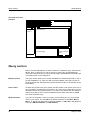
View Window
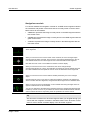
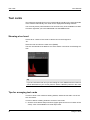
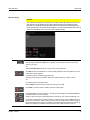
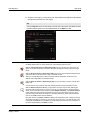
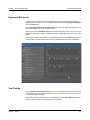
Select Loop to play the film in an endless loop.
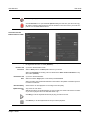
Click the Record icon to open the Cine Options dialog box.
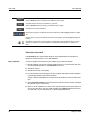
Here you can choose whether you want to save your film as an MPEG movie (on your local
computer), or as separate snapshot images (like in a slide show) or as a new DICOM series
(on your local computer or on a connected DICOM server).
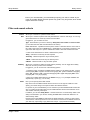
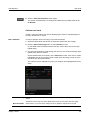
Line Profile tool card
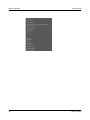
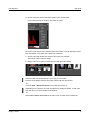
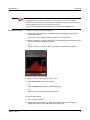
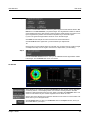
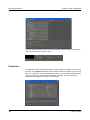
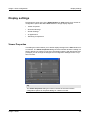
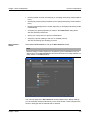
The Line Profile tool card shows the grayscale (or HU value) profile of the currently
selected distance line in the image currently shown in the active viewer. If there is
only one line in the image, that line is shown automatically.
If you have moved a distance line that was in your way no line profile can be shown.
Move the distance line back to its original position to redisplay the line profile.
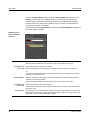
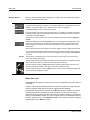
linear/log
x/y- axis
Select linear or logarithmic scale.
The x-axis shows the length of the line(s), the y-axis represents grayscale or HU values.
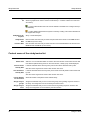
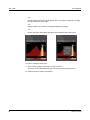
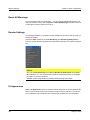
In fusion mode (when a primary and an overlay image are active in the same viewer), two
profiles are shown, one for each image. The colors of the lines correspond to the colors of
the units shown on the two X axes.
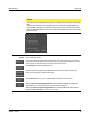
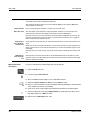
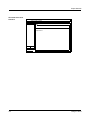
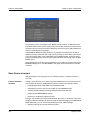
Click this icon to create a snapshot of your line profile(s). The snapshot will be added to any
snapshots of image data on the Export window, from where you can save it to hard disk.
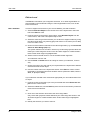
Click this icon to save the data of your line profile onto your hard disk as a comma-separated list (*.csv file).
88
Visage 7 Client