1
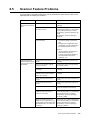
Image Compression
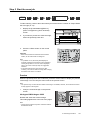
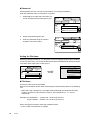
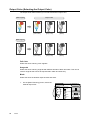
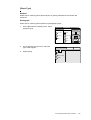
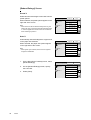
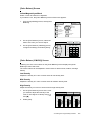
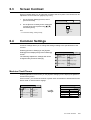
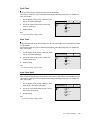
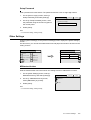
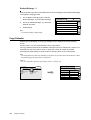
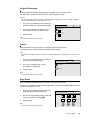
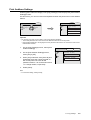
Sets the default of [Image Compression] on the [More Scan Features] screen.
The default can be selected from [Higher], [Normal], and [Lower].
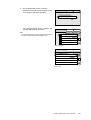
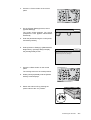
1.
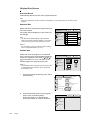
On the [Scan Defaults] screen, select [7.
Image Compression], and select [Change].
2.
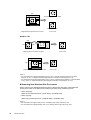
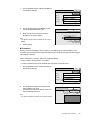
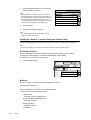
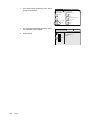
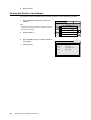
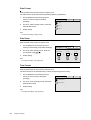
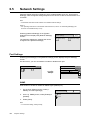
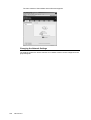
On the [7. Image Compression] screen,
select the desired compression rate.
3.
Select [Save].
7. Image Compression
Cancel
Save
Higher
Normal
Lower
Note
• To cancel the setting, select [Cancel].
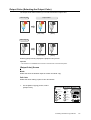
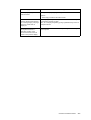
Original Orientation
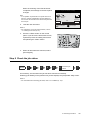
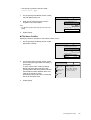
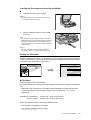
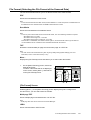
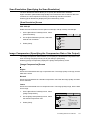
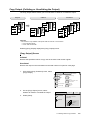
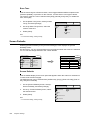
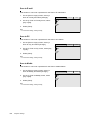
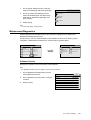
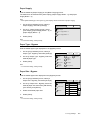
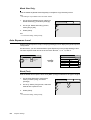
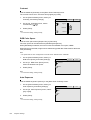
Sets the default of [Original Orientation] on the [More Scan Features] screen. The default
can be selected from [Head to Top] and [Head to Left].
Refer to
• For more information about [Head to Top] and [Head to Left] options, refer to "Original Orientation
(Specifying the Orientation of the Original)" (P. 107).
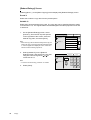
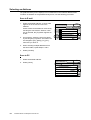
1.
On the [Scan Defaults] screen, select [8.
Original Orientation], and select [Change].
2.
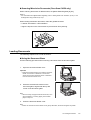
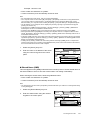
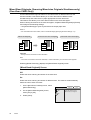
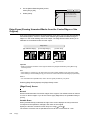
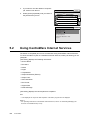
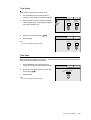
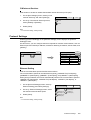
On the [8. Original orientation] screen,
select [Head to Top] or [Head to Left].
3.
Select [Save].
8. Original Orientation
Cancel
Save
Cancel
Save
Head to Top
Head to Left
Note
• To cancel the setting, select [Cancel].
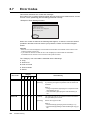
Sharpness
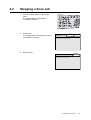
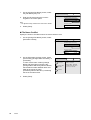
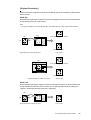
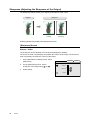
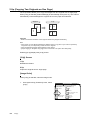
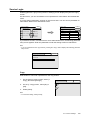
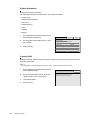
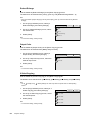
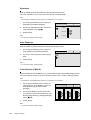
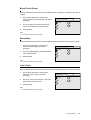
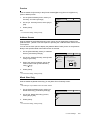
Sets the default of [Sharpness] on the [Other Scan Features] screen.
The sharpness can be set in five levels from [Softer] to [Sharper].
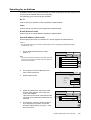
1.
On the [Scan Defaults] screen, select [9.
Sharpness], and select [Change].
2.
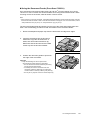
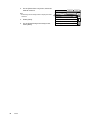
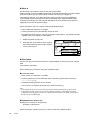
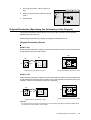
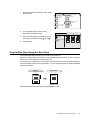
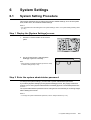
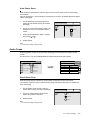
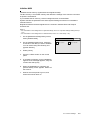
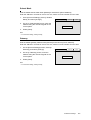
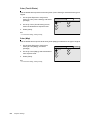
On the [9. Sharpness] screen, set the
sharpness using [ ]/[ ].
3.
Select [Save].
Note
• To cancel the setting, select [Cancel].
9. Sharpness
Sharper
Normal
Softer
6.7 Scan Settings
173