1
VoIPvoice MAC Integration User Guide
VoIPvoice Skype Integration for MAC
User Guide
Last Updated 02 December 2005
Page 1 of 11
VoIPvoice MAC Integration User Guide
Contents
1 Getting Started
3
Who are VoIPvoice?
What is Skype?
Minimum System Requirements
3
3
3
2 Hardware Overview
4
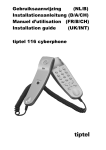
VoIPvoice Skype Cyberphone-K
Connecting the CyberPhone-K
4
4
3 Software Installation
5
VoIPvoice Software Installation
Skype Software Installation
Another Application wants to use Skype
5
6
6
4 Running the Software
6
Starting Up
Closing Down
6
7
5 Configuration
7
General Options
Advanced Options
Speed Dial
Restoring the Default Audio Device back
to the Sound Card
7
8
8
8
Page 2 of 11
6 Making a Call
9
VoIPvoice Skype Cyberphone-K
9
7 Receiving Calls
10
VoIPvoice Skype Cyberphone-K
10
8 Getting to know your Keys
10
VoIPvoice Skype Cyberphone-K
10
9 Troubleshooting
10
Uninstalling VoIPvoice Software
Uninstalling Skype Software
Frequently Asked Questions
Identifying Software Versions
Contacting Support
10
10
10
11
11
VoIPvoice MAC Integration User Guide
1 Getting Started
Minimum System Requirements
Welcome to the Skype VoIPvoice Integration
User Guide for MAC.
Before continuing any further with the
installation please make sure you have the
minimum system requirements as specified
here:
This User Guide will help you get the most out
of using your VoIPvoice product with Skype.
Please read the user guide carefully and keep
it in a safe place for future reference.
Thank you for purchasing your VoIPvoice
product. We hope that you spend many
happy hours using it and chatting with
Skype!
Who are VoIPvoice?
VoIPvoice are the manufacturers of the
hardware, we also provide the VoIPvoice
Integration software to enable you to use our
hardware with Skype. More information about
VoIPvoice is available from our website
www.voipvoice.com
What is Skype?
Skype is a simple bit of software. It will let you
make *free calls to your friends all over the
world.
Skype also offer paid services such as Skype
Out, Skype In and Skype Voicemail.
Skype Out is a service that allows you to call
ordinary phones at low cost.
Skype In is a service where you are assigned
your own telephone number and people can
call you from ordinary phones
Skype Voicemail is a voicemail service for
taking messages if you are away or your line is
busy.
For more information about Skype and
additional Skype services you should visit the
Skype website at www.skype.com
*Requires the Skype Out service for landline calls.
Page 3 of 11
•
•
•
•
•
•
•
Macintosh computer with G3, G4 or G5
processor
MAC OS X v.10.3 (Panther) or later
128MB RAM
150MB Free Hard Disk Space
One Free USB port (USB1.1 or USB2.0)
An Internet connection (dialup: 33kbps minimum
or broadband: Cable, ADSL etc.)
Skype downloaded to your MAC OS X
It is necessary to make sure you have Skype
downloaded to your MAC before you run the
Skype VoIPvoice Integration.
You can download the latest version of Skype
from www.skype.com .
Once Skype is downloaded on your MAC, it
needs to be closed to ensure the successful
completion of the Skype VoIPvoice integration.
Click Skype and Quit Skype to close the
Skype application.
During the VoIPvoice Skype Integration
installation, Skype will be opened in parallel
with the VoIPvoice Integration software.
VoIPvoice MAC Integration User Guide
2 Hardware Overview
This User Guide covers all VoIPvoice hardware
models designed for use with Skype.
Dial
button
End
call
button
VoIPvoice Skype Cyberphone-K
The
VoIPvoice
Skype
Cyberphone-K
V652SkMLR is a two-piece USB phone with
keypad and a built in ringer that connects to
your MAC USB port.
Volume
& Up /
Down
buttons
Mute
button
with
LED
VoIPvoice Skype Cyberphone-K V652SkMLR
Apart from the usual number buttons, there are
some special buttons on the VoIPvoice Skype
Cyberphone-K.
Skype
button
The functions of these buttons are described
elsewhere in this User Guide.
Connecting the CyberPhone-K
To install the VoIPvoice Skype Cyberphone-K,
simply plug the USB lead from the phone into a
free USB socket on your MAC or into a
powered USB hub.
Hook
switch
button
Insert the CD-ROM into your MAC; this will
install the VoIPvoice Integration and Skype
software onto your machine, to enable you to
get the most benefit when using your
Cyberphone-K with Skype.
Refer to Sections 6, 7 and 8 of this manual for
information on how to make calls, receive calls
and listen to Voicemail messages with your
Skype Cyberphone-K.
Page 4 of 11
VoIPvoice MAC Integration User Guide
3
Software Installation
This section describes step by step how to
install the software.
There are two parts to the software installation
the first part is the VoIPvoice Integration and
the second part is the Skype software
installation.
Your VoIPvoice hardware should already be
connected before installing any software, see
Hardware Overview elsewhere in this User
Guide.
If you already have a previous version of the
VoIPvoice Integration software installed ensure
it is not running and then remove it first, see
Troubleshooting elsewhere in this User Guide
for software removal instructions.
You should read the software Licence
Agreement. Click Agree to continue with the
installation.
If you already have the Skype software
installed and it is running, please close it now.
VoIPvoice Software Installation
First insert the CD ROM into your MAC CD
ROM Drive. The CD will run automatically.
Drag
the
VoIPvoice
Applications folder.
icon
into
your
You can now discard the VoIPvoice.dmg in the
Trash and eject the CD ROM.
Double click on the VoIPvoice MAC.dmg image
to open the VoIPvoice Integration Agreement
screen.
Page 5 of 11
Double click the VoIPvoice icon in the
Applications Folder to continue with the
VoIPvoice
Integration
installation.
The
installation will run both VoIPvoice Integration
and Skype.
VoIPvoice MAC Integration User Guide
Skype Software Installation
4 Running the Software
If you already have the latest version of the
Skype software installed, you should select I
already have a Skype name and would like
to log in and enter your Skype name and
Password.
This section describes how to start and close
the VoIPvoice Integration with Skype.
Or you can register a new Skype name by
selecting I would like to register a new
Skype name.
Starting Up
Do not start Skype in the normal way i.e. by
clicking the Skype Icon.
Instead start the VoIPvoice Integration
application first before starting Skype.
You can configure the VoIPvoice Integration
application to automatically start Skype too by
ensuring the option Start Skype when I start
VoIPvoice is set in the VoIPvoice Preferences,
see Configuration elsewhere in this User
Guide.
NOTE: if this option is not set you must start
Skype manually only after VoIPvoice
integration application is running.
Another application wants to use
Skype
There are two ways to start the VoIPvoice
Integration application, either automatically as
your MAC starts or manually.
The first time you sign into Skype with the
VoIPvoice application running, you must
authorise the connection access.
To start the application manually, click the
VoIPvoice Integration short cut icon in
Applications.
To have the application start automatically
when Windows is started, ensure the Start
VoIPvoice when I log in is checked in the
VoIPvoice Preferences, see Configuration
elsewhere in this User Guide.
When the VoIPvoice integration is running, you
will see a small icon on the top task bar.
To do this select Allow this application to
use Skype then click OK to continue.
Page 6 of 11
VoIPvoice MAC Integration User Guide
The colour of this icon indicates the current
status of VoIPvoice Integration application.
No connection with a VoIPvoice Phone,
check the phone is connected to your USB
port and the LED’s are illuminated on the
phone.
A VoIPvoice phone is connected, but
Skype could not be connected, this could
be because Skype is not running.
5 Configuration
To access the configuration settings, click on
the VoIPvoice Integration icon on the SysTray
then click Preferences.
General Options
Click the General tab on the VoIPvoice
Preferences screen.
The VoIPvoice phone is off hook and
Skype is connected, this will show if you
are in a call.
A VoIPvoice phone is connected and
Skype is connected, this will show if you
are not in a call
When Skype is running, you will see a Skype
icon sat in the Dock.
Closing Down
To close Skype, click on Skype and Quit
Skype.
To exit the VoIPvoice Integration application,
click on the VoIPvoice Integration icon on the
top task bar then click Quit VoIPvoice. The
application will now close.
Start VoIPvoice when I log in
If this option is checked the VoIPvoice
integration will automatically start up when you
log in, it is recommended to check this box.
Start Skype when I start VoIPvoice
If checked, this option will automatically start
Skype when the VoIPvoice integration starts, if
this is not checked you must load Skype
manually after VoIPvoice integration is loaded.
It is recommended to check this box.
Use # button to Dial
If this option is checked, the # button can be
used to initiate dialling.
Default Settings
Click Use Default Settings to restore the
VoIPvoice Integration Software default
settings.
Page 7 of 11
VoIPvoice MAC Integration User Guide
Advanced Options
Click the Advanced
Preferences.
Speed Dial
tab
in
VoIPvoice
Click the Speed Dial tab in VoIPvoice
Preferences.
Store up to 9 speed dial numbers for your
Skype contacts.
Don’t hide the Skype window
If this option is set, the Skype window will
remain on screen when the VoIPvoice USB
phone is placed on hook.
Minimize the Skype window
If this option is set, the Skype window will
automatically minimize when the VoIPvoice
USB phone is placed on hook.
Hide the Skype application
If this option is set, the Skype window will
remain hidden when the VoIPvoice USB phone
is placed on hook.
Restoring the Default Audio Device
back to the Sound Card
It is possible to listen to iTunes and other
media applications through the MAC OS X
speakers, while routing the audio for Skype
calls through the Cyberphone K.
To configure this, open Skype and click Skype,
Preferences and select Audio.
Set the Audio Output and Audio Input to
VoIPvoice USB Phone.
Open System Preferences on your MAC OS
X and click Sound.
Page 8 of 11
VoIPvoice MAC Integration User Guide
6 Making a Call
Skype Cyberphone-K
Dialling from the Skype Contacts List
Lift the handset and press the ‘Skype’ key until
you reach the Contacts tab in Skype. Use the
‘Volume & Up / Down’ keys to scroll through
your Skype Contact list. Once the desired
contact is highlighted simply press the ‘Dial’
key to make a call to that contact.
Click on Output and select the required device
for sound output (Internal or External
speakers). If VoIPvoice USB phone is selected,
all sound will be played through the VoIPvoice
USB phone.
Using Alphanumeric Dialling
Use the ‘#’ key and the corresponding numeric
keys to dial Skype contacts.
For example, to make a call to Kevin, dial
‘#53846#’ and the call will automatically be
made to Kevin in your Skype contact list.
Skype to Skype using Speed Dial
Ensure that you have associated speed dial
numbers
with
your
contacts
(See
Configuration, page 8 of this User Guide). Lift
the handset, and press the * key on the
Cyberphone-K, followed by the speed dial
number, followed by the ‘Dial’ key to make a
call.
Dialling Skype Out Calls
Press and hold the ‘0’ key to get a ‘+’. Dial the
country code, followed by the area code
(excluding the first zero), followed by the phone
number. Then press the ‘Dial’ key.
The Skype Button
Pressing the ‘Skype’ button allows you to
toggle between ‘Contacts’, Call List’ and ‘Dial’
in Skype.
Click on Input and select Internal Microphone
as the device for sound input.
You will now be able to listen to iTunes and
sounds from other media applications while
you make Skype calls.
Page 9 of 11
Hook switch Button
Pressing the hook switch button on the
handset is the same as replacing the handset
and picking back up again. It is useful if you
are making a follow on calls so you don’t have
to keep replacing the handset.
VoIPvoice MAC Integration User Guide
7 Receiving Calls
9 Troubleshooting
When a Skype incoming call is received, the
Cyberphone-K will ring.
This section covers uninstalling the software as
well as a general troubleshooting guide.
Answering calls
Uninstalling VoIPvoice Software
When your phone rings, lift the handset and
answer the call.
To uninstall the VoIPvoice Integration Software
go to Applications and drag the VoIPvoice
icon into the Trash.
8 Getting to know your keys
Uninstalling Skype Software
The functions of the Cyberphone-K keys are:
To uninstall the Skype Software, go to
Applications and drag the Skype icon into the
Trash.
Dial Key
Use the Dial key to start a call or to dial
a Skype contact
End Call Button
When in a call, press this button to end
the call and hang up on your Skype
contact. When dialling phone numbers
for use with SkypeOut in the Dial tab,
use this key to delete any miss-keyed
digits.
Volume Up & Down Key
When not in a call, use these keys to
scroll through your Skype contact list.
During a call, use these keys to adjust
the volume.
Skype Button
Scroll through the tabs on the Skype
application using this key: ‘Contacts’,
‘Call List’ and ‘Dial’.
Mute Key
While talking to your Skype contact,
press this key to mute your voice. You
will still hear the other caller but they
cannot hear you. When the microphone
muted, the LED adjacent to the symbol
will light up.
The Cyberphone-K does not have a ‘+’ key.
Press and hold the ‘0’ key to get a ‘+’.
Page 10 of 11
Frequently Asked Questions
I can’t dial any numbers with
Cyberphone-K, what could be wrong?
my
If you have just installed the VoIPvoice USB
Phone driver or integration try restarting your
MAC with the VoIPvoice USB phone attached
to your MAC’s USB port.
To check that everything is installed OK, the
VoIPvoice Integration and Skype icon should
be green on the top task bar.
How do I dial a ‘+’ sign when making
International calls?
Press and hold the “0” button until the +
appears. There is no ‘+’ key on the
Cyberphone-K.
I cannot hear the other person on a Skype
call. What is wrong?
Open the Sound folder in System Preferences
and check that the Output volume is not muted.
If it is, uncheck it.
VoIPvoice MAC Integration User Guide
My iTunes are playing through my phone
and not my speakers, how can I change
this?
Open Skype, click on Preferences and then
Audio. Select VoIPvoice USB phone for both
the Audio Output and Audio Input.
Then go into Systems Preferences on your
machine and click on Sound. Make sure
VoIPvoice USB phone is not selected in either
Sound Output or Sound Input. Input and
Output should instead be configured to the
internal microphone and speakers.
To identify the version of Skype software,
within Skype, click Skype and About Skype.
How do I use Skype?
Full details on how to use Skype are available
from their website at www.skype.com
I have read the FAQ and my VoIPvoice
phone still does not work, what next?
If you have a Skype specific issue please visit
www.skype.com and check out the Skype
Forum.
For other issues not covered here, please visit
www.voipvoice.com and read the FAQ section
or you can visit the VoIPvoice forums at
http://forums.voipvoice.com also you can
contact support if required.
Identifying Software Versions
To identify the version of the VoIPvoice
Integration software, click on the VoIPvoice
Integration icon on the SysTray and click
About
Click on the Skype version screen to close it.
Contacting Support
We can only deal with VoIPvoice USB phone
hardware and VoIPvoice Integration software
issues. Please visit the VoIPvoice forums at
http://forums.voipvoice.com or contact support
directly, email support@voipvoice.com giving
as much detail as possible.
NOTE: We cannot help with Skype software
queries.
The software version will be shown, click OK to
hide the window.
Page 11 of 11