1
4.7. FTP MANAGER
4.7
CHAPTER 4. HOW DO I USE CPANEL?
FTP Manager
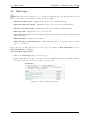
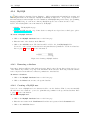
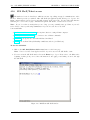
The FTP area deals with all the tools relating to setting up and managing FTP accounts, as well as
managing FTP sessions. FTP (File Transfer Protocol) is a method by which you can transfer files between
computers, usually using the Internet. There is a huge amount of information stored on FTP servers around
the world that can only be accessed by using FTP. When using FTP you use an application called a ”client”
to connect to a machine called a ”server”.
There are a large number of FTP software packages available. Some of them are built in to your browser
(such as Internet Explorer), others are dedicated applications (such as such as CuteFTP or WS FTP ), while
still others are built into web applications (page 34 in CPanel is one example). Generally speaking, if you
are going to spend a lot of time using FTP or have a large amount of files to upload/download, a dedicated
FTP client is the way to go.
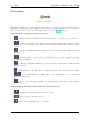
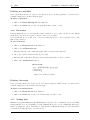
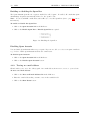
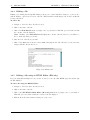
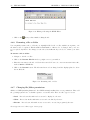
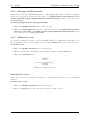
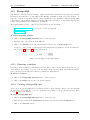
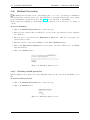
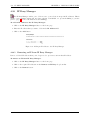
CPanel allows you to set up FTP accounts so that certain external users can access a restricted part of your
system. You can also set up an anonymous FTP account so that anyone can access a restricted part of your
system. You can also manage these FTP sessions, cutting them off if they go on for too long.
Warning: FTP, by its very nature, allows external users to modify your web site (albeit a restricted area
of your web site). External users can upload, download, and delete files. Keep this in mind when you set up
an FTP account.
4.7.1
Adding an FTP account
An FTP account creates a folder on the public html level of your site that allows external users that know
the password to upload and download files from that location. Change your password if you think that your
account is being used incorrectly.
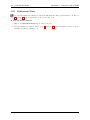
Note: Please be aware that all users with the correct password will be able to add, edit, and delete files
from the directory that you specify for the FTP account, and any directories within the stated directory.
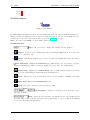
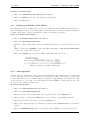
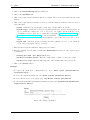
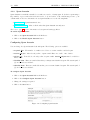
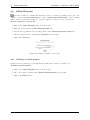
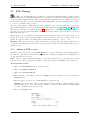
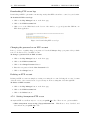
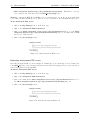
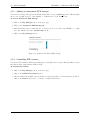
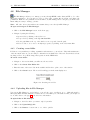
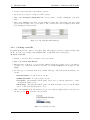
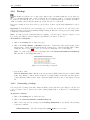
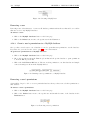
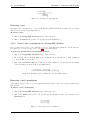
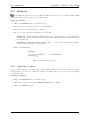
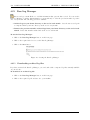
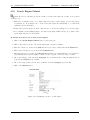
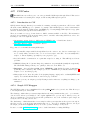
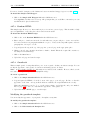
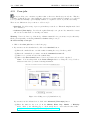
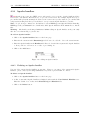
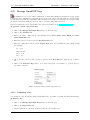
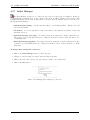
To add an FTP account:
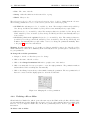
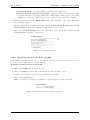
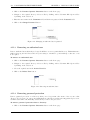
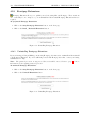
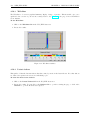
1. Click on the Ftp Manager button on the home page.
2. Click on the FTP Accounts link.
3. Click on the Add Account link.
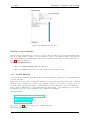
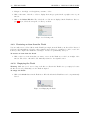
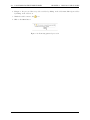
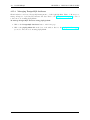
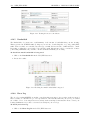
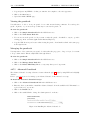
4. Enter the name of the FTP account in the Login field and the password for the account in the
Password field.
5. Enter the path to the directory to which this FTP account has access.
Warning: If you enter the top-level of the web site by entering a slash (/), all users with the correct
password will be able to add, edit, and delete all files on your site. It is advisable to limit an FTP
account to a smaller section of your web site.
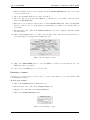
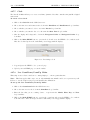
6. Click on the Create button.
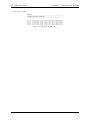
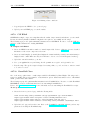
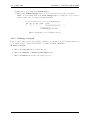
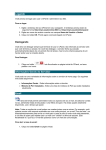
Figure 4.21: Adding an FTP account
30