1
Configuring data logging
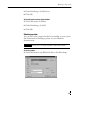
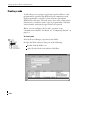
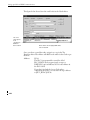
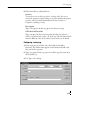
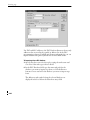
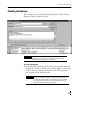
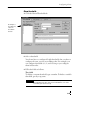
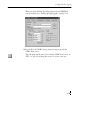
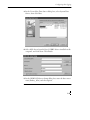
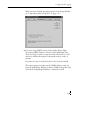
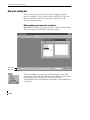
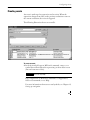
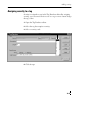
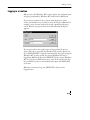
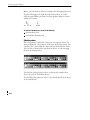
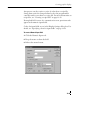
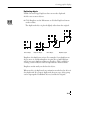
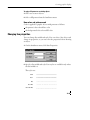
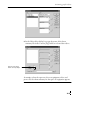
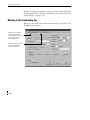
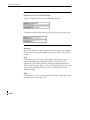
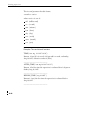
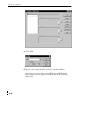
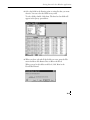
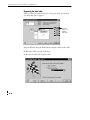
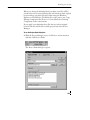
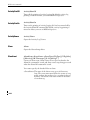
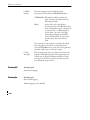
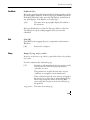
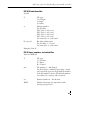
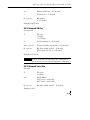
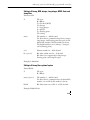
8. Enter the following to set up the fourth field in the table.
Field Name:
TagDataType
Type:
smallint
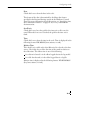
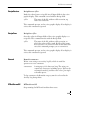
9. Click Create.
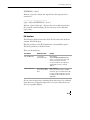
10. Repeat steps 4 through 7 to add the FloatTable and StringTable.
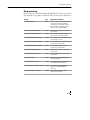
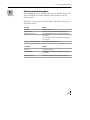
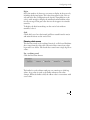
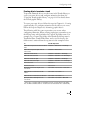
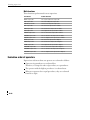
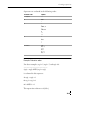
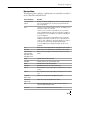
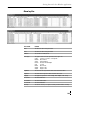
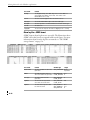
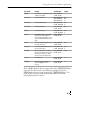
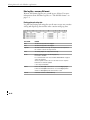
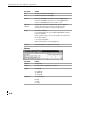
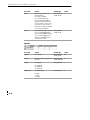
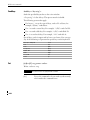
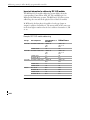
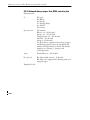
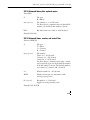
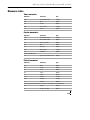
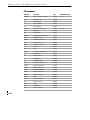
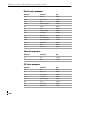
See page 16-15 for information about the field types and lengths.
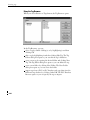
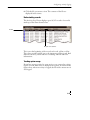
If you want to edit a table that already exists, after you log in choose
the table name and click View. The order of the data log fields must
match the order listed in the tables on pages 16-15 to 16-16. If you
add the data log fields to an existing table, the data log fields must be
first. However, you can use different names for the data log fields.
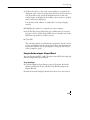
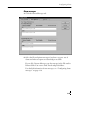
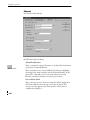
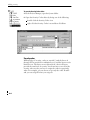
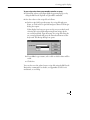
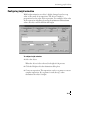
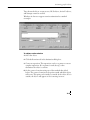
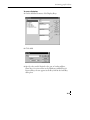
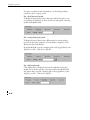
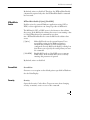
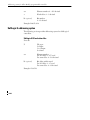
To add an index for the FloatTable and StringTable:
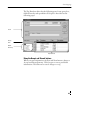
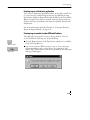
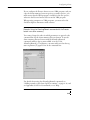
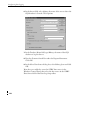
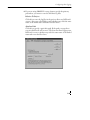
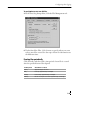
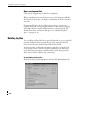
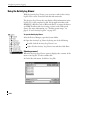
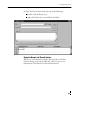
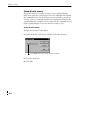
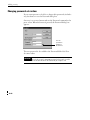
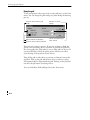
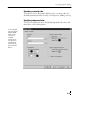
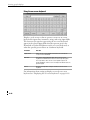
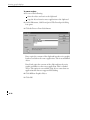
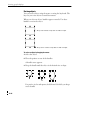
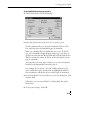
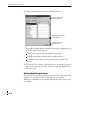
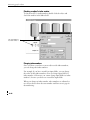
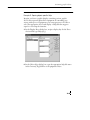
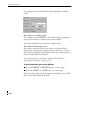
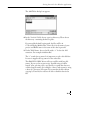
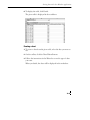
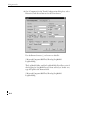
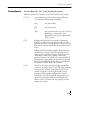
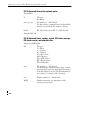
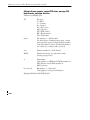
1. In the Select Table dialog box, select FloatTable and click Index.
2. In the Index Name field, type FloatTableIndex.
3. In the Index Fields field select DateAndTime (or the name you
assigned to the first field in the FloatTable).
4. Click Add, then click Close.
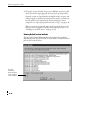
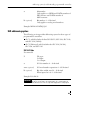
5. Repeat steps 1 through 4 for the StringTable. Click Close.
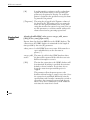
Setting up an index for these tables enhances logging performance.
1
1
1
7-20