1
GPSLog User Guide V1.02
-- Read and Get the Stored GPS Data from the Tracker
1. Hardware and Software
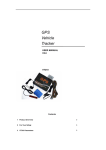
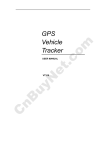
1.1 GPS tracker that supports logging.
1.2 One USB cable and one USB-to-Serial Adaptor.
1.3 USB-232 Driver for USB-to-Serial Adaptor (PL-2303 Driver Installer.exe)
1.4 GPSLog (GPSLogV1.02.exe or above version)
2. Step by Step
2.1 Run ‘PL-2303 Driver Installer’ to install the driver for the USB-to-Serial Adaptor.
Note: PL-2303 Driver Installer is in the folder ‘USB-232 Driver’ in the CD.
Press Next till Finish. Then restart your computer.
2.2 Connect the tracker with USB cable and USB-to-Serial Adaptor to your computer (here
we take VT310 as an example).
2.3 Open Device Manager. You can then find ‘Prolific USB-to-Serial Comm Port’ as the
following picture shows.
Note: Remember this Com number. It is COM3 in this example and it would be COM4 or
COM5…in your computer.
2.4 Run GPSLog (GPSLogV1.02.exe or above version).
1/5
2.5 Select COM of your USB-to-Serial Adaptor and then press Open
2.6 Press the Power On/Off Button to turn on the tracker.
If blue light flashes (1 second on and 2 seconds off, or 0.1 second on and 2.9 seconds off),
then you can read the stored GPS data.
2.7 Check Display to display the stored GPS data on the main window of GPSLog.
2/5
2.8 Check SaveToFile to select a path to save the stored data.
2.9 Click GetSum to get the total amount of logged data:
2.10 Click Start to get the stored data.
Note: The data will be removed from the tracker until you press Stop.
2.11 Open the TXT file to read the stored data
3/5
3. More Details
- A - Window for displaying data
- B - To clear the data displayed on A
- C - To select a path and create a file for saving logged data
- D - To select COM for USB to Serial converter
- E - To open or close the COM of D
- F - To only save the data displayed on A
- G - To format the flash memory inside the tracker (advised caution in using this button)
- H - To read the total amount of the waypoints logged and display it on I
- I - The current amount of waypoints stored in the tracker. If failed to read data, it will
state ‘Error!’.
- J - To start or stop getting data from the tracker
- K - To display data on A when checked
4. Troubleshooting
4.1 Prolific USB-to-Serial Comm Port(COM3) is not displayed after connect the tracker to the
4/5
computer with USB cable and USB-to-Serial Adaptor.
Resolution:
- Make sure the USB port of your computer works
- Make sure the USB-to-Serial Adaptor is connected between USB cable and the computer
- COM3 is used by other device. Please check if COM4/COM5…available
4.2 ‘Error!’ is shown when GetSum or Start is pressed.
Resolution:
- Check if the tracker is working
- Check if USB cable and USB-to-Serial Adaptor are connected properly
- Check if correct COM is selected and opened.
4.3 Amount of waypoints is displayed as ‘0’
Resolution:
- Check and make sure you have set interval of logging for the tracker.
Set by SMS
For example, send SMS command W000000,031,60 to tracker to interval as 60 seconds.
For more information regarding SMS command please refer to Command List in <User
Manual>.
Set by GPRS
Please refer to <GPRS Communication Protocol>
Set by PC software
Please refer to <GPS Tracker Parameter Editor>
- Check and confirm if the tracker previously worked and had GPS fix.
5/5