1
Configuring External Storage for the PowerEdge 2850 System
This section provides information on setting up the PowerVault 22xS storage system and
configuring the PERC 4/DC or PERC 4e/DC controller.
NOTICE: This procedure erases all data on the storage system’s hard drives. Back up your data before
you perform the following steps.
1
Install your PowerVault 22xS storage system hardware as described in the PowerVault 22xS
Installation and Troubleshooting Guide. Ensure that your storage system meets the following
qualifications:
•
At least two hard drives are installed in the enclosure. If the enclosure is configured
with more than two hard drives, ensure that all drives are identical in specification and
configuration.
•
The split-bus module bus configuration switch on the back panel is set to joined-bus
mode.
To change the SCSI bus mode to joined-bus mode, power down your storage system,
move the bus configuration switch to the joined-bus mode, and then go to step 2.
See the Installation and Troubleshooting Guide for more information.
2
Connect a SCSI cable from the enclosure management module (EMM) on the
PowerVault 22xS storage system to the PERC 4/DC or PERC 4e/DC card on your PowerEdge
system.
NOTE: If your system is configured with an additional controller card, the connectors may be
similar. Identify the target PERC card connector before you install the SCSI cable.
3
Connect the storage system power cable(s) to the power supply(s) and to an electrical outlet.
See the PowerVault 22xS Installation and Troubleshooting Guide for more information.
4
Turn on the storage system by pressing the on/off switch on the power supply. If you have a
system with redundant power supplies, ensure that both on/off switches have been turned on.
5
Check the LED indicators on the front and back of the storage system. If any amber fault
indicators are illuminated, troubleshoot the system before you proceed to step 6. See the
PowerVault 22xS Installation and Troubleshooting Guide for more information.
6
Turn on your PowerEdge system.
7
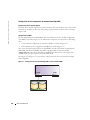
As the system boots, press <Ctrl><m> during POST.
The BIOS Configuration Utility screen appears.
8
Select Configure.
9
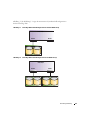
Select New Configuration and select YES.
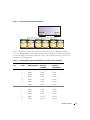
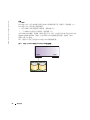
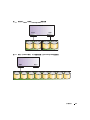
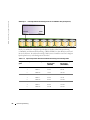
The utility probes your PowerEdge system for attached devices and the New Configuration –
ARRAY SELECTION MENU appears.
NOTE: Use the arrow keys and space bar to highlight fields and make selections, respectively.
Deployment Guide
11