1
English
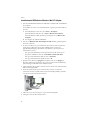
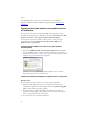
B. With Install the software automatically selected, click Next.
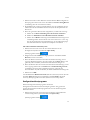
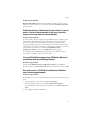
11. If a window appears warning that the software has not passed Windows testing, continue with the installation. USRobotics has thoroughly tested the
operation of the software with Windows to ensure its safe operation.
Windows Vista only: Click Install driver software anyway.
Windows XP only: Click Continue Anyway.
Windows 2000 only: Click Yes.
12. Windows XP only: Click Finish.
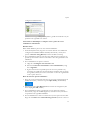
13. Select the option that matches your wireless network and follow the onscreen instructions.
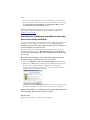
You can use the SecureEasySetup™ button to connect your PCI Adapter to
installed Ndx or other certified SecureEasySetup wireless routers or access
points.
You can connect your PCI Adapter to an Ndx or other SecureEasySetup1
certified router or access point using the SecureEasySetup button.
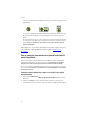
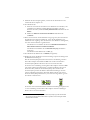
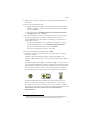
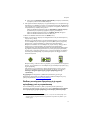
SecureEasySetup configures the wireless security settings to creates a secure
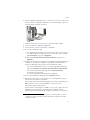
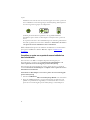
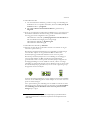
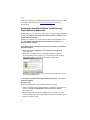
connection. If your wireless router or access point is SecureEasySetup certified, one of the following logos should appear on the device:
You can also manually enter the wireless security settings to connect your
PCI Adapter to any router or access point.
If you choose not to connect to a wireless network at this time, you can connect later by following the instructions under To Connect to a Wireless
Router or Access Point After Installation.
C o n g ra t u l a t i o n s . You have successfully completed the installation procedure. Please register your USRobotics Wireless Ndx PCI Adapter at
www.usr.com/productreg/.
To Connect to a Wireless Router or Access Point After Installation
To connect to an Ndx or other SecureEasySetup certified network device, refer
to Connect your PCI Adapter to a SecureEasySetup certified Router or
Access Point.
1BROADCOM, SecureEasySetup, and the SecureEasySetup logo are trademarks or
registered trademarks of Broadcom Corporation in the United States and/or other countries.
3