1
6
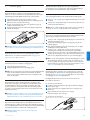
Digital Pocket Memo menu
The Digital Pocket Memo offers options to delete a section, a single
file or all files, assign priority status to a dictation, edit index marks,
assign keywords, switch between insert and overwrite mode and
device setup.
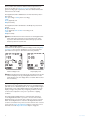
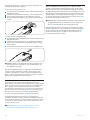
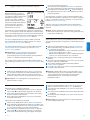
To access the Digital Pocket Memo menu:
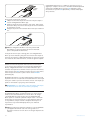
1 The 4-position slide switch (12) must be in the STOP position.
2 Press the MENU button (4) to open the Digital Pocket Memo
menu.
3 Press the + or - buttons (5) to highlight to the next/previous
menu item.
4 Press the ENTER smart button to enter a submenu. Press the
EXIT smart button or the Menu button to exit the menu.
5 Press the OK smart button to confirm the selection or the
CANCEL smart button to cancel.
DNote: Press and hold the MENU button (4) to access additional
file, device and memory card information. When no selection
has been made, the menu will close automatically after three
seconds.
The SETUP menu can configure the following options:
• Set the language
• Change the record format
• Enable/disable voice-activated recording
• Change the backlight of the LCD
• Enable/disable the record lamp
• Change the contrast of the LCD
• Enable/disable the device beep
• Change the microphone sensitivity
• Enable/disable noise reduction
• Set the date and time
• Enable/disable USB quick charge
• Reformat the memory card
• Voice command training (not available by default)
• Change the playback volume
• Change the font of the user interface
Additional settings, such as changing the operation of the
FUNCTION KEY (3), changing the keyword categories, activating
the voice command function, switching to simple display mode or
defining PIN code access are available through Philips SpeechExec or
third party software of your system integrator.
6.1
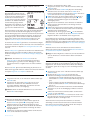
Change the language
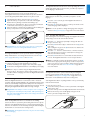
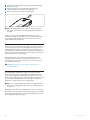
The 4-position slide switch (12) must be in the STOP position.
Press the MENU button to open the menu.
3 Press the + or - buttons (5) to highlight the SETUP menu item
and press the ENTER smart button.
4 Press the + or - buttons to highlight the LANGUAGE menu item
and press the ENTER smart button.
5 Press the + or - buttons to select the your preferred language.
6 Press the OK smart button (2a) to save the language setting
or press the CANCEL smart button (2b) leave the setting
unchanged.
7 Press the BACK smart button (2a) twice to exit the menu.
1
2
ETip: If the menu language is accidentally changed, select the
prefered language by entering the LANGUAGE menu again and
making the selection. In all languages the menu item is called
LANGUAGE.
14
6.2
Change the recording format
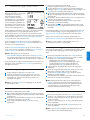
The recording format determines the audio quality of your
recordings and affects the amount of audio that can fit on the
memory card. The Digital Pocket Memo supports the following
recording formats:
• Quality Play (QP) requires 1 megabyte for 5 minutes of recording.
• Standard Play (SP) requires 1 megabyte for 10 minutes of
recording.
• Long Play mobile (LPm) (QP): requires 1 megabyte for 15 minutes
of recording.
The Digital Pocket Memo is set to record in SP format by default.
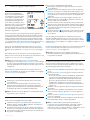
The following table shows the total duration of recordings that can
fit on a memory card in each of the three different formats.
SD Card Size
Quality Play
Standard Play
Long Play mobile
64 MB
5.3 hours
10.9 hours
16.4 hours
128 MB
10.7 hours
21.8 hours
32.7 hours
256 MB
21.3 hours
43.6 hours
65.5 hours
512 MB
42.6 hours
87.3 hours
130.9 hours
1 GB
85.2 hours
174.6 hours
261.9 hours
2 GB
170.4 hours
349.2 hours
523.8 hours
To change the recording format:
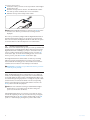
1 The 4-position slide switch (12) must be in the STOP position
2 Press the MENU button to open the menu.
3 Press the + or - buttons (5) to highlight the SETUP menu item
and press the ENTER smart button.
4 Press the + or - buttons to highlight the RECORD FORMAT
menu item and press the ENTER smart button.
5 Press the + or - buttons to select the recording format of your
preference (QUALITY PLAY, STANDARD PLAY or LONG
PLAY).
6 Press the OK smart button (2a) to change the recording format
or press the CANCEL smart button (2b) leave the recording
format unchanged.
7 Press the BACK smart button (2a) twice to exit the menu.
DNote: Only one recording format can be selected for a
recording. When the recording format is changed, the selected
format will apply only to new recordings and recordings that are
empty. The recording format of recordings already made cannot
be changed.
6.3
Enable/disable voice-activated recording
The Digital Pocket Memo supports voice-activated recording, a
convenience feature for hands-free dictation. When voice activated
recording is enabled, recording will start when you begin speaking.
When you stop speaking, the Digital Pocket Memo will automatically
pause recording after three seconds of silence, and resume only
when you begin speaking again.
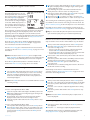
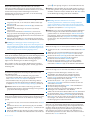
The 4-position slide switch (12) must be in the STOP position.
Press the MENU button to open the menu.
3 Press the + or - buttons (5) to highlight the SETUP menu item
and press the ENTER smart button.
4 Press the + or - buttons to highlight the VOICE ACTIVATION
menu item and press the ENTER smart button.
5 Press the + or - buttons to enable (ON) or disable (OFF) voiceactivated recording.
6 Press the OK smart button (2a) to save the setting or press the
CANCEL smart button (2b) leave the setting unchanged.
7 Press the BACK smart button (2a) twice to exit the menu.
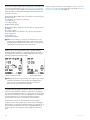
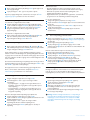
8 The voice-activated recording mode is indicated by the VA
symbol on the top right side of the LCD screen.
1
2
User manual