1
DOCKING YOUR iPAD
INSTALLING AND RUNNING THE i-SCAN APP
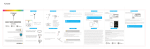
When the iPad is first docked, you will see the following message:
The ‘Application Not Installed‘ message will appear and automatically redirect you
to the App Store to install the i-Scan App if it is not installed yet. If the message
doesn’t appear on your iPad, try the following procedures.
With the software installed, the
scanner has the ability to auto-launch
the i-Scan App, when docked.
1. Click the ‘App Store‘ icon from the iPad’s home screen.
Depending on which version of iOS
you have, the message shown here:
2. Type ‘i-Scan‘ in the search field. The i-Scan app will then appear in the search
results. Select the App, then click the ‘FREE’ button to install.
An internet connection is required
to download the i-Scan App. Press
the ‘Yes‘ button to continue.
10
3. Enter your Apple ID (iTunes account) and password when prompted. When
installation is finished you will see the ‘i-Scan‘ icon on the home screen.
May or may not appear on your screen.
If it does appear, tap ‘Allow’.
Ensure that your iPad has internet access via your service provider
or wireless connection.
11