1
ENG
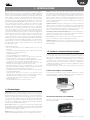
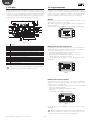
4.2 Installing the repeater
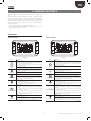
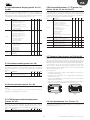
4.5 Associating a terminal
In the event where due to interference or excessive distance the quality
of the signal on a router board is poor, a red dot is shown (e.g.: -92dBm).
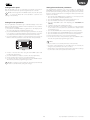
To associate a terminal with a Master device:
1. check that that the terminal is not connected to the network : loc
14=OFF;
2. set the address of the terminal, loc 11, equal to the address of the
desired Master (e.g.: 17);
e
CAREL
a
s
y
s
e
t
mode
Fig. 4.t
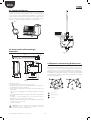
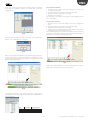
To install a repeater, proceed as follows:
1. position the repeater between the fan coils more than 50 m apart, so
as to ensure an alternative route for the signal to the Access Point in
the event of router board faults;
2. power up the repeater: the three LEDs come on steady, indicating that
the device has not yet been associated with the network;
3. open the network using the Open Network function;
Fig. 4.v
3. select Open Network;
Fig. 4.u
4. wait until the first yellow LED at the top L flashes slowly, the repeater
is now associated;
5. close the network using Close Network function;
6. run Refresh Link Level to check the improvement in signal quality.
Fig. 4.w
4. on the terminal set parameter 14 = ON to establish the network
connection: the message “bin” = binding will be displayed, and if
the procedure is successful the message “on” will be shown, with the
antenna at the top right on the standard display.
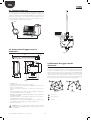
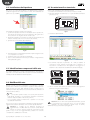
4.3 Identification of network components
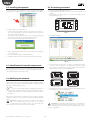
The Master/Slave router boards can be identified by selecting the device
and using the right mouse button selecting Identify/Stop identify to
activate/deactivate the buzzer respectively.
CAREL
e
a
s
y
s
e
t
CAREL
e
a
s
y
CAREL
e
a
s
y
s
e
t
mode
mode
4.4 Modifying the network
CAREL
mode
e
a
s
y
s
e
t
s
e
mode
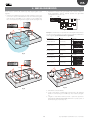
When the hydronic networks need to be reorganised, the Slave and
Master routers can be moved by simply dragging and dropping: drag a
Slave from the tree structure to the table to make it available, and then
drag it into a different hydronic zone.
Note:
• to move a router, it first needs to be dragged into the table on
the left and then dragged into the tree structure, in the new position.
• a Master router cannot be moved until the Slave routers have all been
transferred.
5. select Start Search: at the end of the search, the terminal will be shown
connected to the corresponding Master.
After having completed the reorganisation of the hydronic networks,
update the situation of the routers by selecting the “Update Network”
button.
Important: the networks should not be updated or modified if
there are e-drofan router devices with a low wireless
communication level (red dot). In these cases, the update may
not be performed correctly or may even fail completely.
easy way ACQUA +030220845 - rel. 1.0 - 26.11.2008
Important: if resetting the terminal parameters, communication
between the terminal and the network will be lost. This can be
re-established, once commissioning is complete, from the Access
Point. See paragraph 4.7.
18