1
396
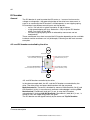
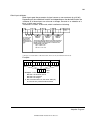
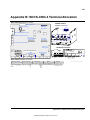
Display overview
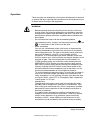
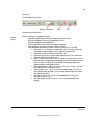
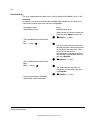
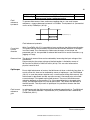
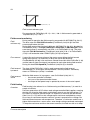
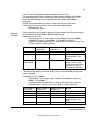
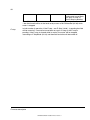
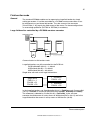
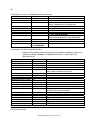
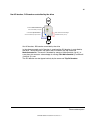
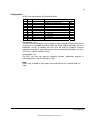
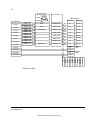
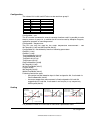
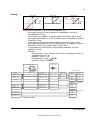
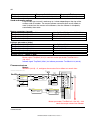
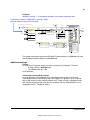
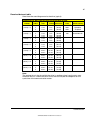
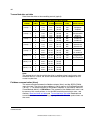
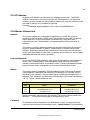
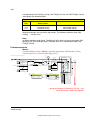
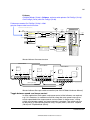
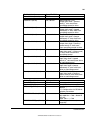
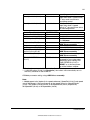
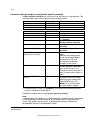
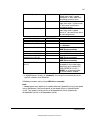
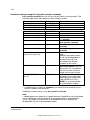
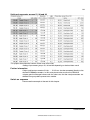
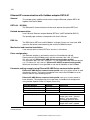
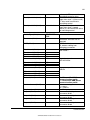
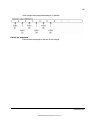
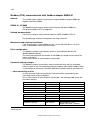
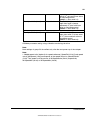
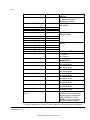
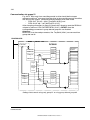
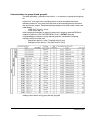
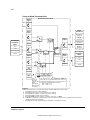
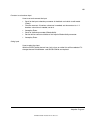
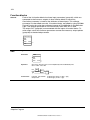
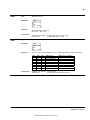
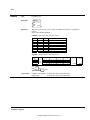
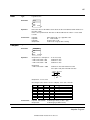
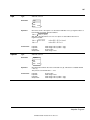
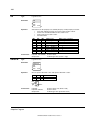
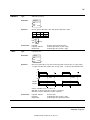
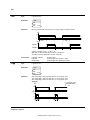
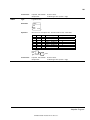
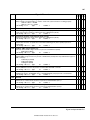
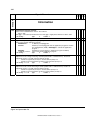
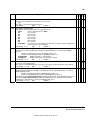
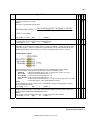
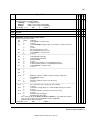
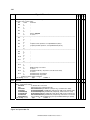
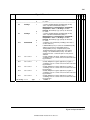
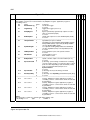
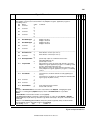
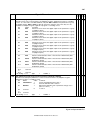
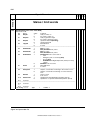
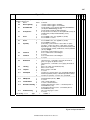
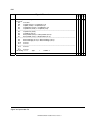
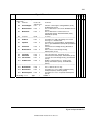
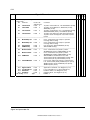
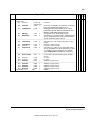
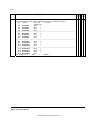
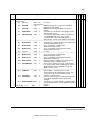
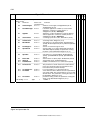
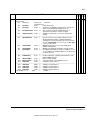
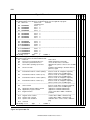
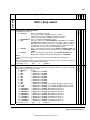
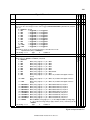
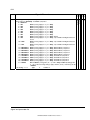
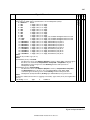
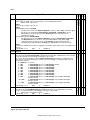
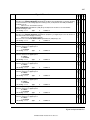
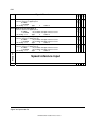
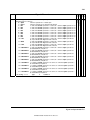
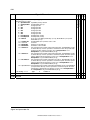
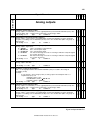
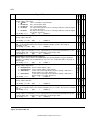
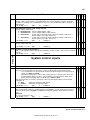
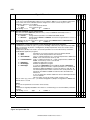
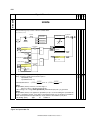
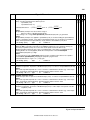
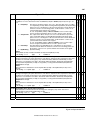
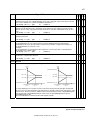
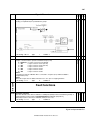
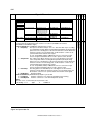
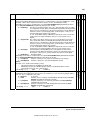
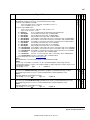
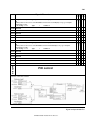
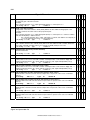
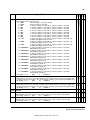
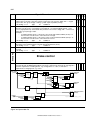
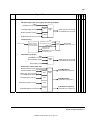
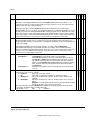
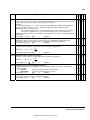
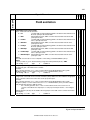
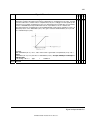
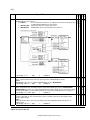
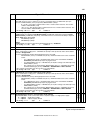
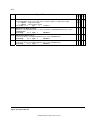
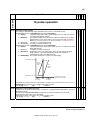
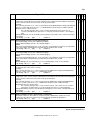
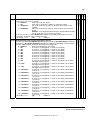
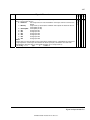
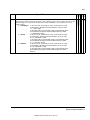
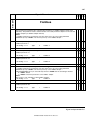
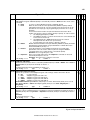
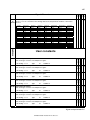
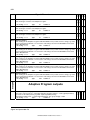
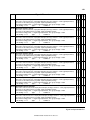
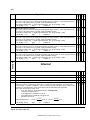
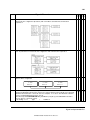
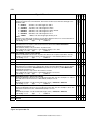
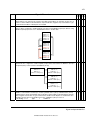
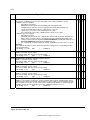
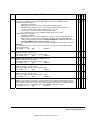
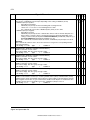
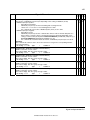
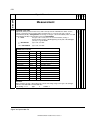
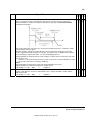
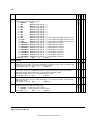
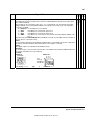
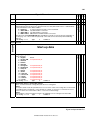
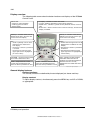
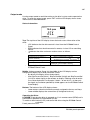
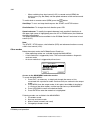
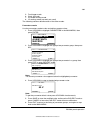
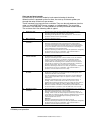
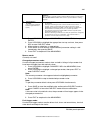
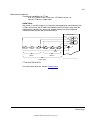
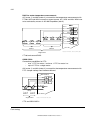
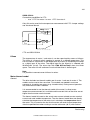
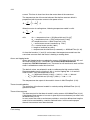
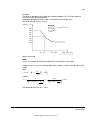
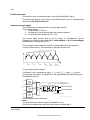
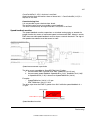
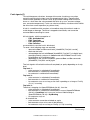
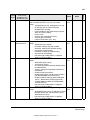
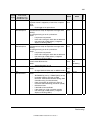
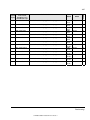
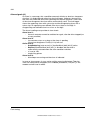
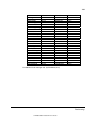
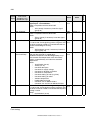
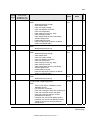
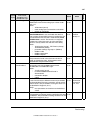
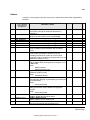
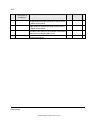
The following table summarizes the button functions and displays of the DCS800
Control Panel.
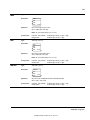
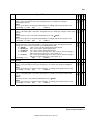
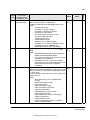
Status LED:
• Green for normal operation
• Flashing green for alarms
• Red for faults
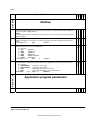
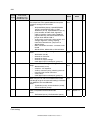
LCD display – Divided into three main areas:
• Top line variable, depending on the mode of operation.
• Middle area – variable, in general, shows parameter values, menus or
lists.
• Bottom line – shows current function of the two soft keys, and the clock
display, if enabled.
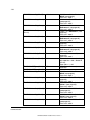
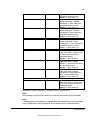
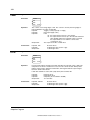
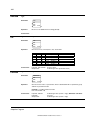
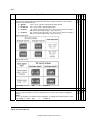
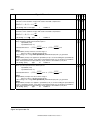
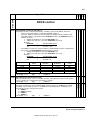
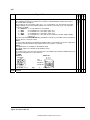
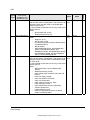
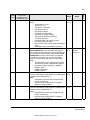
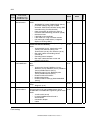
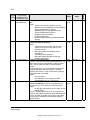
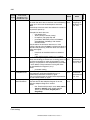
Soft key 1 - Function varies, and is
defined by the text in the lower-left
corner of the LCD display.
Soft key 2 – Function varies, and is
defined by the text in the lower-right
corner of the LCD display.
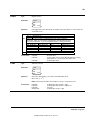
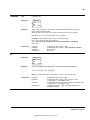
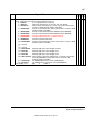
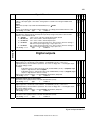
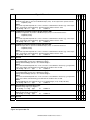
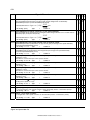
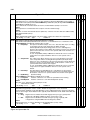
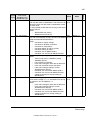
Up –
• Scrolls up through a menu or list
displayed in the middle of the
LCD display.
• Increments a value if a parameter
is selected.
• Increments the reference if the
upper-right corner is highlighted
(in reverse video).
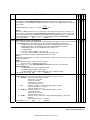
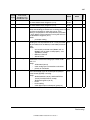
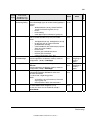
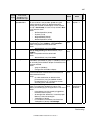
Down –
• Scrolls down through a menu or list
displayed in the middle of the LCD
Display.
• Decrements a value if a parameter
is selected.
• Decrements the reference if the
upper-right corner is highlighted (in
reverse video).
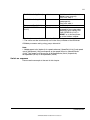
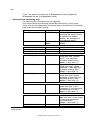
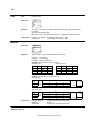
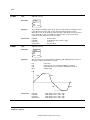
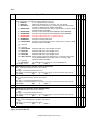
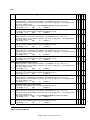
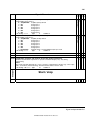
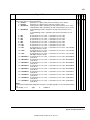
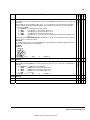
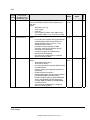
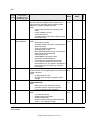
LOC/REM – Changes between local
and remote control of the drive.
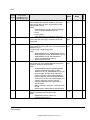
Help – Displays context sensitive
information when the button is
pressed. The information displayed
describes the item currently
highlighted in the middle area of the
display.
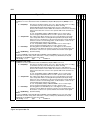
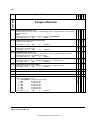
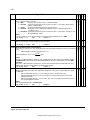
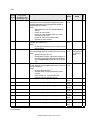
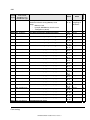
STOP – Stops the drive in local
control from DCS800 panel and
when the Start-up Assistant is used.
START – Starts the drive in local
control from DCS800 panel and
when the Start-up assistant is used.
DCS800 FW pan sum.dsf
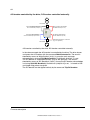
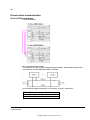
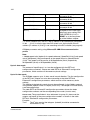
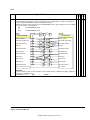
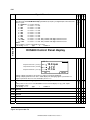
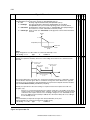
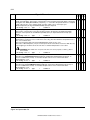
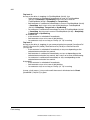
General display features
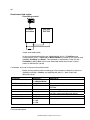
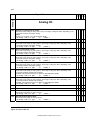
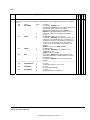
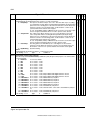
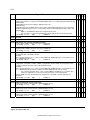
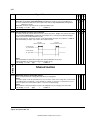
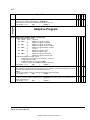
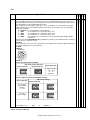
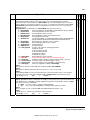
Soft key functions:
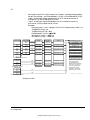
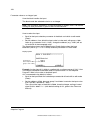
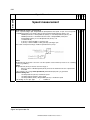
The soft key functions are defined by the text displayed just above each key.
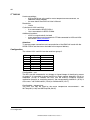
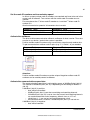
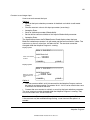
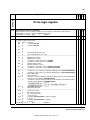
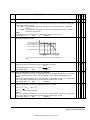
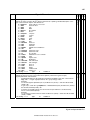
Display contrast:
To adjust display contrast, simultaneously press the MENU key and UP or DOWN,
as appropriate.
DCS800 panel operation
3ADW000193R0601 DCS800 Firmware Manual e f