1
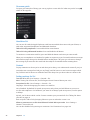
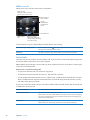
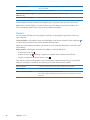
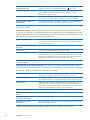
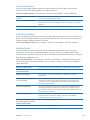
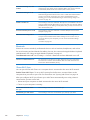
Select the pronunciations available
in the language rotor
Go to Settings > General > Accessibility > VoiceOver > Language Rotor. To
change the position of a language in the list, drag
up or down.
Change the language for iPhone
Go to Settings > General > International > Language. Some languages
may be affected by the Region Format setting (Settings > General >
International > Region Format).
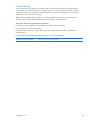
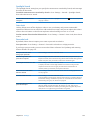
Skip images while navigating
Go to Settings > General > Accessibility > VoiceOver > Navigate Images.
You can choose to skip all images or only those without descriptions.
Speak notifications when you
unlock iPhone
Go to Settings > General > Accessibility > VoiceOver > Speak Notifications.
If this is off, iPhone speaks only the time when you unlock it.
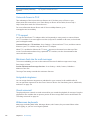
Using VoiceOver
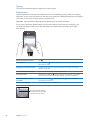
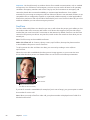
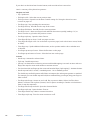
Select items on the screen: Drag your finger over the screen. VoiceOver identifies each element
as you touch it. You can move systematically from one element to the next by flicking left or right
with a single finger. Elements are selected from left-to-right, top-to-bottom. Flick right to go to the
next element, or flick left to go to the previous element.
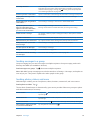
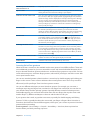
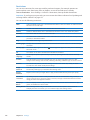
Enable vertical navigation
Add Vertical Navigation to the rotor, use the rotor to select it, then swipe
up or down to move to the item above or below. See “Using the VoiceOver
rotor control” on page 147.
Select the first or last element on
the screen
Flick up or down with four fingers.
Unlock iPhone
Select the Unlock button, then double-tap the screen.
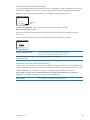
Select an item by name
Triple-tap with two fingers anywhere on the screen to open the Item
Chooser. Then type a name in the search field, or flick right or left to move
through the list alphabetically, or tap the table index to the right of the list
and flick up or down to move quickly through the list of items.
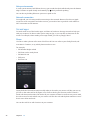
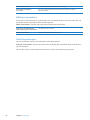
Change the name of a screen item
so it’s easier to find
Tap and hold with two fingers anywhere on the screen.
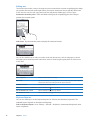
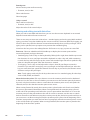
Speak the text of the selected element: Flick down or up with one finger to read the next or
previous word or character (twist the rotor control to choose characters or words). You can include
the phonetic spelling. See “Setting up VoiceOver” on page 143.
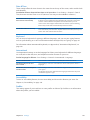
Stop speaking an item
Tap once with two fingers. Tap again with two fingers to resume speaking.
Speaking automatically resumes when you select another item.
Change the speaking volume
Use the volume buttons on iPhone, or add volume to the rotor and swipe
up and down to adjust. See “Using the VoiceOver rotor control” on page 147.
Mute VoiceOver
Double-tap with three fingers. Double-tap again with three fingers to turn
speaking back on. To turn off only VoiceOver sounds, set the Ring/Silent
switch to Silent. If an external keyboard is connected, you can also press the
Control key on the keyboard to mute or unmute VoiceOver.
Change the reading voice
Go to Settings > General > Accessibility > VoiceOver > Use Compact Voice.
Speak the entire screen from
the top
Flick up with two fingers.
Speak from the current item to
the bottom of the screen
Flick down with two fingers.
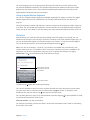
Speak the iPhone status
information
Tap the top of the screen to hear such information as the time, battery life,
Wi-Fi signal strength, and more.
“Tap” the selected item when VoiceOver is on: Double-tap anywhere on the screen.
144
Chapter 31    Accessibility