1
The first two items in the Clipboard Tools window apply to whatever is selected in the
Clipboard.
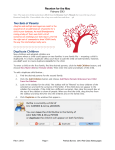
To remove a link from the Clipboard...
1. Select a person in the Clipboard who has a link icon.
2. Click the Tools button at the bottom. 3. Select Remove Link from Clipboard.
To delete a person from the Clipboard...
1. Select a person in the Clipboard who has a person icon.
2. Click the Tools button at the bottom.
3. Select Delete Selected Person.
What Happens When Clicking People in the Clipboard?
Single-clicking a link in the Clipboard selects the link and enables the Remove Link
item in the Clipboard Tools.
Single- or double-clicking a link in the Clipboard will navigate to the person's record in
the family view.
Single-clicking a person in the Clipboard will select him and enable the item Delete
Selected Person in
the Clipboard Tools.
Double-clicking a person in the Clipboard will render an option to make a new record
for the person — in effect, moving him out of the Clipboard and onto his own family
record.
The reason you can't navigate to people in the Clipboard is because their record is in
the Clipboard, not on a family record. Double-clicking somebody who has the person
icon will show a message asking if you'd like to
create a family record for the clicked person (as explained above).
Other Techniques for Fixing Bad Links
If you don't like the idea of dragging relations to the Clipboard, there are other ways to
correct bad links...
• To remove a child, choose Edit -> Family -> Children, select a child in the list,
and click the Remove
Child button.