1
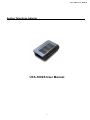
UTA-1002S User Manual
Address
Setting
Setting
Setting
3
Auto
mode
Server IP Address
configure
IP mode
PSTN mode
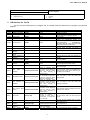
#137+[0~2]#
0: Disable, 1: TFTP mode,
2: FTP mode
#192#
Set default use IP mode
#193#
Set default
mode
use
PSTN
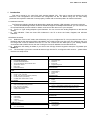
You can set the Auto configuration mode, 0:
Disable, 1: use TFTP Server, 2: user FTP
Server
Only support 1S1P, provide setting change
default setting to IP mode
Only support 1S1P, provide setting change
default setting to PSTN mode
Setup the TA by Web Browser
Default the TA’s NAT is enabled, WAN port is in DHCP Client Mode, LAN port is in DHCP Server Mode. You can
connect you PC on LAN port, then you will get an IP Address from the TA.
The TA provides a built-in web server. You can use Web browser to configure the TA. First please input the IP
address http://192.168.123.1:9999 in the Web page. Please remember to add the port number “:9999”.
3.1 Login.
3.1.1
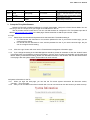
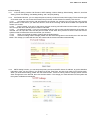
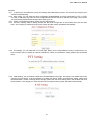
Please input the username and password into the blank field. The default setting is:
1. For Administrator, the username is: root; and the password is: test. If you use the account login, you can
configure all the setting.
2. For normal user, the username is: user; and the password is: test. If you use the account login, but you
can not configure the SIP setting.
3.1.2
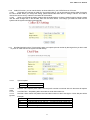
Click the “Login” button will move into the TA web based management information page.
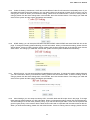
3.1.3 If you change the setting in the Web Management interface, please do remember to click the “Submit” button
in that page. After you finished the change of the setting, click the “Save” function in the left side, and click the Save
Button. When you finished the setting, please click the Reboot function in the left side, and click the Reboot button
in that page. After the system restart, all the setting can work properly.
3.2 System Information for the TA.
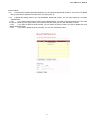
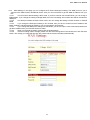
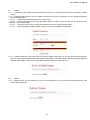
3.2.1 When you login the web page, you can see the TA current system information like firmware version,
company… etc in this page.
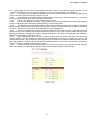
3.2.2 Also you can see the function lists in the left side. You can use mouse to click the function you want to set up.
5