1
SpyderHUB connected hard drives should be dismounted from the desktop and the
SATA enclosure(s) turned off prior to a hard drive configuration change. Once the
change is completed the SATA enclosure can be turned on and the hard drives will be
recognized. This can be done while the SpyderHUB and the computer are still powered.
Daisy-Chaining FireWire (Optional)
A second FireWire 800 port is available for daisy-chaining additional FireWire devices to
the SpyderHUB. Either FireWire port can be used for the host computer or for daisychaining purposes. As a test, FirmTek was able to configure three hard drives as a Mac
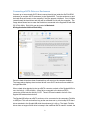
OS X Disk Utility striped RAID set with two eSATA drives connected to the SpyderHUB
in JBOD mode, and one FireWire daisy-chained hard drive. This was a software-based
RAID configuration with Mac OS X providing the striping functionality in the operating
system.
SpyderHUB hardware RAID configurations are limited to the two eSATA hard drives
connected directly to the eSATA ports on the SpyderHUB. A FireWire daisy-chained
hard drive can be mounted separately while the SpyderHUB is configured to support any
of the three RAID modes (RAID 0/SPAN/JBOD) on directly-connected eSATA hard
drives. The daisy-chained FireWire hard drive cannot be part of the SpyderHUB
hardware RAID and will be recognized separately by the computer operating system.
Note to Users Daisy-Chaining FireWire Hard Drives: If a self-powered FireWire hard
drive is connected to the second FireWire daisy-chain port and it is necessary to change
the SpyderHUB RAID mode selection, it will be necessary to completely power down the
SpyderHUB by removing all FireWire or USB cables (and the optional power adapter, if
used). This will clear the SpyderHUB disk configuration settings and allow the new
mode to be accepted. This step is not necessary if a self-powered FireWire hard drive is
NOT connected to the second FireWire daisy-chain port.
9