1
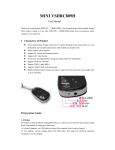
Car Key MINI DV
User Manual
Thank you for purchasing this product. It has adopted unique ultra-portable design, which makes it
apply to every area. It brings more convenience, safety and funs to your daily life.
I Characters of Product
It has small contour design, It is very fashionable and wearable a
Support PC camera and chatting function.
Support AVI video format.
It can carry out high definition image recording under low illumination.
Support 30 fps for 720*4 80
With sound control
Support USB1.1 and USB2.0.
Support 16GB T-flash card.(maximum)
Build-in lithium battery which can make a video more than one hours, the standby time
is up to 120 hours.
Can make any key to use.
II Operation Guide
1. Charge
The battery is built-in lithium rechargeable battery, so when you use it the first time, please charge
firstly. The method for charging as following:
1.) Connect computer: use USB cable to connect the computer, then it can be charged.
2.) Use adaptor: connect charger plug with USB cable, then plug into electrical connector
receptacle, it can be charged.
When you charge it, blue light often bright and red light flash, the red light go off when the battery
is full.
Notice: when battery power is not enough, it will enter into protection mode, so it cannot be turn
on. Now, please charge for it.
2. Power on to video
Please confirm the TF card has already insert products!
Press “Power” button, Press the right button, the red and blue indicators lights separately and
then the red one keep lighting. It enters into standby mode .Press the button and red indicator
light flashing quickly. At this time, it begins to make a video. Press “Power” button, red indicator
lights while Saving the record.. If you need to continue to video, please press the “Power” again.
The resolution of the video files: 720*480, Frame: 29~30fps/S
Notice:
a. Please make sure T-flash (Micro SD) card has been inserted, if not, it will be power off
automatically after 15 seconds.
b. The maximum capacity of T-flash card is 16GB.
c. Saving file needs certain time, so please don’t press Operation button continuously in order
to avoid saving unsmooth and generating incomplete file.
d. When you make a video, please focus on the object and keep 50cm under sufficient
illumination. Then the video will be right, natural color, clear and stable.
3. Sonic Camera
Press “Power” button, Press the right button, the red and blue indicators lights separately and then
the red one flashes slowly. It enters into standby mode .now the red light flashing slowly (Sonic
standby), MINI DV start automatic video recording when the site voice over 60 db .now the red
light flashing quickly(Sonic video). Press “Power” button. red indicator light flash slowly,
means save the record. When the voice over 60 db, again into the sonic camera.
The resolution of the video files: 720*480, Frame: 29~30fps/S
4.
.Time set
There is a CD with the product which contains a file named time synchronization file. Please copy
it to TF card. When connect D001 with computer, whose time will be displayed with computer
synchronously.
The detail as following:
1. build a text called TAG.TXT under root directory of card.
2. open TAG.TXT, write synchronous date according to enclosure strictly.
Details as following:
[date] need space with newline
2009/07/22 need space with newline
12:00:00
Power on the machine every time, system will check and analyse TAG.TXT, then set system
time according to file time. After that the text will be deleted by system automatically.
5.
.Power off
In the halted state, Holding “Power” button, then release till indicator goes out. Then the machine
is turned off.
6.
Auto-power off function
MINI DV will save file and turn off automatically as following:
a. When you shoot video without enough power, file will be saved automatically, then
auto-power off.
b. When disk space of MINI DV is not enough, after indicator goes out immediately, file will be
saved automatically then auto-power off.
c. Under standby mode, without any operation in 45 seconds, it will be auto-power off.
7.
.Connecting computer
It can connects computer under power off mode, standby mode or video mode, after that which
can be used as U disk, who can copy, cut and paste, delete file.
When you connect it with USB port, a portable disk mark will be seen after several seconds. Red
indicator light always bright, yellow indicator light will be from flashed quickly to always bright.
Notice:
a. When you connect computer, if the machine cannot be identified, or not see the portable U
disk mark in 30 seconds, please insert it again.
b. It is better copy or cut video file into computer hardware then play. Video file which is saved
in the machine is played directly will cause unsmooth play, the reason is that gigantic data cannot
be transmitted synchronously.
8
PC Camera
When you first use PC camera, please install driver. The driver name is
SPCA1528_V2220_M…Setup.exe, which is placed in attached CD. When you install please
double press this document, and as per guide to do. After that there will be an AMCAP icon on the
computer desk.
Under power off or power on mode, use USB cable to connect computer, the mode is U disk mode.
Then short press “ON/OFF” button, at this moment it can be switched into PC camera mode. Then
double press AMCAP icon can be used as PC camera.
9.
.Reset
When machine works abnormal for illegal operation or other unknown reasons, it needs to be
reset.
The specific operation method as following:
Use slim pole to press the Reset button, and then finish one reset operation.
PS: the Reset button located on the left side of indicator light.
10. Adaptation any key
In front of the device, have a “PUSH” button, Press this button, the automatic open keys ( can
match top any key). Holding this button and Press keys to USB direction then retract the key.
(Must hold on “PUSH” button)
11. Notice
Suitable using situation: Please follow State's law. Do not use it illegally.
Software upgrade: In order to make products have more function, manufacturer will perfect
product software continuously. This product is convenient for customer to upgrade by themselves,
so please contact with local retailer for the latest software information and upgrade method
Work temperature: Please use it under normal temperature and avoid using under unsuitable
body temperature.
Work humidity: Please use it under agreeable human atmosphere humidity, Please not to make
product wet or expose in rain for which without waterproof function.
Shooting illumination: Please use it under enough light sources; do not aim the camera at the sun
and other strong light sources in order not to damage optical parts of an apparatus.
Cleaning requirements: Please not use the product under too large dust density atmosphere so as
not to affect video effects for tainted lens and other parts.
Waste treatment: Please pay attention to protect environment, not to throw the product optionally.
In order to avoid explosion, please not throw product into fire.