1
Chapter 4 - Using the Keypad
Using the EDIT Menus
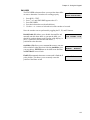
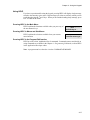
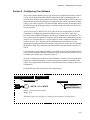
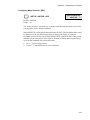
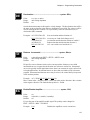
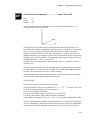
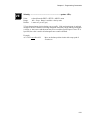
Pressing the EDIT key reveals three sub-menus called PROG,
SETUP and POS:
- - - -- ↑ EDIT ↓ - - - - PROG SETUP POS
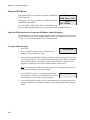
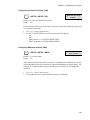
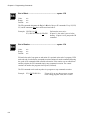
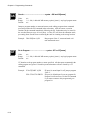
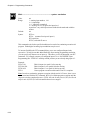
Pressing the ↑ or↓ key reveals three more EDIT sub-menus
called LIST and TUNING:
- - - - - ↑ EDIT ↓ - - - - LIST TUNING
Access the PROG, SETUP, POS, LIST, and TUNING menus
by pressing the appropriate function key. Descriptions of these sub-menus follow:
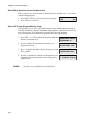
Using the PROG Sub-menu to Create and Edit Motion Control Programs
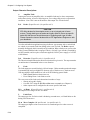
This menu allows you to edit an existing program, or enter a new program from the keypad.
Use the numeric keys to enter a program number to start a new motion program, or use the
↑ and ↓ keys to scroll through the list of existing programs.
To Create a New Program:
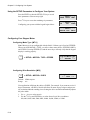
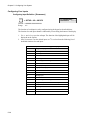
1. Press EDIT
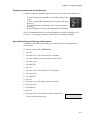
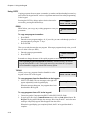
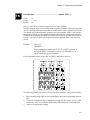
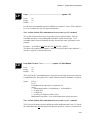
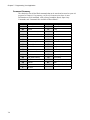
2. Press F1 (PROG) and you will see a display with a
blinking cursor as shown to the right.
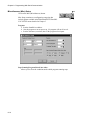
-- ↑ EDIT PROGRAM ↓->_
3. Enter an identifying number that will be used later to call up the program. The number
you enter may be from 1-199 (1-400 with 30k memory option), but do not use a number
that is already being used for another program. If the SmartDrive contains several
programs, scroll the list to determine a number that has not been used.
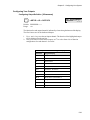
Note: You may assign a name, rather than a number, to your program if you wish. See
“Naming Your Programs” later in this chapter.
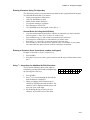
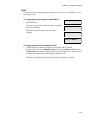
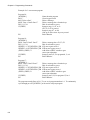
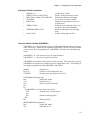
4. Press ENTER. You will see a completely blank display
screen with only a blinking cursor in the upper left corner.
The SmartDrive is now ready to accept a program.
_
5. Once inside the program editor, you will enter commands by pressing a function key
and then a numeric key. Examples of creating, saving, naming, and editing programs
follow:
4-10