1
M. Exbrayat, L. Martin
18
• Shape:
A specic shape is associated with each value of the attribute. Only a limited
set of shapes are currently avaible, and this should no be used with an attribute
taking more than 4 dierent values.
• Colour:
One dierent colour is associated with each value of the attribute. There
is no limit to the number of colours. Colouring can not be set directly, but can be
through the setting of the class attribute.
7.2.2
Multi Class Objects
When identifying groups of objects, the user can either associate a single group to each
object, or choose a fuzzy classication, where each object belongs to each group to a
certain level. While standard classication relies on a single attribute, multiclassication
numerical attributes, each one corresponding to the level of belonging to
In Explorer3D for a given object, the sum of these levels must be equals to
relies on several
a given class.
1.
Multiclassication can be visualized as follows: In the classes dropbox, the user chooses
the special value Multiclasses. A secondary list is then displayed in which the user
has to select the list of class attributes. The resulting display mode is similar to the one
describe in the fuzzy kmean-method (see section 8.3.3).
7.2.3
Image display
If an associated data attribute has been dened, then the image corresponding to each
object can be displayed on the basis of the le name stored in this attribute. Image display
can be either static or dynamic. Dynamic display occurs when the mouse pointer passes
over a given object. The corresponding image is then displayed, and hidden back when
the mouse pointer leaves the object. Dynamic display of images is optionanl and occurs
only if Show pictures when mouse is over is checked. Static image display is controled
through the popup menu that opens when the user makes a right-clic on a given object
with her mouse (see section 7.3.3).
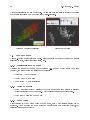
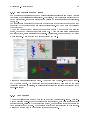
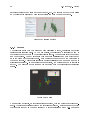
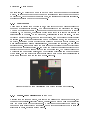
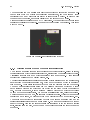
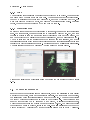
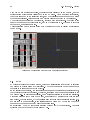
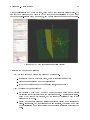
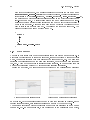
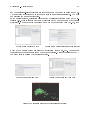
Depending on user's options (see section 7.7), image static display will occur either in the
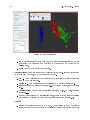
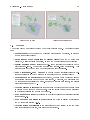
3D view or in a specic window. If option Draw pictures out-of 3D is checked, then a
specic window is use (see g. 7); otherwise they are directly displayed in the 3D view
(see g. 8).
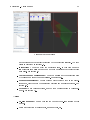
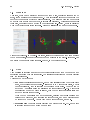
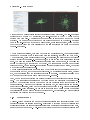
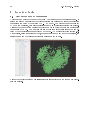
We can notice, in gure 7, that the objected linked to the pictures have been lected (red
background in the picture window, and highlighted color in the 3D view). We can also
notice that one image is currently dynamically displayed in the 3D view.
The default option consists in displaying images out-of the 3D view, in a spcic window.
7.2.4
Multiple picture sources
If several images are available for a single object, the user can decide to display them
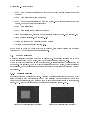
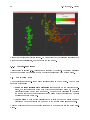
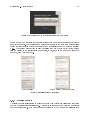
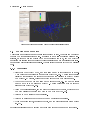
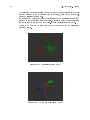
simultaneously using a set of 3D scenes. To be more precise, the user can dene a specic
image attribute for each of her 3D scenes.
The default conguration consists in using a single image attribute for all of the 3D scenes.
If several additional attributes are available, that correspond to the name of picture les,
and if the user wishes to view a least two of them simultaneously, the way this can be