1
Configure Drives and Icons Menu
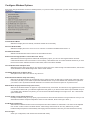
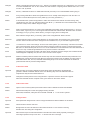
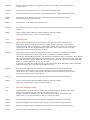
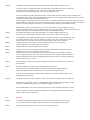
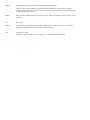
All changes are performed in realtime, so you know what to expect when you click “Save Changes. Picture is example only.
Single Drive Checkboxes, A-Z
Uncheck/check what you want to hide or show. Checked means always show, unchecked means always hidden.
Auto Hide Disconnected
Checked = FloatLED window will ONLY show drives detected by the Operating System and scale the window accordingly.
Unchecked = FloatLED window will show ALL and window wil be in full width like shown and will respect whatever
drives you manually would like to show instead (Single Drive Checkboxes above).
Show Small Square On Icon
Checked = FloatLED window will show icons with tiny square and respects
Unchecked = Don’t show any tiny litte square ever never.
Notice the tiny little white square in the top right corner. It indicates that Windows has successfully found the drive, which
of course makes also FloatLED be able to detect it’s activity.
Show Icon Separator Line
Turns on a small 1 pixel graphical line between each icons for clearer viewing or not. See example above.
Turn off Device Detection Interval
If you have a very static drive setup and do not need the automatic detection of drives, use this to turn the checking off
completely. It means that no icons will disappear or appear even if you add drives to the system.
Use Drive Icon Size
Will preset the size of the drive icons by FloatLED default suggestions.
Use Custom Icon Size
Enables you to scale the icons from 10 to 1024 pixels in height/width. If you have 26 drives, expect a veeeeery long line :-)
Configure Icon Colors
Allows for custom coloring of the Read, Write, Background and Text colors. The color box is the current color used. You
may adjust them by clicking the appropriate button to see realtime changes. Press the “U” to undo to the last saved color.
Assigned Drives
Will show drives that are assigned in your system. RED=unsupported/not monitored. Green=Supported for monitoring,
Gray=Supported for monitoring, but no disk inserted yet (typical for Multi Card Flash Readers).
Save Changes
Saves your configuration, exits window and resumes disk activity.