1
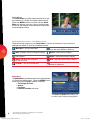
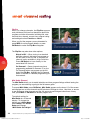
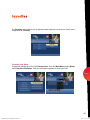
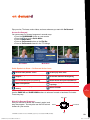
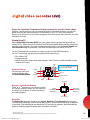
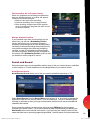
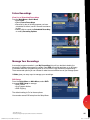
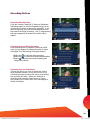
DVR Folders
DVR Folders help you keep recorded series organized
and help you scroll through your recordings quickly.
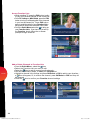
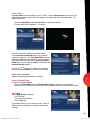
DVR Folders automatically group like titles into
MVSKLYZ/PNOSPNO[[OLDVR Folders to open and
ZJYVSSKV^U[VZLSLJ[HZWLJPÄJLWPZVKL[V^H[JO
Press LAST to return to your recordings list.
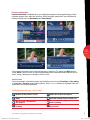
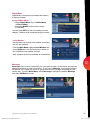
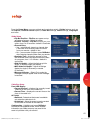
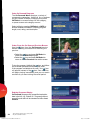
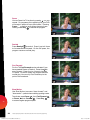
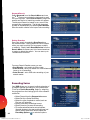
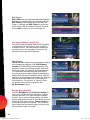
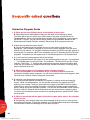
Live Program Notice – Default “On”
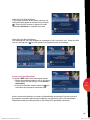
;OLUV[PJLV]LYSH`^PSSHWWLHY^OLUH+=9YLJVYKPUN
is scheduled for a live program, such as sports
or awards shows. You can choose to extend the
recording time of live programs in the event the
program runs longer than scheduled.
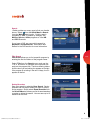
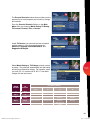
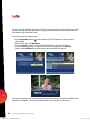
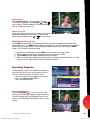
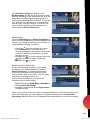
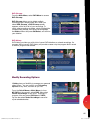
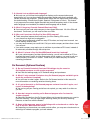
DVR Clipping
i-Guide provides a feature to accommodate recording
two overlapping programs. With DVR Clipping,
i-Guide will automatically clip the beginning of a
program if there is a recording overlap when both
tuners are in use. For example, while watching live
;=HZJOLK\SLKYLJVYKLKWYVNYHTLUKZH[ !
but your second recorded program is scheduled to
ILNPUH[ !"[OLZLJVUKWYVNYHT^PSSIL¸JSPWWLK¹
ZV[OH[`V\YÄYZ[WYVNYHTPZYLJVYKLKPUM\SS*SPWWPUN
happens when both tuners are in use during the
YLJVYKPUN[PTL0M[OPZVJJ\YZH¸JSPWWLK¹UV[PJL
will appear next to those programs in the
My Recordings listings.
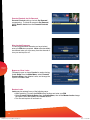
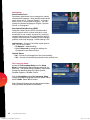
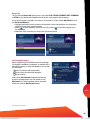
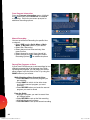
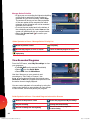
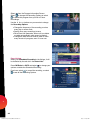
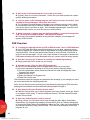
Manage Series Priorities
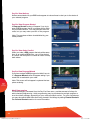
From the DVR Menu select Series Recordings to
view a list of Series and Keyword Series. Use the
up/down arrowson your remote to highlight
a series. If you want to change priority of a series,
use the page up/down keys on your remote to move
the series up or down your list. Select Confirm to
JVUÄYTHUKHJJLW[`V\YJOHUNLZ;OLÄYZ[ZLYPLZ
set to record has the highest priority and will be the
VULYLJVYKLKPM[OLYLPZHJVUÅPJ[
dvr
36
09ROVI1204 User i-Guide Manual R16.indd 38
4/6/10 12:28:44 PM