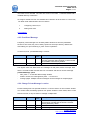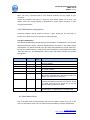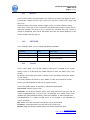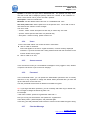
1
123 Flash Chat User Manual
20061031
Pages: 1 of 61
123 Flash Chat Server Software
User Manual
Version 6.2
http://www.123flashchat.com
Powered by TOPCMM
TABLE OF CONTENTS
1.
2.
Introduction..........................................................................................................3
Requirements.......................................................................................................3
2.1
Server Requirements................................................................ 3
TopCMM Software
http://www.123flashchat.com
123 Flash Chat User Manual
20061031
Pages: 2 of 61
2.1.1
2.1.2
2.1.3
2.1.4
2.2
2.2.1
2.2.2
3.
Supported Platforms............................................................. 4
Hardware requirements........................................................ 4
Java Virtual Machine(JVM) Requirements........................ 4
Port requirements.................................................................. 4
Client Requirements ................................................................. 5
Hardware Requirements...................................................... 5
Flash Player Requirements.................................................. 5
Installation............................................................................................................5
3.1
3.2
Overview the files:................................................................... 6
Installing the Chat Server......................................................... 6
3.2.1
Windows NT/2k/XP/2003..................................................... 6
3.2.2
Linux....................................................................................... 10
3.2.3
Other Unix Operating System............................................14
3.3 Web server............................................................................................................. 15
3.4
Insert code.............................................................................. 16
4. Configuration........................................................................................................ 18
4.1 Server Configuration............................................................................................. 18
4.1.1.
fcserver.xml. .......................................................................... 18
4.1.2 Default.xml................................................................................................ 23
4.1.2.8 <room_id>.xml...................................................................................... 29
4.2 Client Configuration.............................................................................................31
4.2.1
client.xml............................................................................... 31
4.2.2
Skin configuration................................................................ 37
4.2.3
Predefined Message........................................................... 38
4.2.4
Change Private Message Location................................... 38
4.2.5
flashEmotion configuration.................................................39
4.3
Client Admin Panel.............................................................. 39
4.4
Integrate database configuration............................................ 42
5. Chat Modules ........................................................................................................ 46
5.1
5.2
5.3
5.4
5.5
5.6
5.7
Moderated chat module.......................................................... 46
Invisible admin chat module.................................................. 46
Change nickname module...................................................... 46
Pocketpc & banner chat module........................................... 47
Flashcomaudiovideo module............................................... 47
Encryptmessage chat module................................................ 48
Eventchat module..................................................................48
6. How to customize chat skin................................................................................ 48
7. Programmer’s tools..............................................................................................49
7.1 Server API.............................................................................................................. 50
7.1.1 Get Server Running Status from the files............................................ 50
7.1.2
Send command to server to operate or get realtime data
7.2
Client Parameters................................................................... 53
7.2.1 init_user and init_password.................................................................... 53
50
TopCMM Software
http://www.123flashchat.com
123 Flash Chat User Manual
20061031
Pages: 3 of 61
7.2.2
7.2.3
7.2.4
7.2.5
7.2.6
7.2.7
7.2.8
7.2.9
7.2.10
7.2.11
7.2.12
init_nickname........................................................................54
init_root.................................................................................. 54
init_room and init_room_pwd............................................ 55
init_lang................................................................................. 56
init_skin.................................................................................. 56
admin_mode......................................................................... 56
init_ad.................................................................................... 57
loading_bkground................................................................ 57
init_private and init_private_message..............................57
Init_listroom.......................................................................... 58
init_invisible.......................................................................... 58
8. Lite Client.............................................................................................................. 59
9. User Profile Interface........................................................................................... 59
1.
Introduction
123 Flash Chat Server Software is a realtime, powerful, high performance chat
server produced by TopCMM Software Corp. ( http://www.topcmm.com/ ) .This user
manual contains clearly labeled diagrams and instructions for how to install, use, and
administrate 123 Flash Chat Server Software for your own use. The demonstration
version of 123 Flash Chat Server Software is a free way to test the paid version. The
demonstration includes every feature of the full version, however, the user’s connection
will be lost every ten minutes.
The latest information concerning 123 Flash Chat Server Software can be found by visiting
http://www.123flashchat.com.
If you are interested in purchasing this software online, please go to
http://www.123flashchat.com/buy.html. Thank you!
2.
Requirements
2.1
Server Requirements
2.1.1
Supported Platforms
Windows 95/98/NT/ME/2000/XP
Solaris/Sparc 2.6, 7,8,9
Solaris/Intel 2.6,7,8,9
TopCMM Software
http://www.123flashchat.com
123 Flash Chat User Manual
20061031
Pages: 4 of 61
Compaq Tru64
IRIX
HPUX 10.20, 11
AIX 4.3.x
Linux Redhat 6.2, 7.1, 7.2, 7.3, 9
Linux Caldera
TurboLinux
Mac OS Classic 8.1 9.X
Mac OS X 10.0 10.1
Mac OS X Server
2.1.2
Hardware requirements
123 Flash Chat Server Software will be compatible with most server hardware.
The minimum hardware requirements are as follows:
586/200 MHz or faster processor
64 MB of RAM or more
100 MB free hard disk space or more
Dedicated PII/400 MHz with 256 MB RAM is eligible to handle 500 or more concurrent users.
Adding extra RAM and processors will improve the performance of 123 Flash Chat.
2.1.3
Java Virtual Machine(JVM) Requirements
A Java Virtual Machine (JVM), or a Java Developer Kit (JDK), fully compliant with the Sun
J2SDK 1.4.x is required to run the 123 Flash Chat server. We recommend J2SDK 1.4.2 or a
higher version.
For the current version of JDK, visit http://java.sun.com/.
Note: The Windows and Linux versions of 123 Flash Chat Server Software now include the
Sun J2SDK 1.4.2 so it won’t be necessary to install JDK again.
2.1.4
Port requirements
123 Flash Chat Server Software needs at leas t ONE free port. The default port is: 51127
123 Flash Chat Server Software can listen to two ports simultaneously to guarantee the
accessibility:
a low one (<1024) and a high one (1024~65535).
To ensure your users don’t have to configure a firewall before accessing 123 Flash Chat, the
TopCMM Software
http://www.123flashchat.com
123 Flash Chat User Manual
20061031
Pages: 5 of 61
low port can be set to 80 or 443, since it is allowed by most users ’ firewalls.
But remember, ports below 1024 can only be accessed using flash player 7 or 8. That ’s why
you may set a high port (1024~65535) to serve lower version flash player.
123 Flash Chat Server Software has a builtin web server JUST for testing purpose. The
default port value for this web server is 35555.
For more detailed instructions on ports , please refer to the: Server Configuration Section of
this guide.
2.2
Client Requirements
2.2.1
Hardware Requirements
586/166 MHz or faster processor
64 MB of RAM or more.
2.2.2
Flash Player Requirements
The client will need Macromedia Flash Player 6 or above to use the flash chat client .
If users do not have flash player 6 or higher installed, they will be notified of these
requirements and automatically directed to Macromedia Download Center to download
Macromedia Flash Player for free.
3.
Installation
Two main versions of 123 Flash Chat Server Software are available, one is for Windows
and the other for Linux. Both include J2SDK1.4.2.
For operating systems other than Windows or Linux, before installing 123 Flash Chat
Server, J2SDK1.4.x must be downloaded by visiting http://java.sun.com and installed.
The installation will include two parts:
1. Installing the chat server
2. Configuring a web server and embed the chat client to your webpage
3.1 Overview the files:
It contains the following folders:
/client
ad
TopCMM Software
http://www.123flashchat.com
123 Flash Chat User Manual
20061031
Pages: 6 of 61
banner
flashEmotion
help
lang
skin
/doc
/server
data
default
logs
members
message
rooms
userinfo
etc
groups
database
lib
logs
wrapper_win32
/readme.txt
3.2
Installing the Chat Server
3.2.1
Windows NT/2k/XP/2003
Follow the steps below to install the latest Windows version of 123 Flash Chat Server
1. Download the latest Windows version of 123 Flash Chat Server Software at:
http://www.123flashchat.com/download.html, get the file: 123flashchat.exe
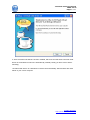
2. Double click "123flashchat.exe". It will take a few minutes to install just following the simple
instructions in it.
TopCMM Software
http://www.123flashchat.com
123 Flash Chat User Manual
20061031
Pages: 7 of 61
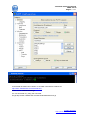
3. After 123 Flash Chat Server has been installed, wait a few seconds while 123 Flash Chat
Server as a Windows NT service is automatically started( Usually you don't have to start it
manually).
123 Flash Chat Server as a Windows NT service will automatically load and start after each
reboot of your server computer.
TopCMM Software
http://www.123flashchat.com
123 Flash Chat User Manual
20061031
Pages: 8 of 61
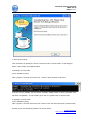
4. Start the chat server.
This can be done by starting the server in service mode or console mode, if it was stopped
before. These modes are explained below:
a) Starting in service mode:
(In the Windows system)
start>program>123 flash chat server 6.0 > Server>start 123 flash chat server.
If an error occurs, probably the chat server is already started before or there is a problem with
the server configuration. To check what type of error it is, please start in console mode.
b) Starting in console mode:
(In the Windows system)
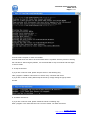
start>program>123 flash chat server 6.0>control>start 123 flash chat server (console mode).
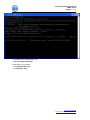
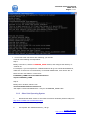
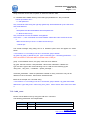
Usually you will see something similar to the screen below:
TopCMM Software
http://www.123flashchat.com
123 Flash Chat User Manual
20061031
Pages: 9 of 61
Console mode is helpful to check error details.
Console mode does not need to be used unless there is a problem with the process of starting
the chat server. After fixing the problem, it is recommended to stop chat server and start again
in service mode.
5. To stop chat server:
a) If you are in service mode, please stop the server in the following way:
start>program>123flash chat server 6.0>server>stop 123 flash chat server.
b) If you are in console mode, please stop the server by simply closing the popup DOS
window.
6. To restart chat server:
a) If you are in service mode, please restart the server in following way:
Start>program>123 flash chat server 6.0>server>restart 123 flash chat server.
TopCMM Software
http://www.123flashchat.com
123 Flash Chat User Manual
20061031
Pages: 10 of 61
b) If you are in console mode, please close the DOS window firstly, and restart the server in
following way:
start>program>123 flash chat server 6.0>server> restart 123 flash chat server
Note: After configuring the server parameter manually, you have to restart the chat server to make
the changes effective.
Note: Windows 98 and Windows ME do not support NT service. If you need to run the chat
server on a Windows 98 or Windows ME server you should open Notepad to create a file with
following code (in one single line):
jre\bin\java classpath
"jre\lib\sunrsasign.jar;jre\lib\rt.jar;jre\lib\plugin.jar;jre\lib\jsse.jar;jre\lib\jce.jar;jre\lib\charsets.jar;lib
\fcserver.jar;lib\moderator.jar;lib\log4j.jar;lib\xerces.jar;lib\jdom.jar;lib\mysql.jar"
com.topcmm.jchat.FCServer
Save it as a *.bat file to 123flashchat installed directory, for example, start98.bat, then open
DOS window:
cd <123flashchat_installed_directory>\server
start98.bat
3.2.2
Linux
1. If you are in a local Linux console window, please skip this step.
If you need to remote control Linux server, then please telnet or SSH to your Linux server first
with SSH/telnet client software like Putty. Putty can be downloaded for free from:
http://www.chiark.greenend.org.uk/~sgtatham/putty/download.html
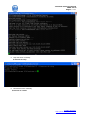
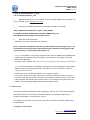
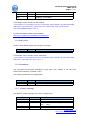
Then login to your server as shown below:
TopCMM Software
http://www.123flashchat.com
123 Flash Chat User Manual
20061031
Pages: 11 of 61
2. Download the latest Linux version of 123 Flash Chat Server Software at:
http://www.123flashchat.com/download.html,
Select the file: 123flashchat.tar.gz
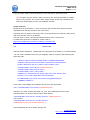
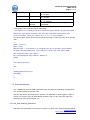
You can download it by using this command:
$ wget http://www.123flashchat.com/download/123flashchat.tar.gz
TopCMM Software
http://www.123flashchat.com
123 Flash Chat User Manual
20061031
Pages: 12 of 61
3. Uncompress the 123flashchat.tar.gz
$ tar zxf 123flashchat.tar.gz
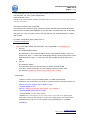
4. Start the server manually:
$ cd 123flashchat/server
$ ./fcserver.sh start
TopCMM Software
http://www.123flashchat.com
123 Flash Chat User Manual
20061031
Pages: 13 of 61
5.
Stop the server manually:
$ ./fcserver.sh stop
6.
Restart the server manually:
$./fcserver.sh restart
TopCMM Software
http://www.123flashchat.com
123 Flash Chat User Manual
20061031
Pages: 14 of 61
7. How to auto start chat server after rebooting your server?
It can be done following the steps below:
Step 1:
Modify “fcserver.sh”, find the FCSERVER_HOME section, and configure the directory of
“fcserver.sh”.
For example, if you uncompress the 123flashchatserver.tar.gz into /usr/local/123flashchat,
make sure “fcserver.sh” is in the directory of /usr/local/123flashchat, then remove the “#”
before the two rows below in “fcserver.sh”:
FCSERVER_HOME=/usr/local/123flashchat/server
export FCSERVER_HOME
Step 2:
Modify /etc/rc.local file, add one row:
/usr/local/123flashchat/server/fserver.sh
Just replace "/usr/local/123flashchat/ " with your FCSERVER_HOME value.
3.2.3
1.
Other Unix Operating System
Download the latest version of 123 Flash Chat Server Software (without JVM) from:
http://www.123flashchat.com/download.html,
Select the file: 123flashchatserver_s.tar.gz
2.
Uncompress the 123flashchatserver_s.tar.gz
TopCMM Software
http://www.123flashchat.com
123 Flash Chat User Manual
20061031
Pages: 15 of 61
$ gzip –d 123flashchatserver_s.tar.gz
$ tar xf 123flashchatserver_s.tar
3.
Make sure Sun j2sdk 1.4.x or a newer version is already installed in your system. If it
is not, download it from: http://java.sun.com/
4.
Set the Java variable and edit the system PATH variable in /etc/profile:
JAVA_HOME=/usr/local/j2sdk1.4.x;export JAVA_HOME
CLASSPATH=$JAVA_HOME/lib/dt.jar:$JAVA_HOME/lib/tools.jar
PATH=$PATH:/usr/java/j2sdk1.4.x/bin;export PATH
5.
Start 123 Flash Chat Server.
Remember to type all code below in a single line.
$ java –classpath CLASSPATH:lib/fcserver.jar:lib/moderator.jar:lib/changenick.jar: lib/
invisibleadmin.jar:lib/serverapi.jar:lib/robotmessage.jar:lib/fclib.jar:lib/log4j.jar:lib/jdo
m.jar:lib/xerces.jar com.topcmm.jchat.FCServer &
Note: For "Sun Solaris", we strongly recommend the patch for J2SDK to be installed before
installing the 123 Flash Chat Server Software. This will ensure the stability of the multi
thread Java application,
The patch can be obtained from: http://sunsolve.sun.com/pubcgi/show.pl?target=patches/J2SE
Tip: If you are still experiencing problems and require help with installing the Java software,
please contact your system administrator. Alternatively you can contact us via email at
support@123flashchat.com
Please make sure to include the details of your operating system.
If you have purchased 123 Flash Chat Server Software, please also include your name,
purchase email and user license, we'll provide a preferential support to buyer. Those who
have purchased the unlimited user license version of 123 Flash Chat will get priority and
will also receive a lifelong upgrade and technical support for free.
3.3 Web server
123 Flash Chat Server Software includes a temporary web server JUST for testing purpose .
But when you launch the 123 Flash Chat Server officially, a professional web server is
strongly recommended, such as Apache, IIS, etc.
To integrate the chat client to a web server other than the builtin web server, please follow
the steps below:
a) copy the "client" folder
TopCMM Software
http://www.123flashchat.com
123 Flash Chat User Manual
20061031
Pages: 16 of 61
Copy the "client" folder to the web directory of your web server, but keep in mind:
Note: DO NOT copy the "server" folder to protect it from being downloaded by chatters,
which is very insecure. The "server" folder should already be securely installed on the
web server automatically so far in the installation process.
b) edit client.xml
Please leave the host value to "*" if the chat server and the web server (which hosts the
123flashchat.swf file) are located on the same server.
If the SWF file is on another web server, then you should set the host value according to the
chat server domain name or IP address.
The port value in client .xml should be identical with the one in fcserver.xml.
For advanced connection configuration, please refer to:
http://www.123flashchat.com/howto_configure_connection.html
3.4
Insert code
After the original installation, 123flashchat.swf is supposed to be already in your web directory .
You can insert 123flashchat.swf into your webpage (static or dynamic) with following flash
object tag code:
<OBJECT classid="clsid:D27CDB6EAE6D11cf96B8444553540000"
codebase="http://download.macromedia.com/pub/shockwave/cabs/flash/
swflash.cab#version=6,0,19,0" WIDTH="634" HEIGHT="476">
<PARAM NAME=movie VALUE="123flashchat.swf ">
<PARAM NAME=quality VALUE="high">
<PARAM NAME="menu" value="false">
<EMBED src="123flashchat.swf" quality=high menu=false WIDTH="634"
HEIGHT="476" TYPE="application/xshockwaveflash"
PLUGINSPAGE="http://www.macromedia.com/go/getflashplayer">
</EMBED></OBJECT>
In the code, if the webpage and 123flashchat.swf are in the same folder:
Then: <PARAM NAME=movie VALUE="123flashchat.swf">
Otherwise, you have to add a parameter "init_root" after 123flashchat.swf to ensure
123flashchat.swf can find the relevant files to load, like this:
<PARAM NAME=movie VALUE="/another_directory/ 123flashchat.swf">
The syntax is:
<PARAM NAME=movie VALUE="/another_directory
/123flashchat.swf?init_root=/another_directory/ ">
If the 123flashchat.swf is on another domain, like:
TopCMM Software
http://www.123flashchat.com
123 Flash Chat User Manual
20061031
Pages: 17 of 61
<PARAM NAME=movie VALUE="http://www.another_domain.com/chat/ 123flashchat.swf">
The parameter "init_root" is also indispensable:
<PARAM NAME=movie
VALUE="http://www.another_domain.com/chat/ 123flashchat.swf?init_root=http://www.another
_domain.com/chat/ ">
123 Flash Chat flash client is resizable.
Find: WIDTH="634" HEIGHT="476", replace the values with the expected width and height.
Technically the smallest size is 550*250, and for the width, we recommend it be no less than
400 pixels. You can if you prefer, remove the logo, buttons and other decorations to make it
even smaller.
For Client Configuration detail, please refer to:
4.2 Client Configuration
Note: in the code, another two parameters can be appended to 123flashchat.swf.
1.
init_lang
The initial language setting.
This parameter in html code has higher priority over language setting in client.xml.
If there’s init_lang= ”**” in the code, the language setting in client.xml becomes invalid.
While without init_lang= ”**” in the code, then the language setting in client.xml is
valid.
2.
init_skin
The initial skin setting.
If you choose a skin here, the skin setting in client.xml will be invalid.
If you don’t choose a skin here, the skin setting in client.xml will be valid.
For example: 123flashchat.swf?init_lang=en&init_skin=standard
A full sample:
<OBJECT classid="clsid:D27CDB6EAE6D11cf96B8444553540000"
codebase="http://download.macromedia.com/pub/shockwave/cabs/flash/swflash.cab
#version=6,0,19,0" WIDTH="634" HEIGHT="476">
<PARAM NAME=movie
VALUE="123flashchat.swf?init_lang=en&init_skin=standard ">
<PARAM NAME=quality VALUE="high">
<PARAM NAME="menu" value="false">
<EMBED src="123flashchat.swf?init_lang=en&init_skin=standard " quality=high
menu=false WIDTH="634" HEIGHT="476" TYPE="application/xshockwaveflash"
PLUGINSPAGE="http://www.macromedia.com/go/getflashplayer"></EMBED>
</OBJECT>
TopCMM Software
http://www.123flashchat.com
123 Flash Chat User Manual
20061031
Pages: 18 of 61
4. Configuration
4.1 Server Configuration
By default, all configuration for the chat server is controlled by two files:
1. fcserver.xml This is located at:
<123flashchat installed directory>/server/etc/fcserver.xml
2. default.xml It is located at:
<123flashchat installed directory>/server/etc/groups/default.xml
You can also access both files from Windows start menu if you’re using Windows system.
4.1.1. fcserver.xml
4.1.1.1 Connection Configuration
Open the configuration file fcserver.xml
In the Connection Section, you can set two servers and listen to two ports.
primaryserver
secondaryserver
There are four reasons as to why there is a second server port option. They are listed below:
1) Any version before Flash Player 7 only allows access on a high port (102465535) due to
security reasons, while a low port is forbidden. If you are okay with high port you will not
need to set secondaryserver. However if you need to set port lower than 1024, you will
need a secondaryserver.
2) If the port of your primaryserver is lower than 1024 like 80, then only users with Flash
Player 7 or newer versions will be able to access the chat while users with flash player 6
can’t.
In this case a secondaryserver will be necessary. The port for the secondary server
should be greater than 1024, which will allow users with an earlier version of Flash Player
to access chat.
3) If you are going to set a high port for your primaryserver, then usually you will not need
a secondaryserver. You will be able to leave the option as default: enable= ”off”.
4) Using two servers with two ports is just a temporary solution while some users are still
using Flash players earlier than version 7.
When Flash player 7 or higher version becomes mainstream, we will take off the
secondaryserver for future versions of 123 Flash Chat.
TopCMM Software
http://www.123flashchat.com
123 Flash Chat User Manual
20061031
Pages: 19 of 61
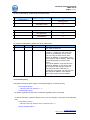
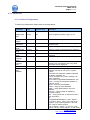
To help understanding, please study two tables below:
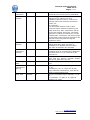
Parameter
High port (102451127)
Low port (<1024)
>=Flash player 7
Primary server
secondary server
Table1
Parameter
>=Flash player 7
High port (102451127)
Low port (<1024)
Primary server
(unnecessary)
Table2
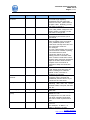
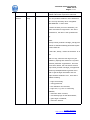
To modify the Parameters, please refer to the table below:
Parameter
port
Type
Number
Default Value
51127
ip
String
*
Description
The server port must be identical with the
port value in client.xml.
Set the Server address.
A default ”*” means the chat server will
bind to all IP addresses of your server.
The host value in client.xml can be a
random IP address or any domain name
which points to this IP address. Either way,
clients will be able to connect to the
server.
If you set IP address of the server to the
specific IP address of your server, then
the chat server will only bind to this IP.
This will mean that in client.xml, to
connect the chat server, you can only use
this specific IP address or the domain
name which points to this IP address.
crossdomainpolicy
123 Flash Chat Server start using the crossdomainpolicy to ensure security.
<crossdomainpolicy>
<allowaccessfrom domain="*" />
</crossdomainpolicy>
By default it permits access to the connection originating from any domain.
To limit access from a specific domain name, you can configure your server in the following
way:
<crossdomainpolicy>
<allowaccessfrom domain="www.mydomain.com" />
</crossdomainpolicy>
TopCMM Software
http://www.123flashchat.com
123 Flash Chat User Manual
20061031
Pages: 20 of 61
Parameter
Type
Default Value
Description
messagehandle
workers
Number
20
listenworkers
Number
20
maxconnection
Number
10000
usertimeout
numbers
300
useridletimeout
numbers
300
userconnection
timeout
numbers
22
datapath
String
data
adminlogspath
string
logs
maxconnections
perip
Number
10
timezone
Number
0
It deals with messages.
To handle high frequency
messages with over 1000 chat
users in one room, please set it to
a higher value. Normally you will
not need to change it.
If the maximum number of users is
over 1000, please configure it with
larger number. Normally you will
not need to change this.
The user maximum in all rooms will
be limited by the license you’ve
purchased.
If a still loggedin user does not
send a request to the chat server
for a predefined period of time,
chat server will stop serve him and
the connection will be cut.
For example:
If a user clicks another URL in their
current browser instead of quitting
123 Flash Chat first, their
connection will be cut by this
setting. But if the 123 Flash Chat
user is inactive inside their current
browser their connection will still be
kept as the flash client will send
request to the chat server at
intervals to keep the connection
alive.
A user will be identified as being in
“idle” status when they have not
sent a message for a defined
period of time. The units of
measure are seconds.
A user will get “failed to log in” error
message when it exceeds the
predefined period of time to try to
connect to the chat server.
Sets the folder name in which
following data files are stored:
member folder; banip list; banuser
list, etc.
Name of the folder of admin log
data files.
Connection limit of each IP. By
default it is "10".
If configure it to "0", then one IP
can login unlimited connections,
this can be used for performance
test.
Set your local time zone. between
12 to 12.
For example, 5: GMT5 , 8:
GMT+8. Default is 0: GMT
TopCMM Software
http://www.123flashchat.com
123 Flash Chat User Manual
20061031
Pages: 21 of 61
To allow all URLs on mydomain.com to be accessible, you can configure your server in the
following way:
<crossdomainpolicy>
<allowaccessfrom domain="*.mydomain.com" />
</crossdomainpolicy>
To allow multiple domain names to be accessible you can configure your server in the
following way:
<crossdomainpolicy>
<allowaccessfrom domain="www.myfriendsdomain.com" />
<allowaccessfrom domain="*.mydomain.com" />
<allowaccessfrom domain="11.22.33.44" />
</crossdomainpolicy>
maxconnectionsperip
<! maxconnectionsperip
Connection limit of each IP. By default it is "10".
If configure it to "0", then one IP can login unlimited connections, this can be used for
performance test. >
<maxconnectionsperip>10</maxconnectionsperip>
In current version, the crossdomainpolicy is now enhanced in this way:
not only all connections originating from domain which is not in the allowaccess list is
forbidden, those connections originating from local computer by launching SWF file are now
denied, too.
Only connections from allowaccess list can access chat.
(Of course you can set it to permit access from any domain.)
4.1.1.2 Global Configuration
Open the configuration file fcserver.xml
In the Global Section:
To modify the Parameters, please refer to the tables below:
Parameter
Type
Default Value
Description
message
handle
workers
Number
20
listen
workers
Number
20
It deals with messages.
To handle high frequency messages with
over 1000 chat users in one room, please
set it to a higher value. Normally you
will not need to change it.
If the maximum number of users is over
1000, please configure it with larger
number. Normally you will not need to
change this.
TopCMM Software
http://www.123flashchat.com
123 Flash Chat User Manual
20061031
Pages: 22 of 61
max
connection
user
timeout
Number
1000 0
numbers
300
useridle
timeout
numbers
300
user
connection
timeout
numbers
22
datapath
String
data
adminlogs
path
max
connections
perip
string
logs
Number
10
timezone
Number
0
The user maximum in all rooms will be
limited by the license you’ve purchased.
If a still loggedin user does not send a
request to the chat server for a
predefined period of time, chat server
will stop serve him and the connection
will be cut.
For example:
If a user clicks another URL in their
current browser instead of quitting 123
Flash Chat first, their connection will be
cut by this setting. But if the 123 Flash
Chat user is inactive inside their current
browser their connection will still be kept
as the flash client will send request to the
chat server at intervals to keep the
connection alive.
A user will be identified as being in “idle”
status when they have not sent a
message for a defined period of time.
The units of measure are seconds.
A user will get “failed to log in” error
message when it exceeds the predefined
period of time to try to connect to the
chat server.
Sets the folder name in which following
data files are stored: member folder;
banip list; banuser list, etc.
Name of the folder of admin log data
files.
Connection limit of each IP. By default it
is "10".
If configure it to "0", then one IP can
login unlimited connections, this can be
used for performance test.
Set your local time zone. between 12 to
12.
For example, 5: GMT5 , 8: GMT+8
Default is 0: GMT
TopCMM Software
http://www.123flashchat.com
123 Flash Chat User Manual
20061031
Pages: 23 of 61
4.1.2 Default.xml
4.1.2.1 General Configuration
To modify the Parameters, please refer to the table below:
Parameter
Type
Default Value
Description
enableguest
On/Off
On
Allow unregistered guest to log in or not.
On/Off
On
Allow new user to register
Numbers
10000
Number
32
User Maximum in all rooms of current group
simultaneously.
Maximum length of user id when registering
Number
32
Maximum length of password when registering
Number
128
Number
512
Maximum length of email address when
registering
Maximum length of each message.
Number
5
Number
String
5
None
login
Enableuser
register
max
connection
Maxuserid
length
maxpasswd
length
maxemail
length
max
message
length
Maxcached
message
entry
Maxpostrow
Integrated
other
database
Shows the last conversation in a newly
opened room and defines how many latest
messages will be displayed.
Maxium row of each message.
123 Flash Chat can integrate your existing user
database, like that of your forum or portal
system.
123 Flash Chat integrates phpBB, PHPNuke,
PostNuke, AspNuke, etc.
A forum which doesn ’t have a database can
not be integrated.
The modes of IntegratedOtherDatabases are:
None – not using an integrated database to
authorize a user
Mysql – using a mysql database
Oracle – using an oracle database
ODBC – using ODBC DSN to connect a
database
Common – using all kinds of databases,
advanced setting
URL – using a web URL to authorize a user’s
login information.
Eg:
<IntegratedOtherDatabase mode= ”Mysql”>
If it is set to “None”, when a new user clicks
“register”, they will be registered in the chat
room original register window
If set to “Mysql”, “Oracle ” or “common”, then
when a new user clicks “register ”, a new windo
TopCMM Software
http://www.123flashchat.com
123 Flash Chat User Manual
20061031
Pages: 24 of 61
w will pop up and they will be directed to
another URL which is preset in client.xml.
Authurl
string
/
You can just leave it blank or even delete this
line. It is only necessary when “integrated
otherdatabase ” is set to URL.
It means the URL you use to authorize your
users must have two arguments. One is the
%usename%, the other is the %password%.
Eg:
<auth
url>http://www.yourhost.com/login_chat.php?us
ername=%username%&;password=%pass
word%</authurl>
In this URL, “&; ” means the character “&’ in
xml.
That is to say, when the user logs into your
website by inputing their username “myname”
and their password “mypassword”, and click
“chat” link or button, the chat server will visit
“http://www.yourhost.com/login_chat.php?user
name=myname&password=mypassw ord” in
order to get the login information and will
output numbers between 0 to 7, each with a
different meaning.
0 – login successfully;
1 – wrong password;
2 – the username can’t be used;
3 – login error, e.g. error in connecting
database;
4 – username does not exist;
5 – successfully login as the administrator;
6 – guest login not allowed;
7 – username banned .
TopCMM Software
http://www.123flashchat.com
123 Flash Chat User Manual
20061031
Pages: 25 of 61
talkinterval
numbers
1000
This is the shortest pause ( in milliseconds)
between two utterances.
This prevents screen flooding. Eg: 1000 = 1
second.
Kickban
numbers
15
Specifies a time period to ban a user’s
timeout
username and IP address after he has been
‘kicked out’. Unit: minute
note: a user will only be banned from the
current room but not from other rooms.
If you set it to “0”, there ’s no “ban”
accompanied with “kick”.
Sitekey
string
This is the code to validate your website. It
must be the same as the siteKey value in
client.xml, otherwise the client will not be able
to connect to your chat server.
moderatorSe
On/Off
Off
Enable the moderator users have permission to
eIP
check others IP address.
4.1.2.2 User Configuration
Open the configuration file: default.xml
In the user section, you can configure <admin> and <ReservedUserName>.
To add an administrator, just add one line in the Users > admin Section:
<user name="admin" passwd="test" md5="off"/>
or:
<user name="admin" passwd="098f6bcd4621d373cade4e832627b4f6"
md5="on"/>
Parameters of admin configuration:
Parameter
Type
Default Value
Description
name
string
name
passwd
string
username of the administrator
Password of the administrator can be
encrypted by MD5 or not.
password
TopCMM Software
http://www.123flashchat.com
123 Flash Chat User Manual
20061031
Pages: 26 of 61
md5
string
If the password is not encrypted it
needs to be set as: md5="off".
If encrypted it needs to be set as:
md5="on".
md5
Multiple administrator accounts can be set up, however for security reasons, it is
recommended to appoint only one administrator and to designate multiple moderators for
different rooms who have less ‘power’.
To add a reserved username, just add one row in
<ReservedUserName> tag:
<word>Administrator</word>
4.1.2.3 Log Configuration
There are 3 kinds of logs:
1.
access log
2.
error log
3.
message log.
One log file is generated for one day. The main log always records the current days logs.
The history log automatically adds a postfix of the date.
For example: access.log, access.log.200658, access.log.200657,
.
Parameter
Type
Default Value
Description
logspath
accesslog
Errorlog
string
string
string
logs
access.log
error.log
Set the directory of data files
Set the filename of the access log
Set the filename of the error log
Parameter
Type
Default Value
Description
logstype
string
html
publicmessage
path
publicmessage
filename >enable
publicmessage
rooturl
publicmessage
filename
publicmessage
button
string
Define the type of log to be html
or plain text.
1. text file.
sample: **.log
2. html file.
sample: **.html
Set the directory of
public
message
Enable or disable to save the
public message.
Set the root url of public
message.
Set the filename of the public
message log
Enable or disable to show the
public message button in client
side, which will display in the chat
message logs
string
on
string
string
public
string
Off
TopCMM Software
http://www.123flashchat.com
123 Flash Chat User Manual
20061031
Pages: 27 of 61
privatemessage
path
privatemessage
path >enable
privatemessage
filename
string
string
on
string
private
history panel.
Set the directory of
private
message
Enable or disable to save the
private message.
Set the filename of the private
message log
4.1.2.4 FilterWords Configuration
Inappropriate Words may need to be filtered from a conversation.
If you want to substitute a word, please add one row in the tag below: <FilterWords> in
<123FlashChatServer6.0 installed dir>\server\etc\groups\default.xml.
Then set the substitute in the following tag:
<FilterWords replace="your substitute">
For example:
<FilterWords replace="***">
<filter>fuck</filter>
<filter>shit</filter>
</FilterWords>
Parameter
filter
replace
Type
string
string
Default Value
**
Description
Bad words needed to be filtered.
Set the substitute to replace the
filtered words.
Partial filter is also enabled, such as: “fuckyou” will be filtered as “***you”.
4.1.2.5 robotmessage
Scheduled automatic ‘robot ’ message(s) can be defined, to be broadcast in certain
room(s) within certain intervals. This can be used for Site News, Advertisement, etc.
Check details
Parameter
enable
Type
On/off
Default Value
On
Description
Enable or disable chat bot.
activerooms
string
*
Active rooms for all chat bot
messages.
interval
number
10
The interval of rotate chat bot
messages (seconds)
TopCMM Software
http://www.123flashchat.com
123 Flash Chat User Manual
20061031
Pages: 28 of 61
message
String
/
The robot message content
4.1.2.6 serverapi
The 123 Flash Chat server can receive commands sent by third party applications and
can send its data to the application or can operate on the chat server accordingly. By
default it is set to be “On” enabled.
Check details
Parameter
Default Value
Description
authpassword
3874345992932194
allowaccessfromip
127.0.0.1
Only command with the right
key( password) will be authorized by
the chat server and will be effective.
Only command from this IP is
legitimate.
If set to " *", then commands from all IP
address are valid. which is insecure.
4.1.2.7 Modules
With following optional modules, the chat can be greatly enhanced.
These are included in the demonstration version for test but are not included in the
standard full version by default.
Specific module(s) can be purchased if required.
Module name
Default Value
Introduction
moderatedchat
On
changenick
On
invisibleadmin
On
flashcomaudio
video
off
encryptmessage
off
With the moderatedchat module enabled,
questions submitted by participants will not be
displayed publicly unless the Moderator or
Administrator approves/passes it.
With the changenick module enabled, users
have the ability to change their display nickname,
sex, location and age after they have logged in.
This makes chat more flexible and fun.
With the invisibleadmin module enabled, the
administrator can monitor the chat
conversations in chat rooms invisibly.
Without the "existence" of the administrator,
chatters can freely talk but
can also be stopped by the administrator if their
language is inappropriate..
With flashcomaudiovideo module enabled, you
can add webcam and voice chat.
Unlike the basic text chat, this module needs
support of flash communication server.
Message being encrypted will ensure the
security of the chat server.
123flashchat can encrypt messages using RSA.
TopCMM Software
http://www.123flashchat.com
123 Flash Chat User Manual
20061031
Pages: 29 of 61
eventchat
On
Certain chat room(s) can be configured to
automatically open and close at a particular time
to gather more traffic.
4.1.2.8 <room_id>.xml
In the directory:
<123flashchat installed directory>/server/data/default/rooms/
There are files named “<number>.xml”.
For example: 1.xml, 1032.xml
Each one of these files represents a chat room.
The room change in admin panel will affects these xml files accordingly at realtime, ie:
when adding a room in the admin panel, one file will be generated into this directory;
when deleting one room, one file will be removed from this directory.
For example:
<?xml version="1.0" encoding="UTF8"?>
<room>
<name>Main Test</name>
<max>200</max>
<des>Tip: test register, enter, exit room, send, newline, etc</des>
<owner>admin</owner>
<speaker></speaker>
<password></password>
<memberonly>Off</memberonly>
<passallmessage>Off</passallmessage>
<roomOpen>
<Time o="special" s="20060418 17:55:00" e="20060418 18:01:00"></Time>
</roomOpen>
</room>
Note: file name is room ID, not room name.
Parameter
name
max
Type
Description
String
Chat room name
Number
Max number of people in one room,
which is limited by the user license
you have.
des
String
Chat room description and
introduction.
TopCMM Software
http://www.123flashchat.com
123 Flash Chat User Manual
20061031
Pages: 30 of 61
owner
String
Chat room owner= moderator who
can kick any one causing a
nuisance.
To have two or more moderators,
please enter the owner list in this
tag separated by "," with no spaces
between.
eg: aaa,bbb,ccc.
In admin panel, moderatators can
be added, editted and deleted.
speaker
String
When a room’s status is set to
‘moderatedchat ’, all the messages
from ordinary users are not made
public unless the moderator
passes them.
Another type of user is “speaker”.
A speaker is entitled to talk freely
in public without the consent of the
moderator.
To have more than one speaker,
the list of speakers can be entered
into the tag, separated by "," with
no spaces between.
eg: aaa,bbb,ccc.
A speaker can not kick someone
from the chat room.
Leave the field of speaker to be
blank if you want.
password
String
memberonly
On/Off
passall
message
On/Off
Chat Room password.
If you do not want a password to
protect a chat room, leave this
section blank.
This determines whether a room is
‘members only’ or open to all
including guests.
Enable or disable moderator chat
mode(need moderator chat
module)
TopCMM Software
http://www.123flashchat.com
123 Flash Chat User Manual
20061031
Pages: 31 of 61
roomopen
roomopen
>time
roomopen
>time o
roomopen
>time s
roomopen
>time e
Define the particular time to open
and close the chat room.
Room mode, “normal ” means
certain time period of each day or
certain day of a week.
“special” means special chat event
of a particular day.
Example: 20060418 17:55:00
Room start time.
Example: 20060418 18:01:00
Room end time.
Normal/Special
number
number
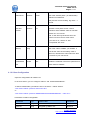
4.2 Client Configuration
There are three client configuration files:
1.
client.xml,
2.
skin.xml,
3.
color.xml
The modifications for these files will not be effective until the chat client is reopened.
4.2.1 client.xml
Only values can be changed, not the names.
Parameter
Type
Default value
Description
Connection>host
String
*
Connection>port
Number
51127
HomeUrl
String
http://www.123f
lashchat.com
HelpUrl
String
help/index.html
registerUrl
String
null
Please leave the host value to "*" if
the chat server and the web server
(which hosts 123flashchat.swf file)
are located on the same server.
If the SWF file is on another web
server, you should set the host value
according to the chat server domain
name or ip address.
The port value must be identical with
the one in fcserver.xml.
For details, please refer to:
http://www.123flashchat.com/howto_
configure_connection.html
This is the URL you want the logo to
link to. If this is set to ‘null’, there will
be no link over the logo.
This is the URL for the help file. This
can be translated to any language
locally, uploaded to your web server
and the new help URL can be
inserted here.
This parameter will not need to be
configured if you are using 123 Flash
TopCMM Software
http://www.123flashchat.com
123 Flash Chat User Manual
20061031
Pages: 32 of 61
copyright
string
loadRootPath
string
Copyright
20012005
TopCMM
Computing Inc.
All Rights
Reserved.
null
language
string
*
Chat to store your user data.
This parameter is only required if you
are using an external database.
This is your company copyright
information. This will be displayed in
the “about ” panel.
This is the directory where the
language folder and skin folder are
located. These should be left as ‘null’.
If however you put them on another
server, please set them to http://url/
For example:
“http://www.123flashchat.com/chat/”
Don't forget the slash at the end.
Choose the interface language from
our collection. Current versions of
123 Flash Chat offer the following
choices:
1) en English (default)
2) zhCN Simplified Chinese
3) zhTW Traditional Chinese
4) nl Dutch
5) fr French
6) ja Japanese
7) es Spanish
8) de German
9) it Italian
10)hu Hungarian
11)ru Russian
12)hr Croatian
13)tr Turkey
14)ar Arabic
15)pt Portugues
16)ko Korean
17)serbian Serbian
18)pl Polish
19)no Norwegian
20)farsi Farsi
21)el Greek
22)iceland Iceland
23)cs Czech
24)da Danish
25)fi Finnish
26)sv Swedish
27)ptbr Brazil Portugues
Note: the language files are located
in the folder: <loadRootPath>/lang/
The interface can also be translated
into other languages which are not
included in this list. If this is the case,
please save it as language_***.xml.
Put it into the same folder and edit
language setting in “client.xml”. You
will then get a local version of 123
Flash Chat.
TopCMM Software
http://www.123flashchat.com
123 Flash Chat User Manual
20061031
Pages: 33 of 61
skin
string
standard
profileUrl
string
null
enableRoomSounds
boolean
true
enableMonitorSounds
boolean
true
enterRoomSound
boolean
true
messageSound
boolean
true
We offer the following skins:
1) standard Aqua blue skin, scalable
vector skin.
2) beige Aqua beige skin, scalable
vector skin.
3) angel Black metallic bitmap skin.
4) hawaii Aqua black skin, scalable
vector skin.
5) classic Blue bitmap skin.
6) green Green skin, scalable vector
skin.
7) red Red& black skin, scalable
vector skin.
8) orange Orange skin, scalable
vector skin.
9) clean Aqua blue & gray skin,
scalable vector skin.
You can also design a new skin
based on the existing skins.
You can either enable or disable the
"profile" option by setting the value to
"true" or "false".
If it is enabled, enter the correct value
after the "url=",eg:
http://yourwebsite/profile.php?user=
%USER%
the "profile" link can be found when
activating a user from the user list in
the pop up menu.
Click on the "profile" link to view the
user's details in a new browser
window.
The URL value can be the profile link
in your existing database or even the
profile link of another website.
Note: you can add multiple profile
URLs.
This is the default sound setting in
the chat room. This can be enabled
by selecting "true" or disabled by
selecting "false".
This is the default sound setting in
the monitor panel for the
administrator. It can be disabled by
selecting "false", however we
strongly recommend it to be set to
"true" in order to monitor a chat room
with sound alerts.
This is where you can choose
whether or not to play a sound alert
when anyone enters the room you
are in.
The default value for this is "true"
which is also the default value for all
your members.
Your members can set their
preferences in their option panel.
This is where you can choose
whether or not to play a sound alert w
TopCMM Software
http://www.123flashchat.com
123 Flash Chat User Manual
20061031
Pages: 34 of 61
typingSound
boolean
true
sendingSound
boolean
true
quitRoomSound
boolean
true
singleLineMode
boolean
false
parseURl
boolean
true
autoSaveUsername
boolean
true
hen receiving a message.
The default value for this is "true"
which is also the default value for all
your members.
Your members can set their
preferences in their option panel.
This is where you can choose
whether or not to play sound when
typing messages.
The default value for this is "false"
which is also the default value for all
your members.
Your members can set their
preferences in their option panel.
This is where you can choose
whether or not to play a sound alert
when sending a message.
The default value for this is "true"
which is also the default value for all
your members.
Your members can set their
preferences in their option panel.
This is where you can choose
whether or not to play a sound alert
when someone exits a room.
The default value for this is "true
which is also the default value for all
your members.
Your members can set their
preferences in their option panel.
This enables switching to a single
line or multiline mode.
Messages can be set next to the
speaker by choosing “true”. This will
save chat space. For example:
"Mr.A says: Hello."
Messages can be displayed on a new
line by choosing “false”. For example:
"Mr.A says:
Hello."
”false” will then be the default value
for all your members.
Your members can set their
preferences in their option panel.
This is where you can make the URL
address in messages clickable or not.
If the value is set to "true", then the
valid URL, (a string with "http://" or
"www.*****" which is 9 characters at
least) will become underlined and
linked to the specified URL.
Defaul value is "true", which is also
default value for all your members.
Your members can set their
preferences in their option panel.
When the value for this is set to “true”
a chatter's username will
automatically be saved in the cache.
TopCMM Software
http://www.123flashchat.com
123 Flash Chat User Manual
20061031
Pages: 35 of 61
autoSavePassword
boolean
false
autoSaveAvatarFonts
boolean
true
autoSaveBKGround
boolean
true
visibleGuestCheckbox
boolean
true
visiblePasswordInput
boolean
true
visibleLogoutButton
boolean
true
defaultSelectGuest
boolean
false
enablePrivateChat
boolean
true
acceptPrivateMessage
boolean
true
lockAdminIcon
boolean
true
messageSpacing
Number
0
messageHistorySize
Number
100
showGuestMemberonl
yRoom
visibleWelcomeMessa
ge
boolean
true
boolean
true
The default value for this is “true” for
all of your members.
Your members can set their
preferences in their option panel.
When the value for this is set to “true”
a member's username will
automatically be saved in the cache.
The default value for this is "false" for
all your members.
Your members can set their
preferences in their option panel.
When the value for this is set to “true”
a chatter's avatar, font style and color
will automatically be saved in the
cache.
The default value for this is "true" for
all your members.
Your members can set their
preferences in their option panel.
When the value for this is set to “true”
a user’s chat space background will
automatically be saved in the cache.
The default value for this is "true" for
all your members.
If this is set to “true”, the combination
of "guest" and the checkbox before
"guest" will be visible to all users.
If this is set to “true” , the password
input field will be visible to all users.
If this is set to “true”, the logout
button will be visible to all users.
This can be set to be “true” if the
guest is checked as default.
This enables or disables the private
chat mode for ordinary users.
Remember: the administrator can
always activate a ‘private chat’ with
ordinary.
The user can accept all private
message invitations or deny them by
default with this setting.
This is set to “true” if the
administrator has a unique reserved
icon (a small person with coffee)
before their messages.
It is not referring to the icon before
the administrator in the user list.
You can set the spacing between two
messages here.
To allocate space to record chat
history. Please set the default space
size here for all your members. unit:
kb
To define if the memberonly room is
viewable to guests in a room list.
To define whether or not to display
the admin autowelcome message
when anyone enters the chat room.
TopCMM Software
http://www.123flashchat.com
123 Flash Chat User Manual
20061031
Pages: 36 of 61
visibleExitMessage
boolean
true
visibleRoomList
siteKey
boolean
String
true
advertisingBanner
boolean
false
banner>src
string
banner>href
string
banner> duration
visibleChangeRoomCo
mboBox
Number
boolean
true
visibleExitRoomButton
boolean
true
adminAutoGreet
boolean
false
visibleHelpButton
boolean
true
visibleOptionButton
boolean
true
visibleAvatarButton
boolean
true
visibleBButton
boolean
true
visibleIButton
boolean
true
visibleUButton
boolean
true
visibleColorButton
boolean
true
visibleSelectSmileyBut
boolean
true
To define whether or not to display
the admin auto message when
anyone leaves the chatroom.
To display room list or hide it.
The code to validate your website.
You can change this value to
anything you want,
but keep in
mind it must be identical with the site
key value in “fcserver.xml”, otherwise
connection attempts will be refused
by the chat server.
To insert one or more advertisement
banners onto the chat client.
Set enable to "true" to activate this.
This is where you can make the URL
of an advertisement banner source a
JPG or swf. The URL could be a
relative path or an absolute.
The URL linked with the
advertisement banner.
Advertisement duration time.
This indicates whether the pulldown
room menu for users to switch rooms
in a chat window is visible or not.
Add or remove an exit room button at
the top right.
The ‘robot ’ greetings administrator
automatically gives to visitors can be
displayed one by one.
You can add as many lines as you
want to make it look like a real
person.
This feature can be disabled by
setting it to "false".
Add or remove the ‘Help button’ from
the top menu.
Add or remove the ‘Option button’
from the top menu.
Add or remove the ‘Smiley button’
from the middle menu above the
input area.
Add or remove the ‘B button’ from the
middle menu above the input area to
enable or disable the bold font
feature.
Add or remove the ‘I button’ from the
middle menu above the input area to
enable or disable the italic font
feature.
Add or remove the ‘U button’ from the
middle menu above the input area to
enable or disable the underline font
feature.
Add or remove the ‘Color picker
button’ from the middle menu above
the input area to enable or disable
the font color feature.
Add or remove the ‘smiley button’ fro
TopCMM Software
http://www.123flashchat.com
123 Flash Chat User Manual
20061031
Pages: 37 of 61
ton
visibleSelectBgButton
boolean
true
idleDisconnectTime
number
0
visibleTimeStamp
boolean
false
predefineMessage
boolean
true
openPrivateMsgInWin
dow
boolean
false
flashEmotion
boolean
true
showSmileLimit >value
number
5
m the middle menu above the input
area to enable or disable the emotion
feature.
Add or remove the ‘BG button’ from
the middle menu above the input
area to enable or disable the change
chat background feature.
When a user is "idle" in chat room for
a predefined time,
his connection will be automatically
cut and he will be kicked out of the
room.
This time period can be defined here
by admin, "0" means to disable this
feature, and the users won't be
kicked no matter how long he stays
without saying or doing anything.
Measurement units: minute.
Display the timestamp in all users'
chat windows. Users can enable or
disable this feature by themselves in
the option panel.
Frequently used messages can be
easily added to/removed from the
predefined section to save time,
they can be easily copied into chat by
doubleclick.
Content can be defined in “msg
value”.
Whether or not to open each private
message in a new browser window
and the size of it.
Admin can preset this option for all
users.
Animated emotions can be chosen
and appeared to the chat lobby or
private chat.
The recipient in private chat, or all
users in lobby, can click "play" to
enjoy the specific flash.
by default it's "true", means the
emotion button will be visible to all
users.
Item:
name: Emotion name
src: flash file location
thumb: thumbnail location
duration: animation duration
(seconds).
Restrict the max number of smileys in
each message.
value="0" means no restrict
4.2.2 Skin configuration
TopCMM Software
http://www.123flashchat.com
123 Flash Chat User Manual
20061031
Pages: 38 of 61
123 Flash Chat is skinable. The skins are stored in the folder: <123FlashChatServer6.0
installed directory>/client/skin
To assign a default skin from the available skin collection to all the users in a chat room ,
123 Flash Chat administration has two choices:
1.
configuring client.xml, or
2.
editing html code
Check details
4.2.3 Predefined Message
Frequently used messages can be easily added to/removed from the predefined
section to save time, they can be easily copied into chat input area by doubleclick.
After editing it or just confirming it, press “send” to publish it.
In client.xml, find: <predefineMessage > section:
Parameter
Type
enable
boolean
msg value
string
Default
value
true
Description
Enable predefined message function or not. The
canned messages Admin defined in client.xml will
be available to all users by default
Default canned message content.
The regular users can define their own messages in chat panel, above chat input area
there is a middle toolbar and the last icon is for define and launch canned message.
predefineMessage panel
add: press “+” to activate add message window.
Delete: choose one message then press “” to remove it.
manage pages: Multiple canned messages can be managed in multiple pages.
4.2.4 Change Private Message Location
Private message has two optional locations: in current SWF or in new browser window.
If in current SWF, the loading speed of new private window is much faster; But if in new
browser window, it may be easier to manage multiple PMs.
Parameter
Type
enable
boolean
Default
value
false
width
height
number
number
475
240
Description
Whether or not to open each private message in a
new browser window and the size of it. Default
setting defined by admin.
Default width of new browser window, in pixel.
Default height of new browser window, in pixel.
TopCMM Software
http://www.123flashchat.com
123 Flash Chat User Manual
20061031
Pages: 39 of 61
Note: Too many concurrent PMs in new browser windows may lag speed of your
computer.
Admin can predefine this option in client.xml to be default setting for all users, and
regular users can change setting by themselves in option panel according to their
computer performance.
4.2.5 flashEmotion configuration
Animated emotions can be chosen to launch a "play" button into the chat lobby or
private chat. Other users can click "play" to enjoy the flash.
Change FlashEmotion
Nine default flashEmotions are packed into the free demo of 123flashchat. You can also
add/remove/change current collection. FlashEmotions are stored in one folder named
“flashemotion ” by default externally from the SWF, and controlled by xml file: client.xml.
To add new FlashEmotion(s), firstly put new flash animations to the FlashEmotion folder,
then edit client.xml, find flashEmotion section, add new line(s) to define the location
and duration.
Parameter
Type
enable
boolean
Default
value
true
col
row
autoPlay
number
number
boolean
3
3
false
name
src
string
string
thumb
string
duration
number
Description
flashEmotion button will be visible/invisible to all
users by default .
Default column of flashEmotions.
Default row of flashEmotions.
Whether or not the flashEmotion will be auto play
in current window.
flashEmotion name
The original flash file location. The recommended
dimension of flashEmotion: 500×400 px. Better not
bigger than 630×470 to look good.
thumbnail location.
The recommended dimension of thumbnail: 46×46
px. Other size is okay too, but too big in size will
lag the loading speed of the SWF.
18
animation duration (seconds) of each
flashEmotion, it’s depending on the SWF itself.
4.3 Client Admin Panel
Log in the flash client as administrator and click the “admin” button at the top of the
menu to enter admin panel. The top buttons have the following functions respectively:
TopCMM Software
http://www.123flashchat.com
123 Flash Chat User Manual
20061031
Pages: 40 of 61
4.3.1
Monitor
In the “monitor” panel, the administrator can monitor every action of all logged in users.
For example: connect to server, login, enter room, exit room, change room, logout chat
server, etc.
Other information shown here includes: logged in user IP, country and time stamp.
Note: Once a user logs in with a username and password they have a unique userid,
that’s the username he used to log in. Despite any nickname they may choose to
change to afterwards, their userid will remain the same and will be displayed in the
monitor window until they log out.
4.3.2
SETTINGS
In the “settings” panel, you can change the following variables:
Parameter
Type
Description
Enable user registertion
Enable guest login
Save messages history
CheckBox
CheckBox
CheckBox
Check to enable user registration
Check to enable guest login
Check it to save the message history
on the chat server
4.3.3
Rooms
In the "room" panel, you can add, delete or edit rooms, controlled by the middle
buttons. There is a title below the middle buttons to show the status of the room
section.
By default it is the ‘add room’ section. Choose a room first before clicking the “delete”
or “edit” button.
You will be notified if the action of “add”, “delete ” or “edit” is successful or if it fails.
Rooms you add will appear in realtime in the list of rooms.
In the room details section, an asterisk (*) indicates a required field.
Room name: name of current room.
moderator: he can kick a nuisance person from using the current chat room and set
a room to ‘Moderatedchat ’. In such a room, all messages from ordinary users will be
disabled from being displayed publicly unless the moderator or admin passed them.
(“Moderatedchat ” is a plugin module which is not included in the standard full
version by default.)
Max users: This value is limited to the license you have purchased.
Password: :Leave this blank if you want this to be a public room.
Member only: This defines whether guests can access a particular room.
TopCMM Software
http://www.123flashchat.com
123 Flash Chat User Manual
20061031
Pages: 41 of 61
Speaker: Is another user type used in ‘Moderatedchat ’. The speaker can freely chat
and their words will be displayed publicly without the consent of the moderator or
admin. Leave this as ‘null’ if you do not need a speaker.
Description: Chat room introduction.
Moderate: Set the default value if this room is a moderatedchat room.
Set room public time: Set the public time of the specific room. Click “add” to add a
rule first and click “submit” to save changes.
The room mode:
“normal”: means certain time period of each day or certain day of a week.
“special”: means special chat event of a particular day.
“EveryHour”: means recurring period of each hour.
4.3.4
Users
In the "User Panel" admin can control the users' connections.
Ban or unban a username.
Note: This applies to the user’s original username, not their currently displayed
nickname. If you ban someone but it fails, please find out their real username in the
monitor window and try again.
Ban or unban a IP sect,
4.3.5
Announcement
In the "Announce Panel" you can broadcast messages to every logged in user, whether
in specific chat rooms or just in the room list page.
4.3.6
Password
In the “Password Panel”, you can update the administrator password. Due to security
reasons it is very important to change the default admin password after you have set
up the chat server for the first time.
The new password will be stored in default.xml as MD5 encrypted.
Tip: If you forget the admin password, you can manually edit admin tag in “default.xml”,
do not forget to change the admin tag md5= ”off”.
For example:
<user name="admin" passwd="mypassword" md5="Off" />
Now you can log into chat with the new password: ”mypassword”.
Then admin panel> password panel, edit password again.
In this way your final password will be stored in fcserver.xml as a MD5 encrypted string.
4.3.7
Chat bot Message
TopCMM Software
http://www.123flashchat.com
123 Flash Chat User Manual
20061031
Pages: 42 of 61
This feature can be used for site news or text advertisements.
With “Chat Bot”, specific message(s) can be broadcast to specific rooms or all rooms at
predefined intervals.
Messages can be added, edited and removed from the list.
There can be multiple messages for one room, or one message for all rooms.
4.4 Integrate database configuration
123 Flash Chat supports integrating the existing database of your forum or portal system
such as phpBB, PHPNuke, PostNuke, AspNuke, etc., or of other user systems.
Basically 123 Flash Chat can integrate database of any kind, as long as there ’s username
and password in it, but if your website do not support a database your user information will
not be able to be integrated. If this is the case you can use 123 Flash Chat to store your
user information.
There are a few steps to integrate a database:
1) configure default.xml.
The modes of IntegratedOtherDatabase in default.xml include:
None – does not use an integrated database to authorize users
Mysql uses a mysql database
Oracle uses an oracle database
Common uses all kinds of databases, advanced setting.
URL – uses a web URL to authorize a user's login information.
ODBC – uses an ODBC to connect to any database you want.
2) Configure the database xml file.
It could be:
a) Mysql.xml
Parameter
Type
Description
databasehost
string
databasename
string
databaseuser
string
databasepassword
string
usertable
string
The hostname of the
database server.
The database name you
are using.
The user name which is
required to connect to the
database.
The password which is
required to connect to the
database.
The table to store the user i
TopCMM Software
http://www.123flashchat.com
123 Flash Chat User Manual
20061031
Pages: 43 of 61
usernamefield
string
passwordfield
string
enablemd5
string
nformation.
The column of names of the
user names in the user
table.
The column of names of
passwords in the user
table.
It defines whether the
password is encrypted with
MD5.
On encoded.
Off not encoded.
Passwords in many portal
systems and forum
systems like phpnuke,
postnuke or phpBB, etc.
are encrypted with MD5, th
us you will need to set this
value to ‘On’.
b)
Oracle.xml
Parameter
mode
Type
string
databasehost
string
databaseport
number
databasesid
string
servicename
string
databaseuser
string
databasepassword
string
usertable
string
usernamefield
string
passwordfield
string
enablemd5
string
Description
It could be "thin" or "oci" only.
It indicates the way to
access the database. The
default value is “thin”. If you
choose “oci”, then your
server must have installed an
oracle client.
The hostname of the
database server.
The port of the database.
The sid of the database
server.
The service name to connect
to oracle. It doesn ’t take
effect unless you choose the
mode “oci”.
The user name which is
required to connect to the
database.
The password which is
required to connect to the
database.
The table to store the user
information.
The column name of user
names in the usertable.
The column name of
passwords in the usertable.
It defines whether the
password is encrypted with
TopCMM Software
http://www.123flashchat.com
123 Flash Chat User Manual
20061031
Pages: 44 of 61
MD5.
On encoded.
Off not encoded .
Passwords in many portal
systems and forum systems
such as phpnuke, postnuke
or phpBB, etc. are encrypted
with MD5, thus you will need
to set this value to “On”.
c)
CommonDB.xml
Parameter
jdbcdriver
jdbcurl
Type
string
string
usertable
string
usernamefield
string
passwordfield
string
enablemd5
string
Description
The name of the jdbc driver.
The complete jdbc URL. If
the user name and
password are required
when the database is
accessed, they must also
be included.
The table to store the user
information.
The column name of the
user names in the user
table.
The column name of
passwords in the user
table.
It defines whether the
password is encrypted with
MD5.
On encoded.
Off not encoded .
Passwords in many portal
systems and forum
systems such as phpnuke,
postnuke or phpBB, etc.
are encrypted with MD5, th
us you will need to set this
value to “On”.
d) Using URL to authorize a user's login information.
You can authorize a users' log in information by using a dynamic web application.
You can activate this integration method by following the tag below:
Once set to "URL", another 2 arguments have to be defined to avoid error.
TopCMM Software
http://www.123flashchat.com
123 Flash Chat User Manual
20061031
Pages: 45 of 61
For example:
http://www.yourhost.com/login_chat.php?username=%username%&;password=%pa
ssword%
Or:
http://www.yourhost.com/login_chat.asp?username=%username%&;password=%pa
ssword%
One argument is the %username%, the other is the %password%.
"&;" is the character "&' in xml.
That is to say when the user enters their username: "myname" and their password:
"mypassword" , the chat server will visit:
"http://www.yourhost.com/login_chat.php?username=myname&password=mypassword "
to get the login information which will return a number between 0 to 7, each with a
different meaning. See the table below:
e)
Value
Description
0
1
2
3
4
5
6
successfully login as ordinary user;
wrong password ;
the username can't be used ;
login error, e.g. error in connecting database ;
username does not exist;
successfully login as the administrator;
guest login not allowed
ODBC.xml
Parameter
dsnname
Type
string
databaseuser
string
databasepassword
string
usertable
string
usernamefield
string
passwordfield
string
enablemd5
string
Description
The DSN name of your
ODBC
Enter username if it is
required by your ODBC.
Enter password if it is
required by your ODBC.
The table to store the user
information.
The column name of user
names in the usertable.
The column name of
passwords in the user
table.
It defines whether the
password is encrypted with
MD5.
On encrypted.
Off not encrypted.
Passwords in many portal
systems and forum
systems such as phpnuke,
postnuke or phpBB, etc. ar
TopCMM Software
http://www.123flashchat.com
123 Flash Chat User Manual
20061031
Pages: 46 of 61
e encrypted with MD5, thus
you will need to set this
value to “On”.
5. Chat Modules
The 123 Flash Chat Server releases several powerful chat modules. They can greatly
enhance the chat but are not obligatory for every webmaster. Therefore they are not included
in the standard package.
Users can choose these optional modules according to their needs.
All modules are just plugins based on 123 Flash Chat Server Software which works with the
license instead of working alone.
5.1
Moderated chat module
The distinguishing feature of a “ModeratedChat ” ( moderation chat or moderate chat) is that
questions submitted by participants will not be displayed publicly unless the Moderator or
Admin approved/passed it.
Check details here:
http://www.123flashchat.com/moderatedchat.html
5.2
Invisible admin chat module
With this module the administrator can monitor chat conversations in chat rooms invisibly.
Without the “existence” of the admin participants can freely chat but the administrator can
make sure that no one is being inappropriate in the chat room.
Check details here:
http://www.123flashchat.com/invisibleadmin.html
5.3
Change nickname module
With the “ChangeNickname Module” installed, your users have the ability to change their
displayed nickname,location,sex,age after they have logged in. This makes their chatting
more flexible and fun.
Parameter
Type
enable
enableCustomProfile
On/Off
On/Off
Default
value
On
On
Description
Enable the change nickname function
Users have the ability to change their displa
TopCMM Software
http://www.123flashchat.com
123 Flash Chat User Manual
20061031
Pages: 47 of 61
yed nickname, location, sex, age after they
have logged in when the value of
enableCustomProfile is on. Otherwise users
can change their nickname only.
Check details:
http://www.123flashchat.com/changenickname.html
5.4
Pocketpc & banner chat module
Have you ever thought of attaching a ‘minichatroom ’ to your webpage to establish
connections between your business and visitors? “Pocket PC or Banner Chat” could be the
solution.
It is small and neat and looks like an animation but has full chat features (sending and
receiving message in chat lobby, etc.)
It can be attached to any webpage of your site.
A tiny little chat room will encourage visitors to communicate with your representative. This
will help them to gain a better understanding of your product or service which will definitely
promote sales.
Check details:
http://www.123flashchat.com/pocketpcbannerchat.html
5.5
Flashcomaudiovideo module
With flashcomaudio video module enabled, you can add webcam and voice chat.
In videovoice chat, 8k/sec bandwidth is used by default. And this bandwidth consumption is
adjustable.
Unlike the basic text chat, this webcam chat module is developed based on flash media
server, and can fully integrate current 123flashchat.
If you don't obtain the flash media server yet, you can buy directly from macromedia:
http://www.macromedia.com: Flash Media Server or Flash Communication Server.
Video Control
The code to activate video function to 123flashchat, sample:
<flashcomaudiovideo targetURI="rtmp://192.168.0.100/123flashchat_default" audio="On"
video="On" needRequest="On" adminNeedRequest="Off" canShutOffAdmin="On"
moderatorNeedRequest="Off" canShutOffModerator="On" maxWindow="5" activeRooms="*"
allowGuest="On"></flashcomaudiovideo>
Parameter
Type
Default
value
targetURI
string
activeRooms
number
1
Description
The Uniform Resource Identifier (URI) of the
application on the Flash Media Server
that should run when the connection is
made.
The room list in which the video function is e
TopCMM Software
http://www.123flashchat.com
123 Flash Chat User Manual
20061031
Pages: 48 of 61
allowGuest
On/Off
On
audio
video
needRequest
On/Off
On/Off
On/Off
On
On
On
adminNeedRequest
On/Off
Off
canShutOffAdmin
On/Off
On
moderatorNeedRequest
On/Off
Off
canShutOffModerator
On/Off
On
nabled. by default it's "*", means video is
ON in all rooms. eg: to enable video in room
with ID: 1, 2 and 3, please set "1,2,3", and
delimit room IDs using comma",".
Whether or not to allow unregistered guest
to publish or view video.
Enable the audio mode
Enable the video mode
When someone is requested video/audio by
others, he/she is able to accept or deny the
invitation.
This function decides whether the admin
user need send request with others
video/audio
This function decides whether the others
could cancel the video/aduio to the admin
users
This function decides whether the
moderator user need send request with
others video/audio
This function decides whether the others
could cancel the video/aduio to the
moderator users
http://www.123flashchat.com/videochat.html
5.6
Encryptmessage chat module
With this optional chat module, chat messages can be encrypted by using RSA, which ensure
the privacy and chat security.
http://www.123flashchat.com/encryptmessage.html
5.7
Eventchat module
With this optional chat module, chat room can be opened and closed at a particular time to
gather more traffic.
The entrance: Admin Panel> Room Panel> Set room public time> Set.
Set the public time of the specific room. Click “add ” to add a rule first and click “submit” to
save changes.
The room mode:
“normal”: means certain time period of each day or certain day of a week.
“special”: means special chat event of a particular day.
“EveryHour”: means recurring period of each hour.
http://www.123flashchat.com/eventchat.html
6. How to customize chat skin
Brief introduction:
TopCMM Software
http://www.123flashchat.com
123 Flash Chat User Manual
20061031
Pages: 49 of 61
All sets of skins are stored under the directory:
<123flashchat installed directory>/client/skin/.
By default we offer 9 sets of skins. You can modify any skin or add
your own based on the preexisting skins.
Skin components are controlled by skin.xml.
Color style can be adjusted by color.xml.
Only SWF or JPG image file can be used to construct a skin.
GIF or PNG files will not work.
If you like the opaque background, you can save it as a jpg file (non progressive mode). If
you would prefer a transparent background, please save it as a png or gif file and import
it to flash to convert it to a swf file without the background.
Client FLA files are not necessary to design a skin.
Below are some tutorials which might be helpful for designers:
a) HowTo customize skin? http://www.123flashchat.com/howtoskin.html
b) HowTo change skin color? http://www.123flashchat.com/colormap.html
c) HowTo customize background?
http://www.123flashchat.com/howto_change_bkground.html
Change background
Every skin offers background pictures in the chat area.
You can also create your own jpg or swf backgrounds and put them into the skin folder.
New backgrounds should be in the dimensions within the basic background. The graphics
for the new background will be added above the basic background. (We suggest you
double click the background alternative in the download pack to get a better picture of
how it should look like.)
To offer more backgrounds for users to select, please edit skin.xml,
Find the following section:
<SKIN_BKGROUND>
<BKGROUND name="Standard" value="bkground.swf" />
</SKIN_BKGROUND>
Then add a new line in this format. “name” is for users to pick from. “value” is the
filename of the background that you have created.
7. Programmer’s tools
TopCMM Software
http://www.123flashchat.com
123 Flash Chat User Manual
20061031
Pages: 50 of 61
Server APIs are provided for 123 Flash Chat Server Software developers. This will enable
the developers to obtain detailed chat server information. Client APIs are also provided
to customize the chat client.
7.1 Server API
7.1.1 Get Server Running Status from the files
When a chat server is running, some parameters are stored in text files which can be
read by your application. Useful information can be extracted from them.
This feature is included in the standard version of 123 Flash Chat.
7.1.1.1 Get numbers
To obtain a current connection number, the logon user number and the room number
from a record file, use the following format:
<123FC installed directory>/server/data/default/online.txt
This file will realtime change according to the chat room status.
Format:
< connection number >|<logon user number>|<room numbers>
Sample: 230|180|10
The example above shows that there are 230 connections on the chat server, 180 of
them have logged in and there are 10 chat rooms altogether.
This data can be read and displayed in php, asp or other dynamic webpages.
7.1.1.2
Get username list of each room
You can display the user name list of each room on your webpage by retrieving data from
"room_*.txt".
In the <123 installed directory>/server/data/default/, you can find the following files:
"room_1.txt ", "room_2.txt", etc.
These files store the online user lists of relevant rooms. These will keep changing
depending on the changes of specific rooms.
7.1.2
Send command to server to operate or get realtime data
This feature can be very handy for an advanced user.
With it you can develop an application to connect to the chat server via a socket. Then a TCP
TopCMM Software
http://www.123flashchat.com
123 Flash Chat User Manual
20061031
Pages: 51 of 61
string command can be sent to operate or obtain the realtime data.
In “<123flashchat installed directory>/server/etc/groups/default.xml ” file you will find:
<serverapi enable="On">
<! authpassword
Only commands made using the right key (password) will be authorized by the chat server
and will be effective.
>
<authpassword>3874345992932194</authpassword>
<! allowaccessfromip
Only commands from this IP address are legitimate.
If it is set to " *", then commands from all IP address will be valid. This will not be secure.
>
<allowaccessfromip>127.0.0.1</allowaccessfromip>
</serverapi>
The socket message string being sent is in standard syntax which will appear as shown
below:
<?xml version="1.0" encoding="UTF8"?><Command group="default"
api_pwd="api_pwd_in_default.xml_file" type="command_type" "command_parameters …. " />
Note: Remember to terminate XMLcommands with a nullbyte.
group: in the standard version, the group value has to be “default ”
api_pwd: this has to be the “authpassword ” value which is defined in “default.xml”.
type: this is the type of the command being sent. It could be in the following types:
"add_room", "del_room", " broadcast" " private_message ".
command_parameters: these are parameters needed for every command. They can be
different for each command. These will be introduced later.
Below is an example of a command string
<?xml version="1.0" encoding="UTF8"?><Command group="default" api_pwd="38743459
92932194" type="add_room" name="the_room_name" owner="abcd" desc="test" max="200"
/>
7.1.2.1 add_room
Rooms can be added on the fly using the ‘add room’ command.
The following parameters are indispensable:
Parameter
Name
Owner
Type
String
String
Description
Expected room name
New room moderator
TopCMM Software
http://www.123flashchat.com
123 Flash Chat User Manual
20061031
Pages: 52 of 61
Desc
Max
passallmess
age
String
Number
True/fals
e
New room description
max number of people the new room can hold
Enable or disable the moderator chat mode.(need
moderator chat module)
A full sample of this command is shown below:
<?xml version="1.0" encoding="UTF8"?><Command group="default" api_pwd="38743459
92932194" type="add_room" name="test room" owner="aaa" desc="room for test"
max="200" passallmessage =”true” />
For advanced details, please check webpage:
http://www.123flashchat.com/addroomserverapi.html
7.1.2.2 del_room
Rooms can be deleted dynamically using this command.
Parameter
room_id
Type
Number
Description
The ID of rooms needed to be removed.
A full sample of this command can be seen below:
<?xml version="1.0" encoding="UTF8"?><Command group="default" api_pwd="38743459
92932194" type="del_room" room_id="1" />
7.1.2.3 broadcast
This command will broadcast messages to every logon user, whether or not they have
entered their username or entered a room.
The following parameters are indispensable:
Parameter
userid
Msg
7.1.3
Type
String
String
Description
What name should be used to broadcast.
Broadcast message.
private_message
This allows a private message to be sent to a specific user.
Parameter
dest_uid
msg
avatar
Type
String
String
String
owner_uid
owner_nick
String
String
Description
The receiver’s userid
Message to be sent
Avatar name in the message( could be ”e1” ,
“e2” … “e32 ”)
The sender ’s userid
The sender ’s nickname
TopCMM Software
http://www.123flashchat.com
123 Flash Chat User Manual
20061031
Pages: 53 of 61
b
“1” or “0”
i
“1” or “0”
u
“1” or “0”
color
Hexadecimal
Number
1 – bold font for the message being sent
0 – not bold
1 – italic font
0 – not italic
1 – underlined font
0 – no underline
Color value must begin with “0x”, eg: red is
“0xFF0000 ”
A full sample of this command can be seen below:
<?xml version="1.0" encoding="UTF8"?><Command group="default" api_pwd="38743459
92932194" type="private_message" dest_uid="test" msg="hello world" emotion="e2"
owner_uid="admin" owner_nick="admin" b="1" i="1" u="1" color="0xff00ff" />
How to use above server APIs with php to send command to chat server, here is the sample
code:
<?
$host = "127.0.0.1";
$port = 51127;
$apiCommand = '<?xml version="1.0" encoding="UTF8"?><Command group="default"
api_pwd="3874345992932194" type="add_room" name="Chit Chat" owner="Mod"
desc="Chit Chat room." max="200" />';
$fp = fsockopen($host, $port, &$errno, &$errstr, 2);
if(!$fp)
{
echo "$errstr ($errno)\n";
}
else
{
fputs($fp,$apiCommand."\0");
fclose($fp);
}
?>
7.2 Client Parameters
The "123flashchat.swf" can fulfill special tasks (like autologin) by appending the parameters
after it when inserting it into html code.
Specific code can be generated by the dynamic web application to allow loggedin users to
access your system. They will automatically be able to log in to any chat room without re
entering their name and password, etc.
7.2.1 init_user and init_password
With these two parameters your users do not have to reenter their names and passwords to
TopCMM Software
http://www.123flashchat.com
123 Flash Chat User Manual
20061031
Pages: 54 of 61
access the chat room list page as their usernames and passwords are already attached. The
‘login’ button has already been activated.
This provides an effective method for autologin.
You should be able to encrypt your user’s passwords with MD5 to make them secure.
For example:
If the user name = my username, password = my password, the code you should add into
your html will be as follows:
<OBJECT classid="clsid:D27CDB6EAE6D11cf96B8444553540000"
codebase="http://download.macromedia.com/pub/shockwave/cabs/flash/swflash.cab#version
=6,0,0,0" WIDTH="634" HEIGHT="476">
<PARAM NAME=movie
VALUE="123flashchat.swf?init_user=myusername&init_password=mypassword ">
<PARAM NAME=quality VALUE="high">
<PARAM NAME="menu" value="false">
<EMBED src="123flashchat.swf?init_user=myusername&init_password=mypasswor d"
quality=high menu=false WIDTH="634" HEIGHT="476" TYPE="application/xshockwave
flash" PLUGINSPAGE="http://www.macromedia.com/go/getflashplayer"></EMBED>
</OBJECT>
Note: The autologin will not happen until both of the parameters are attached at the same
time.
7.2.2
init_nickname
This parameter gives logged on users a display nickname automatically.
It will only be valid if you set it in the server configuration as follows:
<enablechangenickname>On</enablechangenickname>
It can be used in conjunction with init_user and init_password, so that a user can have their
own nickname once they are automatically logged in.
7.2.3
init_root
The init_root is the string of an URL or a directory.
It is only useful when the chat html file and the 123flashchat.swf are located in different
directories.
With init_root, the swf can automatically load client.xml, lang folder and skin folder under the
specified root directory:
<PARAM NAME=movie
VALUE="123flashchat.swf?init_root=http://www.yourhostname.com/yourdir/ ">
Note: please add a slash at the end of this value,
It should look like the following:
TopCMM Software
http://www.123flashchat.com
123 Flash Chat User Manual
20061031
Pages: 55 of 61
http://www.yourhostname.com/yourdir/
It should NOT look like the example below:
http://www.yourhostname.com/yourdir
7.2.4
init_room and init_room_pwd
Your users can skip the room list page and automatically log directly into a specific chat room.
Parameter “init_room ” can help you with autologinroom.
Parameter
value
type
Description
init_room
Room_id
number
init_room_pwd
Room
password
string
is room ID (init_room=) instead of
room name.
If the room is password protected,
you need to set init_room_pwd
( init_room_pwd=)
Of course init_room_pwd is not
obligatory.
For example:
If the user name = myusername, password = mypassword, room id=1001, the code you
should add into your html will be as follows:
<OBJECT classid="clsid:D27CDB6EAE6D11cf96B8444553540000"
codebase="http://download.macromedia.com/pub/shockwave/cabs/flash/swflash.cab#version
=6,0,0,0" WIDTH="634" HEIGHT="476">
<PARAM NAME=movie
VALUE="123flashchat.swf?init_user=myusername&init_password=mypassword&init_room=1
001">
<PARAM NAME=quality VALUE="high">
<PARAM NAME="menu" value="false">
<EMBED
src="123flashchat.swf?init_user=myusername&init_password=mypassword&init_room=1001"
quality=high menu=false WIDTH="634" HEIGHT="476" TYPE="application/xshockwave
flash" PLUGINSPAGE="http://www.macromedia.com/go/getflashplayer"></EMBED>
</OBJECT>
To be effective, this parameter must be used in conjunction with the other two parameters:
init_user and init_password.
If a user logs in as a guest, you can leave the init_password blank. This is shown in the
following example:
TopCMM Software
http://www.123flashchat.com
123 Flash Chat User Manual
20061031
Pages: 56 of 61
<PARAM NAME=movie
VALUE="123flashchat.swf?init_user=myusername&init_password=&init_room=1001">
…
src="123flashchat.swf?init_user=myusername&init_password=&init_room=1001"
7.2.5
init_lang
This parameter helps the chat client to load a defined language file.
init_lang in html code will disable the language value in the client.xml because init_lang has a
higher priority.
In this way, your dynamic web application can choose to show the local language for specific
users in any country.
For example:
<PARAM NAME=movie VALUE="123flashchat.swf?init_lang=en ">
123flashchat.swf will then automatically load the language package: lang/language_en.xml
7.2.6
init_skin
This parameter helps the flash client to load a specified skin.
Init_skin in html code will disable the skin value in the client.xml because init_ skin has a
higher priority.
In this way, your dynamic web application can ‘listen’ to each user’s favorite skin.
For example:
<PARAM NAME=movie VALUE="123flashchat.swf?init_skin=classic">
123flashchat.swf would then automatically load the skin under directory " skin/classic".
7.2.7
admin_mode
With this parameter, functions which are disabled in client.xml for ordinary users will be
activated for the administrator.
This will usually only need to be used in special circumstances.
By default it is ‘false’.
For example: in client.xml, if you configure it to:
<visiblePasswordInput value="false" />
then you block yourself from entering a password to enter the admin panel.
If this is the case, with admin_mode = true, you can resolve this problem.
TopCMM Software
http://www.123flashchat.com
123 Flash Chat User Manual
20061031
Pages: 57 of 61
You can create a special html file or dynamic webpage with this parameter to give the admin
a control panel.For example:
<PARAM NAME=movie VALUE="123flashchat.swf?admin_mode=true">
7.2.8
init_ad
This will enable or disable the ‘advertisment banner ’ function.
init_ad=true/false
This parameter has a higher priority over the value of advertisingBanner in client.xml.
For example, if in the html code you set:
<PARAM NAME=movie VALUE="123flashchat.swf?init_ad=true">
but in client.xml you set <advertisingBanner enable= ”false”>.
Then the advertisement banner will still be ‘enabled ’.
7.2.9
loading_bkground
This defines whether the loading background (which is now a blue cup) appears or does not
appear. The default value is set to ‘true’. Usually you will not need to use this interface.
If you need a loading number without a background image, you can set the loading
background value to ‘false’.
For example:
<PARAM NAME=movie VALUE="123flashchat.swf?loading_bkground=false">
7.2.10 init_private and init_private_message
A private window can be automatically created in 123 Flash Chat with some words to start the
conversation. This makes it perfect as a onetoone live support software.
Parameters “init_ private” and “init_private_message ” can help you with “auto create private
window”.
Parameter
value
type
Description
init_private
Receiver
name
greeting
string
The receiver name in the destination
room.
Words you would like to start with.
init_private_message
string
TopCMM Software
http://www.123flashchat.com
123 Flash Chat User Manual
20061031
Pages: 58 of 61
For example:
If the user name = “abc ”; password = “abc ”; room id = “1”; the name of the person you want
to talk to is “test”; and you want to create a private window by saying “hello”, then the script to
add into your html code is as follows:
<OBJECT classid="clsid:D27CDB6EAE6D11cf96B8444553540000"
codebase="http://download.macromedia.com/pub/shockwave/cabs/flash/swflash.cab#version
=6,0,0,0" WIDTH="634" HEIGHT="476">
<PARAM NAME=movie
VALUE="123flashchat.swf?init_user=abc&init_password=abc&init_room=1&init_private=test
&init_private_message=hello">
<PARAM NAME=quality VALUE="high">
<PARAM NAME="menu" value="false">
<EMBED
src="123flashchat.swf?init_user=abc&init_password=abc&init_room=1&init_private=test&init_
private_message=hello" quality=high menu=false WIDTH="634" HEIGHT="476"
TYPE="application/xshockwaveflash"
PLUGINSPAGE="http://www.macromedia.com/go/getflashplayer"></EMBED>
</OBJECT>
The code above will enable you to automatically log in to the chat lobby using this account:
username: abc, password: abc. And enter the room with id “1”. If someone named “test”
already exists in that room, a private window will be automatically created and the message:
“hello” will be sent out. Of course you can remove the “init_private_message ” section to
cancel sending messages when creating private windows.
7.2.11 Init_listroom
"init_listroom" API can be added using html code by admin to ensure that only specific rooms
can be visible in the room list. Devide rooms using “,”.
For example: 123flashchat.swf?init_listroom=1,3,4,5,6
7.2.12 init_invisible
“init_invisible” API can be added using html code by admin to set default value of admin ’s
visible. If this value is “true”, admin will be set invisible as default when login.
TopCMM Software
http://www.123flashchat.com
123 Flash Chat User Manual
20061031
Pages: 59 of 61
8. Lite Client
Lite version in v6.1 is another option for flash chat client, it is very small in file size (only about 30
kb) and has the basic chat functions, including chat logo, user list, chat input area and chatbox to
display chat content. The benefit of the lite version is that the loading speed can be faster than the
standard flash chat client because the decoration graphics are removed. Meanwhile, the lite
version can handle higher load, there can be about 1000 people chat at the same time in the
same room.
By default, the lite client will enter the first room of the chat and the user id will be generated
automatically by the server. Or, you can use the init parameters to login and enter a room
automatically. The parameters are: init_user, init_password, init_nickname, init_room,
init_room_pwd . For the instructions, please refer to the chapter of 7.2 Client Parameters
Sample code:
~lite.swf?init_user=a&init_password=a&init_room=1001 ,
it indicat es that you will use the username “a” and password “a” to enter the room which id is
“1001 ”.
Lite client command list:
The sendsmiley function is available in Lite Client although the Smiley Panel is removed and
the smileys can be mixed with text in the same line. Smileys can be embedded into conversation
via shortcut symbols, like “:)”. Tip: To check out the list of the available smileys, type command:
“/help” or “/h”. The list is also illustrated in the help document of the chat client: /help/smiley
shortcut.htm
If the chat owner wants to disable smiley function in lite client, use parameter init_load_smiley in
html code:
sample: lite.swf?init_load_smiley=false
9. User Profile Interface
You can customize user's profile via user profile interface. For example, it can help you show
user's profile which is customized in database in flashchat on condition that all users' profile have
been stored in the database of your website.
In order to use this function, you must use the web URL to authorize user's login information, you
can add any user’s profile information next to the "login result" 0(login success) or 5 (login success
admin), and split the login result and user’s profile parameter by "|".
TopCMM Software
http://www.123flashchat.com
123 Flash Chat User Manual
20061031
Pages: 60 of 61
When users login, there is an attribute ‘c’ with the login user’s profile information carried at the
head of login element from server to client. When users enter room or change room, there is an
attribute ‘c’ with another user’s profile information carried at the head of u element from server to
client.
Example:
login_chat.php
<?
$username=$_GET['username'];
$password=$_GET['password'];
if($username=="owen"&&$password=="owen")
{
echo '5|gender=m&age1=23&avaURL=http://www.123flashchat.com/a.jpg';
}
else
{
echo '0|gender=m&age1=28&avaURL=http://1www.123flashchat.com/b.jpg';
}
?>
When user(owen) login: (returned xml from server to client)
<Login cn="1" ln="1" cto="20" kat="300" ito="300" eur="1" egl="1" smh="1" espumh="1"
esprmh="1" rmm="1" eec="1" mt="0" puurl="message" pufn="public"
c="gender=m&;age1=23&;avaURL=http://www.123flashchat.com/a.jpg" (owen’s profile)
result="5" ecp="1" ecn="1" mml="256" mpr="5" ebl="1"><UserInfo><UserProfile n="owen" l=""
a="1" s="" /><TalkMsg b="0" u="0" i="0" color="" fontSize="0" /></UserInfo></Login>
When user(owen) enter room: (returned xml from server to client)
<Enter id="1" ct="1162281026218" result="0" passMessage="true" name="Default Room"
e="1"><u name="bell" avatar="e1" nickname="bell"
TopCMM Software
http://www.123flashchat.com
123 Flash Chat User Manual
20061031
Pages: 61 of 61
c="gender=m&;age1=28&;avaURL=http://1www.123flashchat.com/b.jpg" (bell’s profile)
chatmode="1" p="192.168.0.100(Unknown)"><UserProfile n="bell" l="" a="1" s="" /></u><u
name="owen" a="1" avatar="e1" nickname="owen"
c="gender=m&;age1=23&;avaURL=http://www.123flashchat.com/a.jpg" (owen’s profile)
chatmode="1" p="192.168.0.100(Unknown)"><UserProfile n="owen" l="" a="1" s=""
/></u></Enter>
The END
TopCMM Software
http://www.123flashchat.com