1
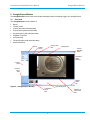
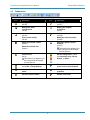
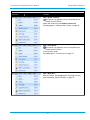
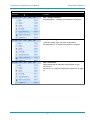
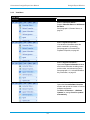
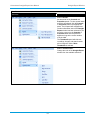
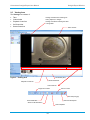
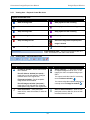
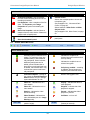
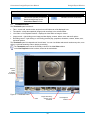
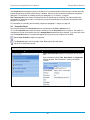
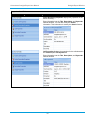
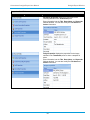
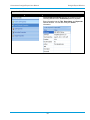
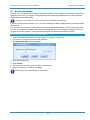
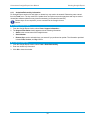
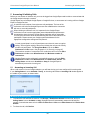
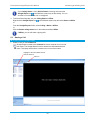
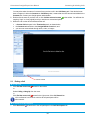
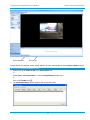
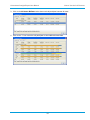
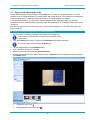
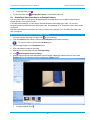
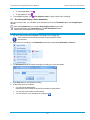
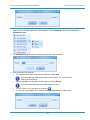
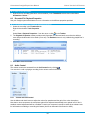
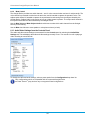
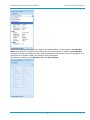
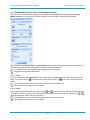
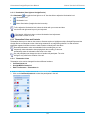
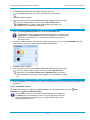
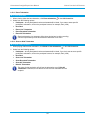
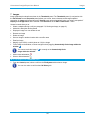
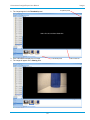
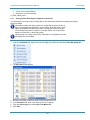
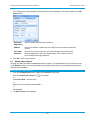
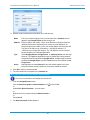
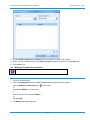
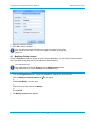
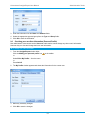
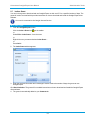
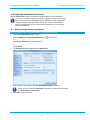
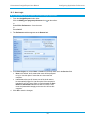
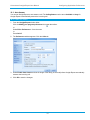
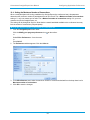
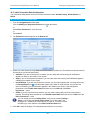
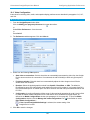
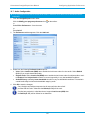
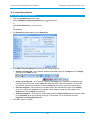
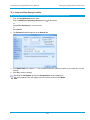
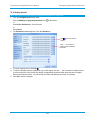
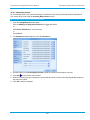
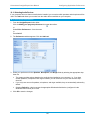
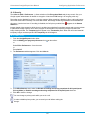
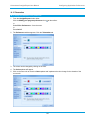
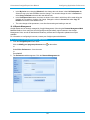
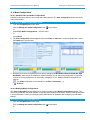
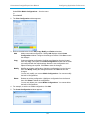
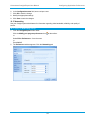
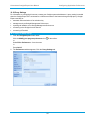
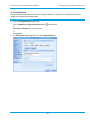
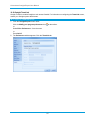
Librestream Onsight Expert User Manual To resume playback, click To stop playback, click 8. To end playback mode, click 6.7 How to Use the Call Features . . (Exit playback mode) or open another video recording. Recording and Playing a Video Annotation After you record a video, you can add a voice annotation to it from the Thumbnails tab of the Onsight Expert window. Open the Properties panel to view the Recording Properties for the video recording selected in the Thumbnails tab. The Has Annotation field will identify if the recording has a voice annotation. To record a voice annotation for a video: 1. If a call is active, end it (see paragraph 5.3, Ending a Call, on page 38). If the conference host ends the call then all call participants will be disconnected. 2. Right-click on a recording in the Thumbnails tab and then select Voice Annotation > Record…. 3. The Annotation dialog box opens and begins recording your voice annotation. 4. Click Stop when you are finished recording. 5. At this point, there are 3 options: You can start recording again. Note that this will overwrite the previously recorded voice annotation. You can play the recorded voice annotation. You can close the voice annotation by clicking on 47 .