1
Test using Dialogic’s TALKER32
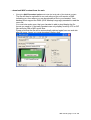
Once the TAPI and Wave drivers have been installed and the Dialogic service is running
you can test the Dialogic card using Dialogic’s own TALKER32 Demo/Testing Application.
TALKER32 can be found by following:
Start -> Programs -> Dialogic System Software -> Dialogic Sample Programs -> TAPI
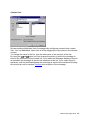
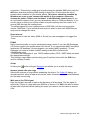
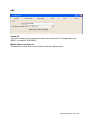
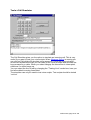
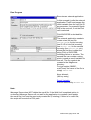
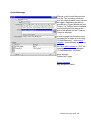
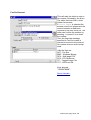
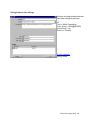
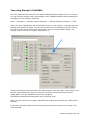
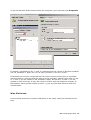
When you start TALKER32 it will find all TAPI devices on the system – amongst them the
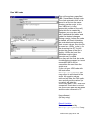
Dialogic lines should be listed. You can find out which are the Dialogic lines by pressing
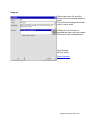
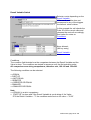
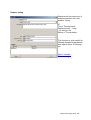
the “Info” button and looking at the description on the Line Information dialog – for
Dialogic lines it will say “Line type: Dialogic Gen 2”
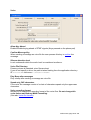
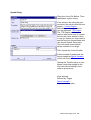
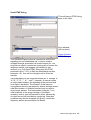
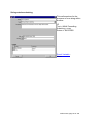
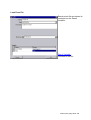
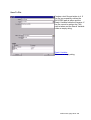
Find all the Dialogic lines and select the “Auto Answer” and “Auto Play” check boxes, and
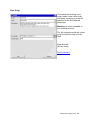
also for each Dialogic line click the “Select file to play” and indicate the sound file
“play.wav” from the TALKER32’s directory (\Program
Files\Dialogic\Samples\Talker32\play.wav) should be used.
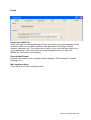
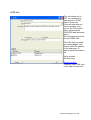
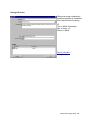
When you now call into the system TALKER32 will answer the call and play “Welcome to
Dialogic…”
If the caller has heard that sound file being played then the system is now ready to be
used with INS.
INS manual, page 97 of 120