1
• Open TRAKTOR Preferences > Recording.
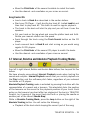
• Click the arrow to drop down the Split at File Size menu and choose a
file size.
• Each time the Audio Recording reaches this file size, it will be split into
a separate audio file.
Deleting the Last Recording
If you are not satisfied with your Audio Recording, you can delete it.
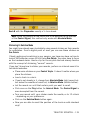
• Click on the Audio Recordings folder icon in the Track Browser.
• Select the recording you wish to delete.
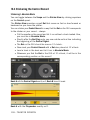
• Click on the Delete button in the Audio Recorder panel. You can also
click the Delete button next to the List Window.
• A menu will pop up asking you to confirm.
• Choose OK.
• The recording will disappear from the List Window.
Note: If you do not want the popup menu to appear each time you choose
Delete, put a check mark in the box labelled Do not show again.
Editing Properties of the Recording
Track properties for the Audio Recording can be edited just like any track
in your Collection, either inline in the List Window, by using the Edit button
or through the Edit context menu option. Additionally there is a shortcut to
the Edit dialog of the currently recording track in the Audio Recorder panel,
called Edit.
100 – TRAKTOR SCRATCH