1
SAM VIBE Scheduling Guide
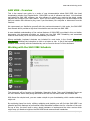
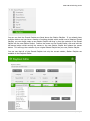
This playlist task shown above will shuffle the playlist selected from the drop-down list but as you
can see, there are a number of other options with which to manipulate a playlist. A complete list of
these features and their uses can be found under Annex D.
Scheduled Events
The scheduled events options allow you to schedule any of the available tasks, to execute on a
specific date and time, or to repeat on a daily, weekly or monthly basis. Use Scheduled Events to
fully automate your station.
An example would be to start your station at 6am every day and then set another scheduled event
to stop it at 10pm. Then you can have additional scheduled events to start the first playblock and
additional scheduled events which could switch out the playblocks every hour to create several
shows or themes during the day.
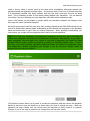
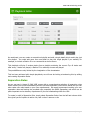
The Scheduled Event Editor is simple to use. Enter a meaningful name, select the starting date and
time. Select the repeat options, the end options and finally select the task. Click save and you
have your scheduled event.
Following on with our back-to-back track, we have now decided that this will be a double-shot
Tuesday which will start on the 4th of December 2012, will run every Tuesday from 10am and will
repeat until further notice. To facilitate this, we gave the scheduled event the meaningful name of
‘Start Double Shot Tuesday’, we set the start date to the 4th December 2012 and the start time to
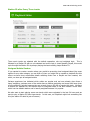
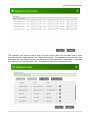
10am. We set the repeat to Weekly and selected never ends. We want to ensure this task starts
without any problems so we schedule a number of tasks in the same Scheduled Event, as you see
in the image below, we have a Start Station task, just in case for whatever reason, the station is not
running. Then we switch the Queue Loop Off to prevent the queue being repeated and we also run
the Clear Queue task. Finally we schedule the ‘Start Back to Back Playblock’ task.
14 | P a g e