1
Controlling Audio and Video Files
Play (F9)
To play the selected file at the currently set speed, press F9, or press the
<Play> button in the Control section at the bottom of the Express Scribe
window.
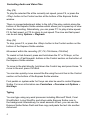
There is a speed adjustment slider to the left of the play controls along the
bottom of the Express Scribe window which allows you to speed up or slow
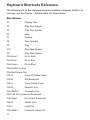
down the recording. Alternatively, you can press F11 to play at slow speed,
F3 for fast speed, or F10 to return to real speed. The slow and fast speed
can be set using Options ~ Playback.
Stop (F4)
To stop, press F4, or press the <Stop> button in the Control section on the
bottom of the Express Scribe window.
Movement within the recording (F7, F8, Ctrl+Home, Ctrl+End)
To rewind or fast-forward, press and hold-down the F7 or F8 keys, or the
<Rewind> or <Fast-forward> buttons in the Control section on the bottom of
the Express Scribe window.
To move to the start directly, hold down the Control key and press Home. To
move to the end, press Ctrl+End.
You can also quickly move around the file using the scroll bar in the Control
section on the bottom of the Express Scribe window.
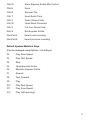
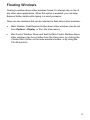
Foot pedals or system-wide ‘hot’ keys can also be used to control Express
Scribe. For more information see Controllers ~ Overview and Options ~
Hot-Keys.
Typing
You can type using any word processor including Microsoft Word, Corel
WordPerfect, Lotus WordPro and others while Express Scribe runs in
the background. Alternatively, for small amounts of text, you can use the
Express Scribe Notes Field and then copy and paste the text into another
document.
6