1
Opticstar PX-137. Ä Opticstar Ltd, 2012.
CONTENTS
Introduction................................................................................................................................................................................ 2
Software Support ................................................................................................................................................................. 2
Package Contents................................................................................................................................................................ 2
System Requirements......................................................................................................................................................... 2
Camera Installation................................................................................................................................................................... 3
Installing Software for Windows DirectShow.................................................................................................................. 4
Installing Software Drivers for Windows ......................................................................................................................... 7
Verifying Successful Installation.....................................................................................................................................10
Installing etAMCAP.................................................................................................................................................................11
Running etAMCAP .............................................................................................................................................................11
Image Resolution ...............................................................................................................................................................11
Automatic Exposure Time ................................................................................................................................................12
Manual Exposure Time......................................................................................................................................................12
Colour Settings ..................................................................................................................................................................12
Camera Speed ....................................................................................................................................................................12
Other Settings.....................................................................................................................................................................12
ISCapture..................................................................................................................................................................................13
Installing ISCapture ...........................................................................................................................................................13
Camera Control ..................................................................................................................................................................14
Troubleshooting......................................................................................................................................................................16
USB Requirements ............................................................................................................................................................16
Express Card ......................................................................................................................................................................16
Re-Installing the Software Drivers ..................................................................................................................................17
Re-Installing the Software Drivers ..................................................................................................................................17
Support.....................................................................................................................................................................................18
Other Software.........................................................................................................................................................................18
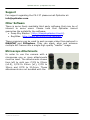
Microscope Attachments.......................................................................................................................................................18
CAUTION
!
1. Please read and follow the installation instructions on the following
pages for a trouble free installation!
2. Do not drop your camera as this can result in serious damage.
3. Only use the supplied power supply unit if you camera comes with one.
4. Do not point the camera to a bright light source like the Sun without the
appropriate filters as this will damage the sensor.
5. Disconnect the camera from the computer when not in use.
6. Treat the camera glass window with the same care as you would of a
photographic lens.
Manufacturer’s Warranty
This product has a 1 year back to base warranty. For after
sales support please contact Opticstar at: info@opticstar.com
Updated: 02/10/2012
1