1
9
User Reference
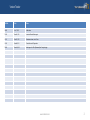
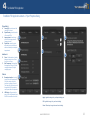
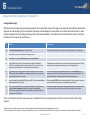
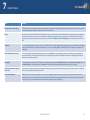
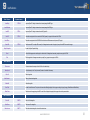
Main - File menu
Keyboard shortcut
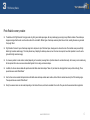
Insert Map
CTRL-M
opens an “Open File” dialog to locate and load a scenery image of the BMP type
opens an “Open File” dialog to locate and load a scenery image of the RAW type
Insert Elevation
Load INF
CTRL-L
opens an “Open File” dialog to locate and load an INF project file
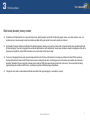
Save INF
CTRL-S
Saves the current project into the current active INF file (if present), or prompts for the name of the INF file.
Save INF as…
Create BGL
Saves the current project into the NEW INF file. Note that the new INF becomes an active (current) INF project.
CTRL-B
Project Properties
Uses the current INF to compile a BGL scenery file. If changes have been made to the project, it prompts for the INF file to save the changes.
Invokes the Project Properties Dialog
Reset
Clears all the imagery and re-sets the project to a blank default. If changes have been made, prompts to save project to INF file.
Exit
Exits the application. If changes were made to a project (if any), prompts to save project to INF file.
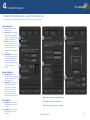
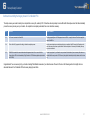
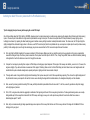
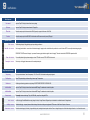
Main - View menu
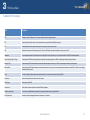
Fit on screen
Zooms and centers the scenery so that all of it fits on the work desktop.
Actual pixels
Zoom the scenery to the 1:1 ratio (true size). Centers on the middle of the scenery.
Hide All
Hide all image tiles
Hide Selected…
Hide only the selected image tiles
Unhide All
Show all image tiles
View Filter
Invokes the view filter menu. The options on this menu allow filtering the display of the imagery according to its types (Imagery, Water Masks and Blend Masks).
Reset Order
Reset the order of image layering to the INF file order. This will display the layering of the imagery in the order they were added in.
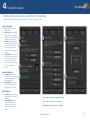
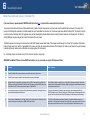
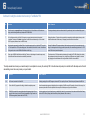
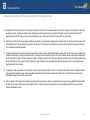
Main - Select menu
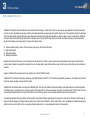
Select All
SHIFT-A
Select all of the image tiles
Select None
SHIFT-X
Select none of the image tiles
Select Inverse
SHIFT-I
Select the unselected image tiles, de-select the selected ones
www.terrabuilder.com
38