1
Adding a New Contacts Entry
Your phone can store up to 600 Contacts entries.
Contacts entries can store up to a total of 7 phone
numbers, and each entry’s name can contain 64
characters.
⽧
Adding a New Contacts Entry (page 59)
⽧
Saving a Phone Number (page 60)
⽧
Contacts Entry Options (page 60)
⽧
Editing a Contacts Entry (page 61)
– or –
⽧
Adding a Number to a Contacts Entry (page 61)
⽧
Editing a Contacts Entry’s Numbers (page 62)
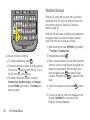
From standby mode, press CONTACTS (right
softkey) > Add New > New Contact.
⽧
Assigning Speed Dial Numbers (page 62)
⽧
Selecting a Ringer Type for an Entry (page 63)
⽧
Assigning a Picture to an Entry (page 64)
⽧
Creating a Group (page 64)
⽧
Finding Contacts Entries (page 65)
⽧
Secret Contacts Entries (page 65)
⽧
Dialing Sprint Services (page 66)
⽧
Wireless Backup (page 67)
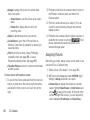
1. Highlight
and press
> Contacts > Add New
> New Contact.
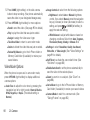
2. Enter a phone number and press
Contacts
2E. Contacts
.
Shortcut: Enter the phone number in standby mode and
press OPTIONS (right softkey) > SAVE. Proceed
with steps 3–5.
3. Highlight [Add Name], enter a name for the entry
and press
.
4. Highlight [Add Number], enter the phone number,
and then press
.
5. Highlight a label field (Mobile, Home, Work, Pager,
Fax, or Other) and press
.
2E. Contacts
59