1
9. Cue Lists - Page 141
9.5.2
•
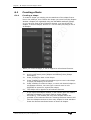
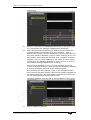
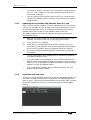
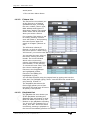
To set the fade in time of the cue, press [Fade In] then type a
time in seconds and press Enter. Both HTP and LTP channels
are affected by the fade.
•
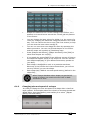
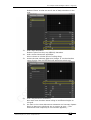
The fade out time of the cue is set by default to be the same as
the fade in time. You can change the fade out time by pressing
[Fade Out], then type the time in seconds and press Enter. To
set equal to Fade In time, delete the time and leave the box
blank.
The fade out time starts when the next cue fires, so if you set
the time to 1 second, the outgoing cue would start a 1 second
fade out as the new cue begins its fade in.
•
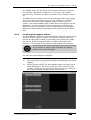
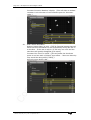
The Delay Out time of the cue would normally be used if the
console links automatically to the next cue, and sets a wait time
before the next cue starts its fade in. So the outgoing cue
would start to fade out, and the delay out time would run
before the new cue begins its fade in.
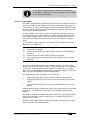
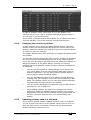
Cue linking & Link Offset
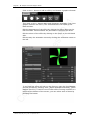
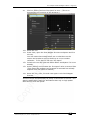
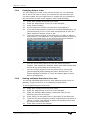
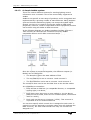
Cues in cue lists may be linked together, allowing you to build up
complex self-timed sequences. The link options are set using the
softkeys and are:
•
[Link Wait For Go]: the cue waits for the Go button to be
pressed then fires immediately. Link Offset is disabled.
•
[Link After Previous Cue]: The cue fires when the previous cue
has finished its delay in and fade in times. A Link Offset can be
set to add a delay between the previous cue finishing and this
cue firing. The offset can be given as a time in seconds, or as a
percentage of the fade time of the previous cue.
•
[Link With Previous Cue]: The cue fires at the same time as the
previous cue fires. A Link Offset can be set to add a delay
between the previous cue firing and this cue firing, set either in
seconds or as a percentage of the fade time of the previous
cue.
TitanUniversal_Man_v5-0_TT.doc 23 September 2011