1
TEACHER’S AREA REPORTS
44
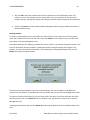
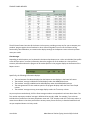
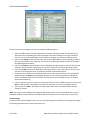
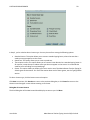
It’s important to note that class summary reports may be skewed when students whose information is
displayed in the report have not yet completed lessons in one mode or another because their lack of
experience is represented with a numerical value of zero.
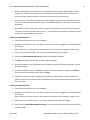
Printing Class Progress Reports
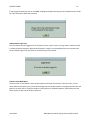
You can print a hard copy of the class progress reports for your records.
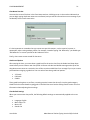
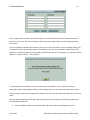
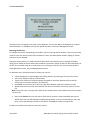
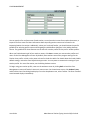
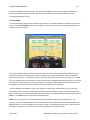
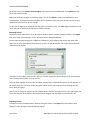
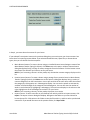
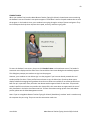
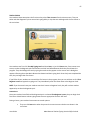
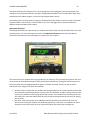
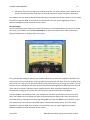
Begin by selecting your desired class profile name from the Class drop-down menu. The progress report for
all the students in that class profile displays. You can also display information about student progress for all
the profiles in program by selecting All Classes from the Class from the drop-down menu.
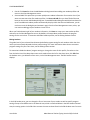
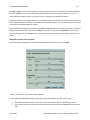
To adjust the appearance or hierarchy of the information in the report, you can use the column sort
functionality. Please see the Class Progress Reports section for more information about how to use the sort
feature and how to interpret the various tracking measurements on the student report.
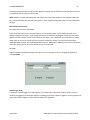
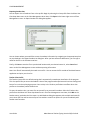
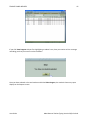
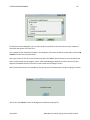
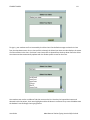
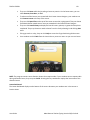
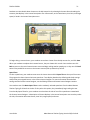
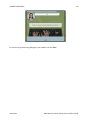
When the class progress report appears exactly how you wish, click Print in the upper-left corner of the
Reports screen, next to Back. A spreadsheet just like the one that appears on your screen, with class
summary information at the bottom, prints from the printer you have selected as your default printer.
Student Progress Reports
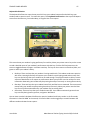
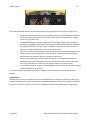
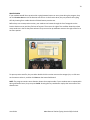
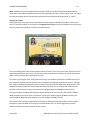
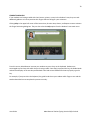
From the Reports screen, you can also track, analyze, and print individual student progress with four
different types of individual student reports, including Summary, Keyboard Proficiencies, Curriculum Map,
and Progress Over Time.
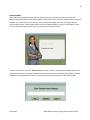
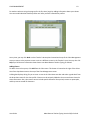
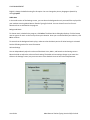
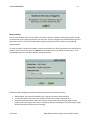
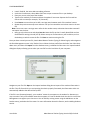
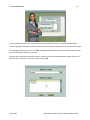
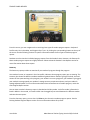
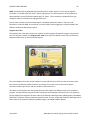
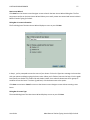
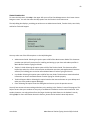
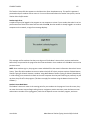
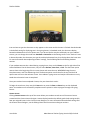
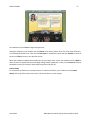
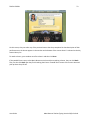
To view the progress of an individual student, select the student’s class profile from the Name drop-down
menu and click the student’s row on the class list to highlight it. Highlighting a student’s row from the class
list activates the View Progress button. To proceed, click View Progress in the upper-right corner of the
Reports area.
User Guide
Mavis Beacon Teaches Typing Version 20 for Schools